Todoist Notion Integration
Sync Todoist with Notion automatically - tasks, projects, sections, and labels always up to date, no coding needed.
Free to start. No credit card required.
Trusted worldwide
500+ teams stopped copying data manually.
Yours can too.














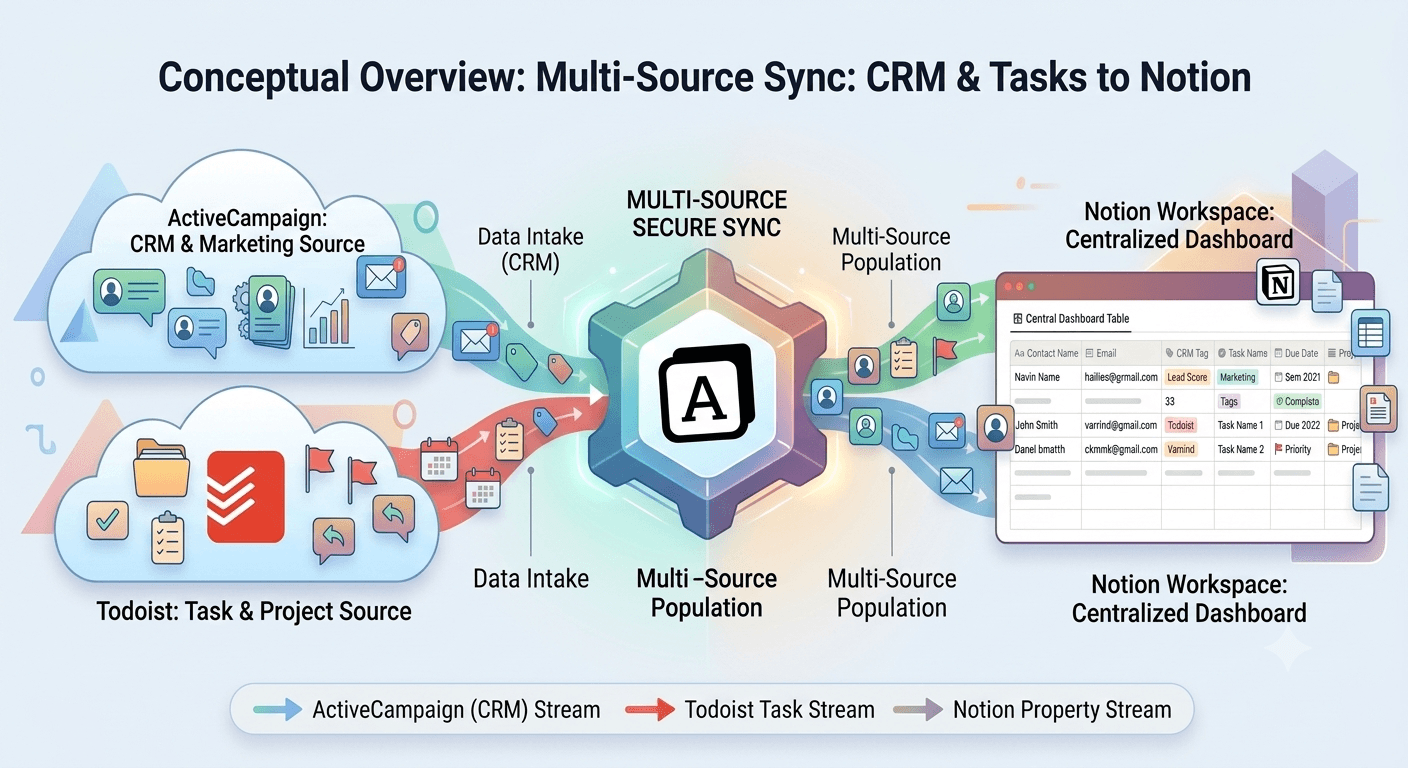
The Todoist Notion integration lets you pull live task data directly from your Todoist account into Notion using Note API Connector. Whether you are archiving completed tasks, building a project overview, organizing work by label, or giving your team a read-only view of what is on your to-do list, this integration keeps your Notion databases in sync with Todoist automatically.
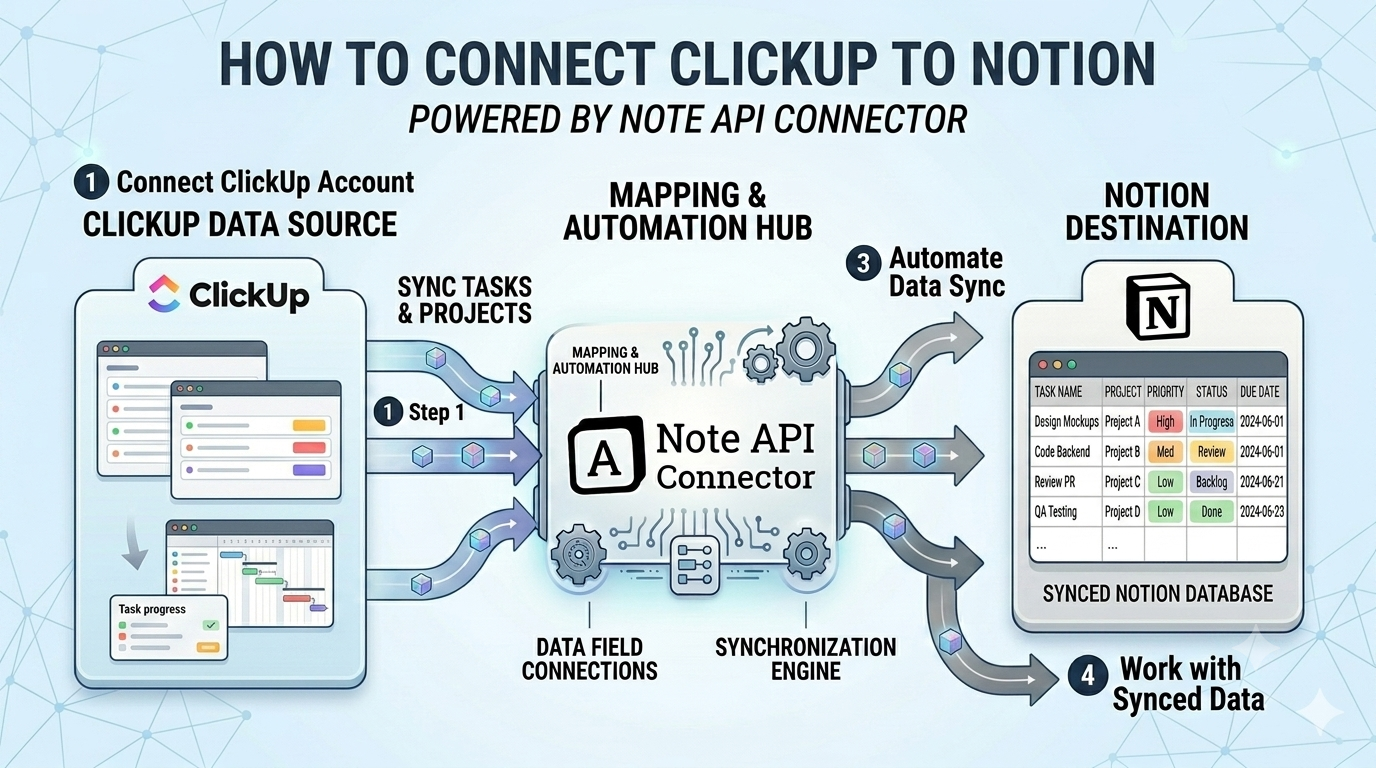
With Note API Connector you can sync Todoist with Notion on a fully automated schedule (hourly, daily, or at custom intervals) without writing a single line of code. Grab your Todoist API token, choose a Notion database, map the fields visually, and your data flows into Notion on autopilot from that point forward.
How to connect Todoist to Notion
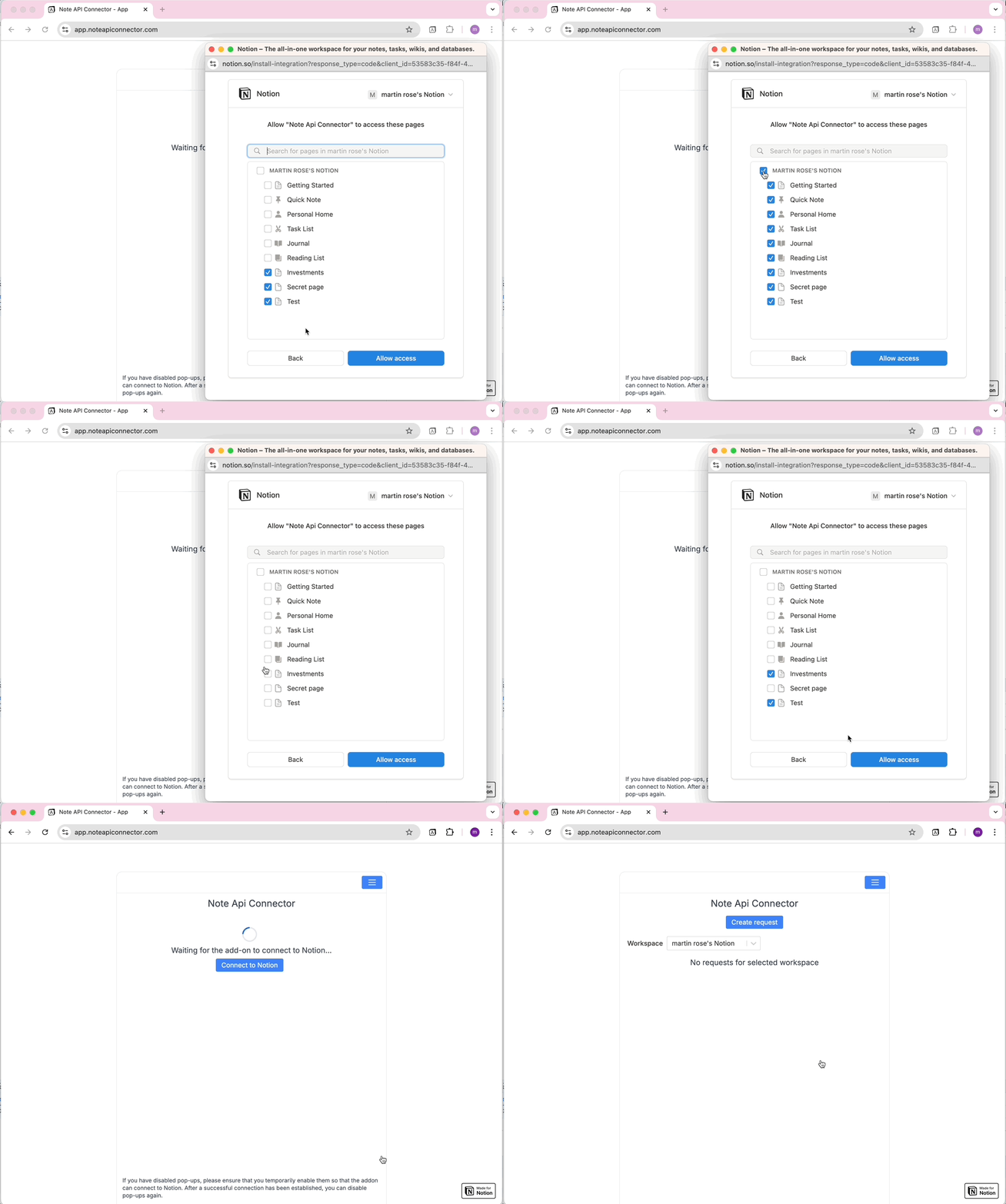
Connect your Notion workspace
Click Connect to Notion, authorize Note API Connector, and select the pages and workspace where your Todoist data should appear.
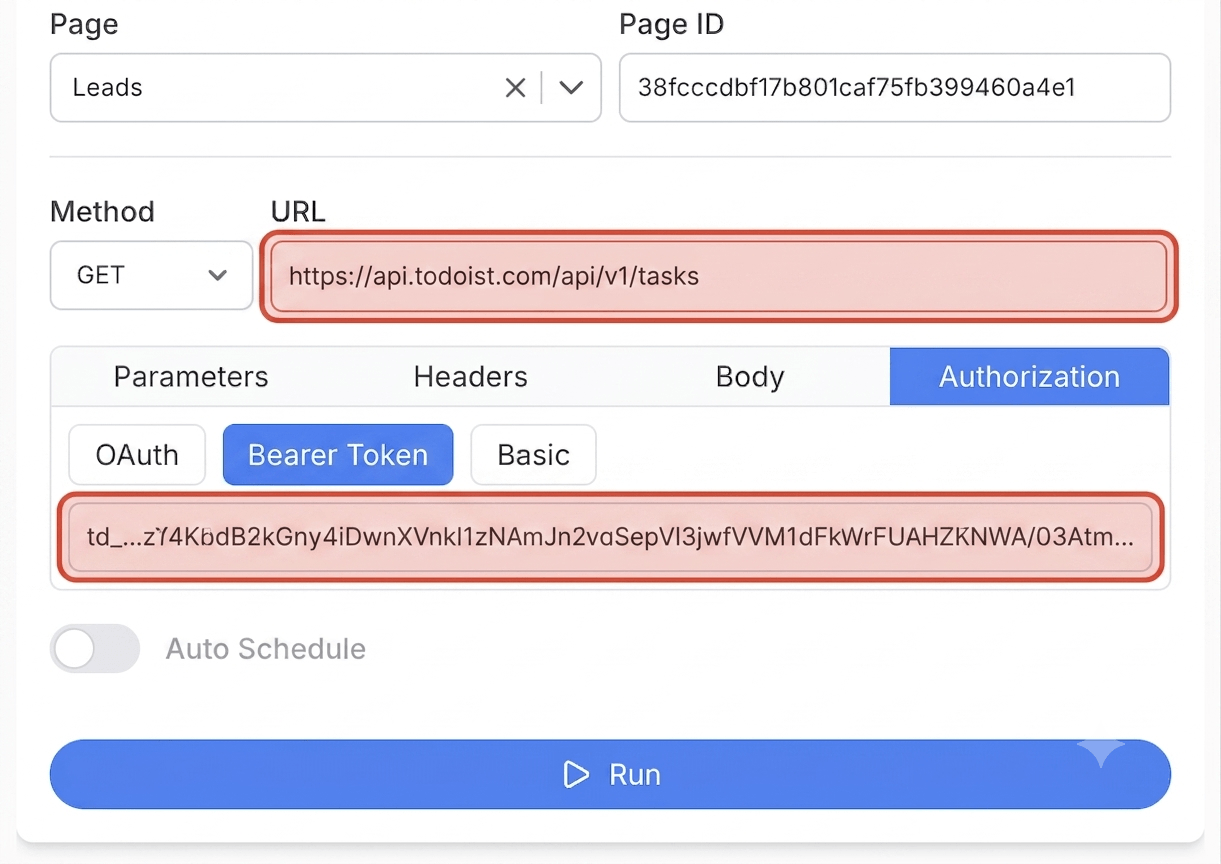
Get your Todoist API token and create your request
In Todoist, click your avatar, open Settings > Integrations, click the Developer tab, and copy your API token. In Note API Connector, click Create Request and paste your Todoist endpoint URL, for example https://api.todoist.com/api/v1/tasks. Open the Authorization tab, select Bearer Token, and paste your API token. Give the request a name and click Run.
Choose your data and map fields
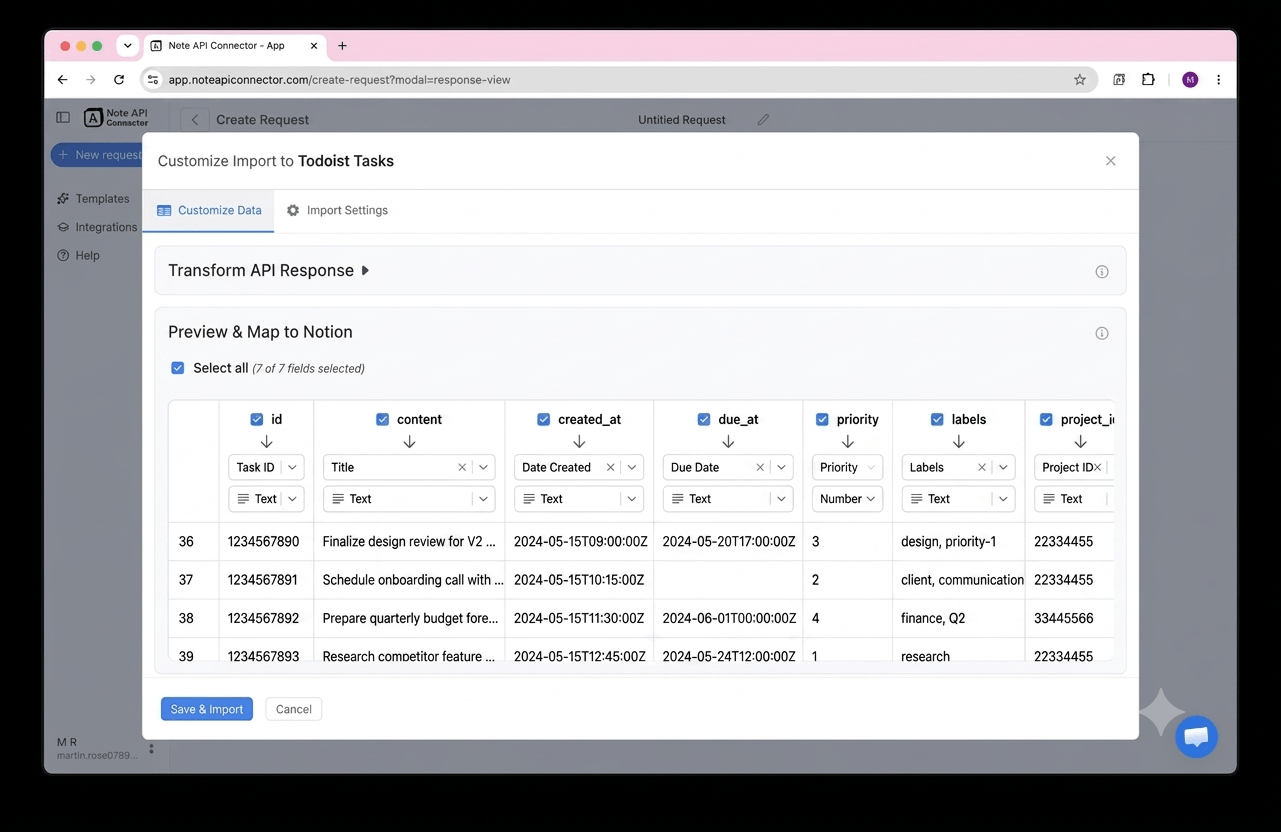
In the Response Field Mapping screen, select which Todoist fields to include - such as task content, due date, priority, project, or labels - and map each one to a Notion property. You can match existing properties, create new ones, or set the field type. Click Save & Import when you're done.
Set your sync schedule and go live
Enable Auto Schedule and choose your refresh interval. Your Todoist data will sync with Notion automatically from that point forward, with no manual refreshes needed.
⏱ Hourly / Daily / Custom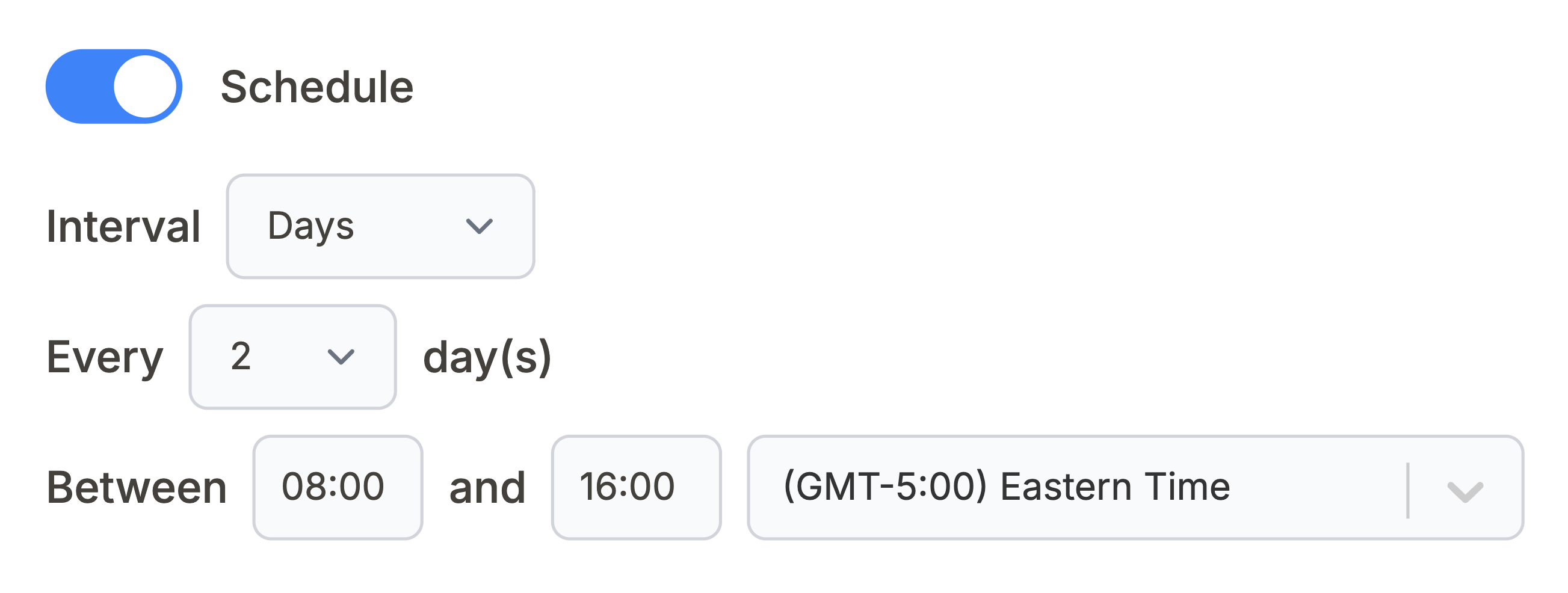
What Todoist data can you sync with Notion?
Use these Todoist API endpoints directly in Note API Connector. Each one can be mapped to a separate Notion database.
All active tasks with content, due date, priority, project, and labels. Build a live to-do tracker or task archive inside Notion.
https://api.todoist.com/api/v1/tasks
All projects with name, color, and view style. Use this to document your project structure or cross-reference project names when syncing tasks.
https://api.todoist.com/api/v1/projects
All sections within your projects with name and order. Mirror your project layout when organizing synced tasks inside Notion.
https://api.todoist.com/api/v1/sections
All personal labels with name and color. Reference label names to categorize or filter tasks once they are inside Notion.
https://api.todoist.com/api/v1/labels
Comments left on tasks or projects, with content and posted date. Keep a record of task discussion history inside Notion.
https://api.todoist.com/api/v1/comments
See how it works
Why sync Todoist with Notion?
Always up to date
Scheduled sync runs automatically. Your Notion database reflects live Todoist data without any manual work.
No coding required
Point, click, and map fields. Connect Todoist to Notion in minutes without any programming knowledge.
Custom schedule
Choose hourly, daily, or custom intervals. You control exactly when Notion pulls fresh data from Todoist.
Conclusion
With Note API Connector, setting up a complete Todoist Notion integration takes minutes, not days. Your tasks, projects, and labels sync automatically into Notion on your chosen schedule, with no code and no manual copy-paste.
Whether you are building a personal productivity dashboard, archiving completed tasks for review, tracking project progress across teams, or giving stakeholders a read-only view of your to-do list in Notion, connecting Todoist to Notion gives you the flexibility of Notion's interface with the real-time accuracy of Todoist's data.
Frequently Asked Questions
Yes. Todoist provides a unified REST API (v1) that exposes tasks, projects, sections, labels, comments, and more. Note API Connector connects to this API directly using your personal API token to pull your Todoist data into Notion on a scheduled basis.
In Todoist, open Settings > Integrations > Developer and copy your API token. In Note API Connector, connect your Notion workspace, click Create Request, and paste a Todoist endpoint URL such as https://api.todoist.com/api/v1/tasks. Open the Authorization tab, select Bearer Token, and paste your API token. Select your Notion database, map the fields visually, and run the import.
The Todoist API authenticates using a Bearer token. You copy your personal API token from Settings > Integrations > Developer in your Todoist account, then paste it into the Bearer Token field under the Authorization tab in Note API Connector.
Yes. Enable Auto Schedule in Note API Connector and choose your refresh interval: hourly, daily, or custom. Your Todoist data will sync with Notion automatically on that schedule with no manual action required.
You can sync tasks, projects, sections, labels, and comments. Each Todoist endpoint can be mapped to a separate Notion database, so you can build a full task tracker, project overview, and comment log all in one Notion workspace.
No. Note API Connector is a no-code tool. You paste your Todoist API endpoint URL, add your API token under Bearer Token authorization, select your Notion database, and map fields visually using the response field mapping view. No programming knowledge is needed.
Yes. Note API Connector uses your Todoist API token for read-only data access. Your credentials are never stored on our servers, and Note API Connector never writes or modifies any data in your Todoist account.