Live Notion CRM: Pipedrive to Notion in a Few Clicks
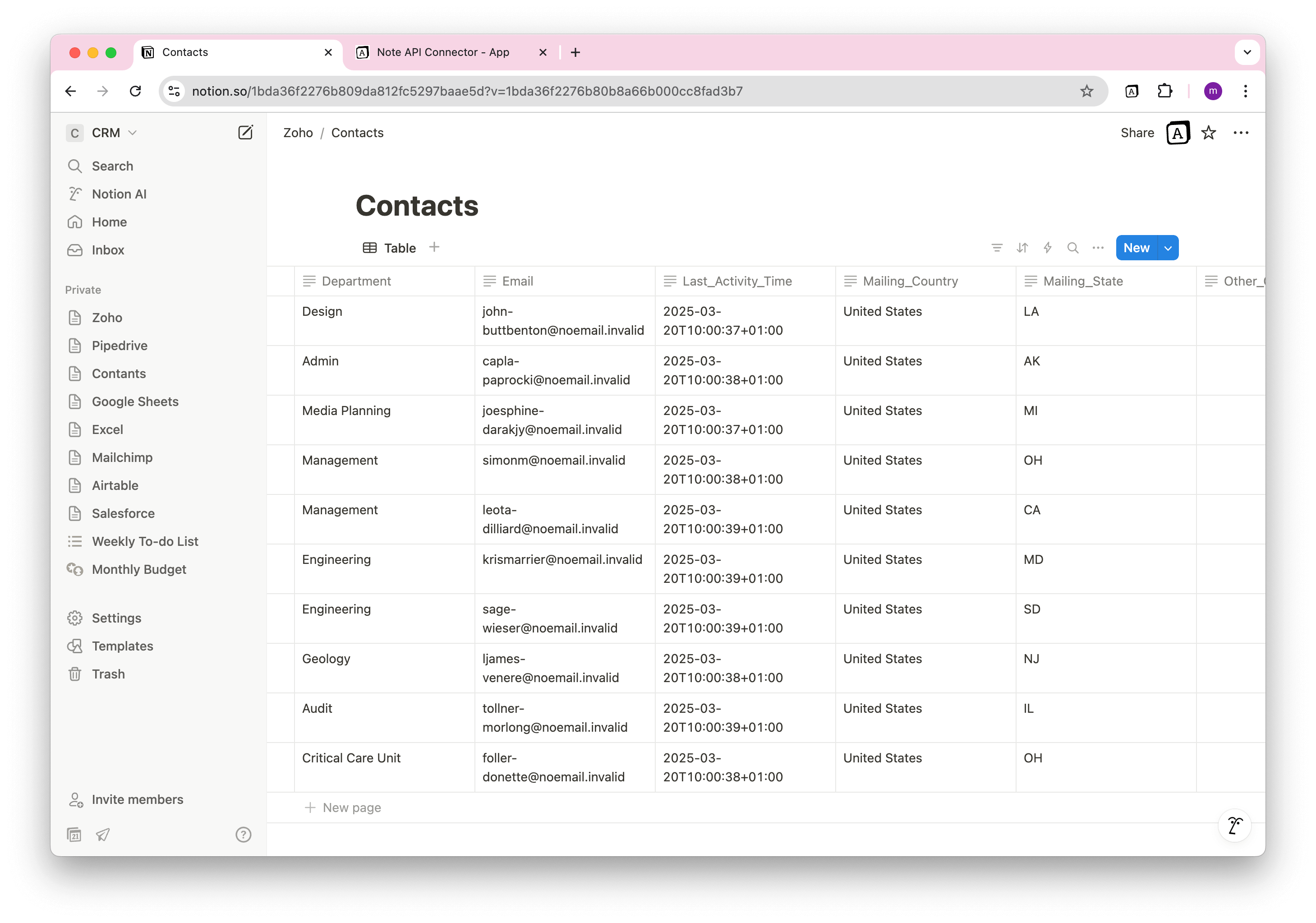
Looking for the easiest way to sync Pipedrive with Notion so your team always sees up-to-date contacts, organizations, and deals? This step-by-step Notion Pipedrive Integration guide shows you how to mirror Pipedrive into Notion without writing a single line of code.
With Note API Connector, you can connect Pipedrive’s API to Notion, choose what you want to bring over, and keep it updated automatically on a schedule. No technical setup, just a few clicks.
TL;DR
- Decide what to import and use Pipedrive API v1 for complete data.
- Import Organizations with Note API Connector into a Notion database.
- Import People into a separate Notion database for contacts.
-
Link People to Organizations by matching
org_id.valueto the Organizationsid. - If you need to sync more than 100 items, set limit=500 or enable paging to let Note API Connector fetch all records automatically.
- Automate updates on a schedule to keep Notion in sync with Pipedrive.
Getting started with Note API Connector
Start syncing your data to Notion in just a few clicks. Connect your Notion workspace, grant the necessary permissions, and you’re ready to create powerful API-based automations, no coding required.
👉 Follow the official setup guide to get started in minutes.
Get a Pipedrive Access Token
To securely get data from Pipedrive to Notion, you need to get an API token .
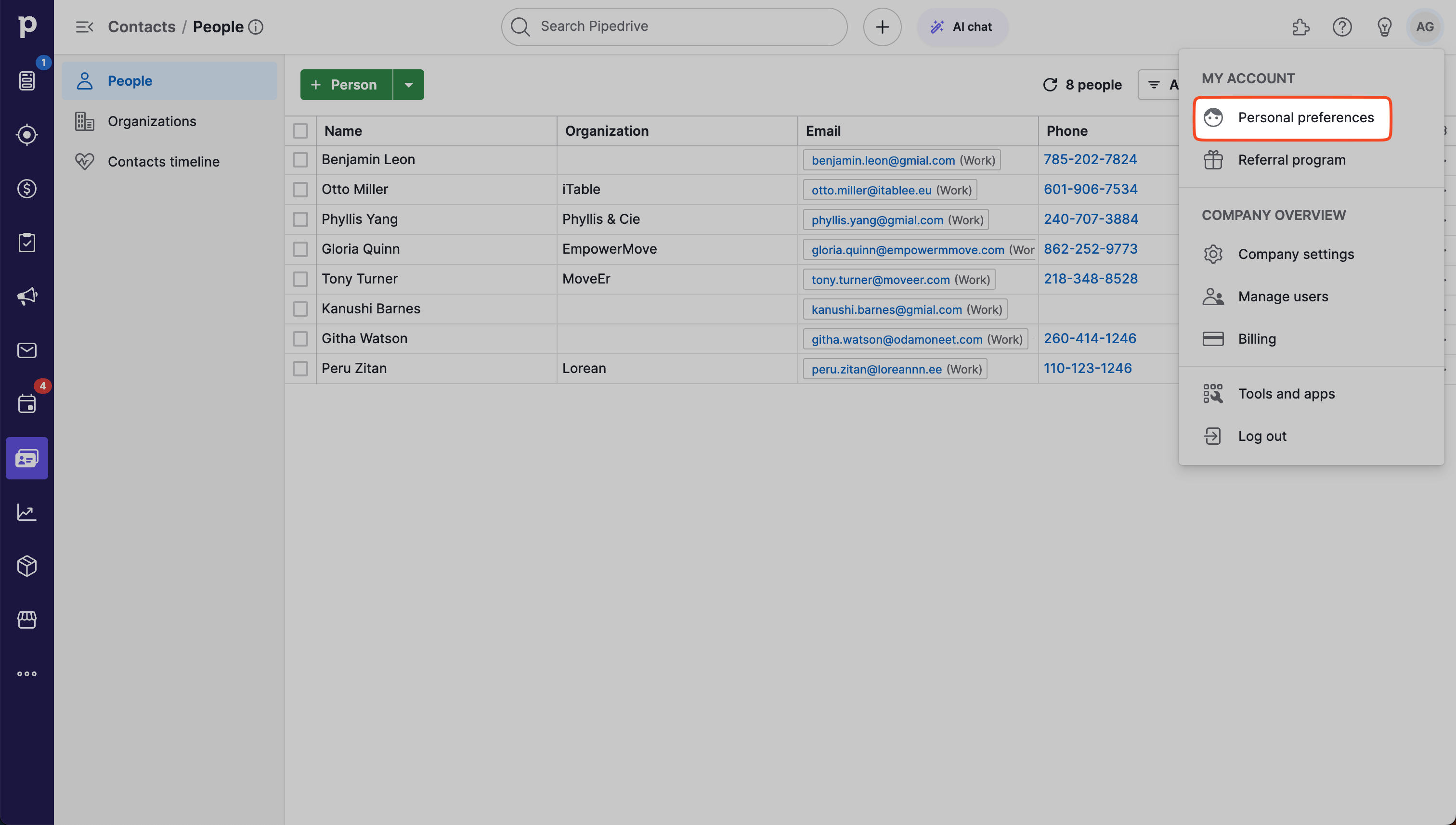
Log in to Pipedrive and navigate to Settings > Personal preferences > API .
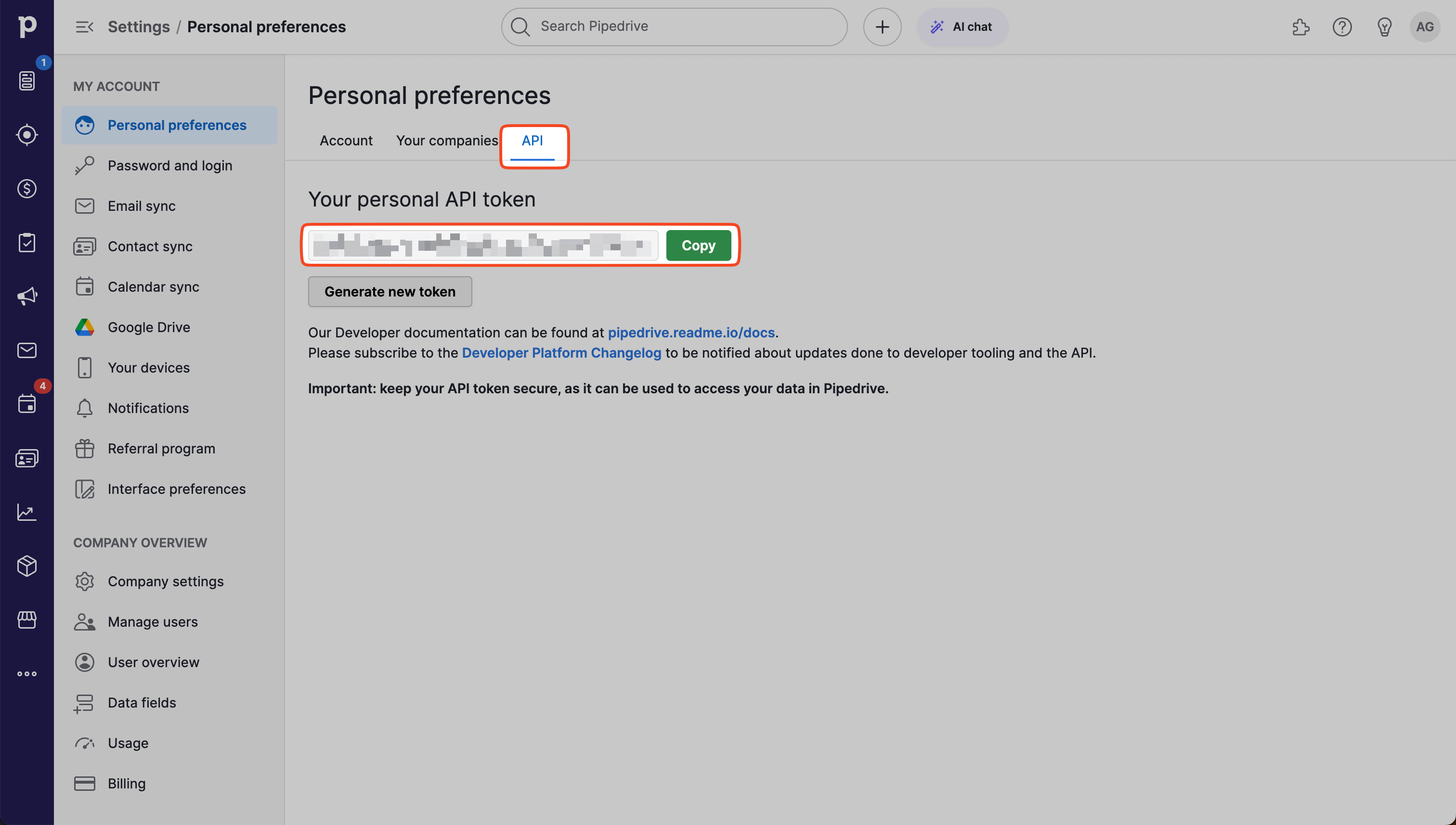
This token allows you to access your Pipedrive data via API requests.
Import Pipedrive Data into Notion
If your goal is to sync Pipedrive with Notion and keep everything up to date, start by deciding which data you want to bring in. The most common objects are Organizations (companies), People (contacts), Deals, Activities, and Notes. You do not need to be technical for this. Note API Connector handles the heavy lifting so your Notion Pipedrive integration is simple and reliable.
Pipedrive offers two API versions: v1 and v2. For a smooth first import we will
use v1. It returns complete records without extra settings. With v2 you would need
to add additional parameters to fetch all fields. If you want to browse what is available, you can review
the
Pipedrive API
pages, but it is optional for this tutorial.
- What you need: your Pipedrive API token and a Notion database where the data will be saved.
- How it works: create a request in Note API Connector, paste the Pipedrive URL, click Run, choose the fields you want, and import.
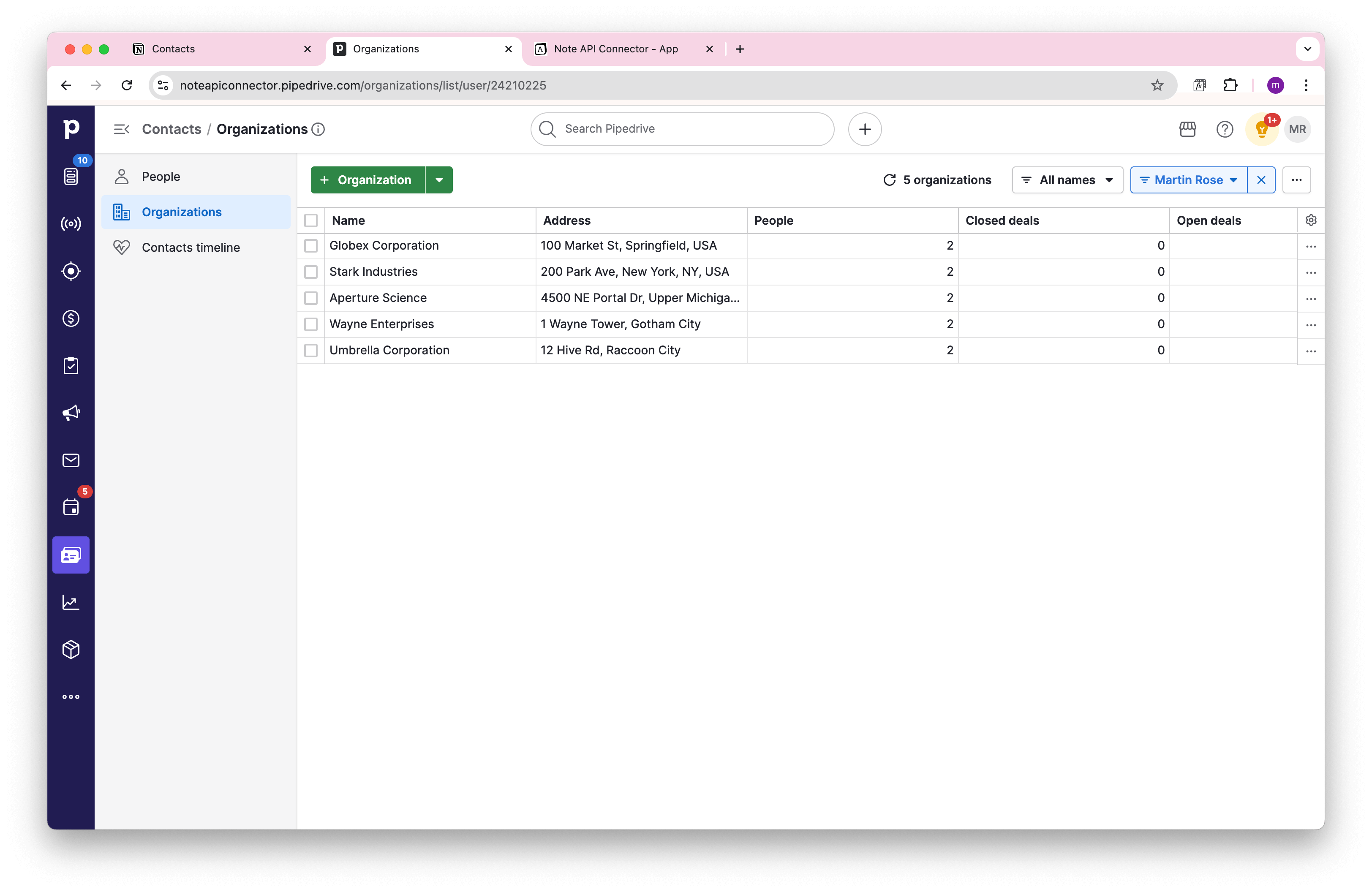
- Best starting point: import Organizations first, then import People and link them to the right company. This keeps relationships in Notion the same as in Pipedrive.
In the next steps we will import Organizations, preview the data, and save it to Notion. After that we will link People to their Organizations so your Notion CRM mirrors Pipedrive.
Import Pipedrive Organizations into Notion
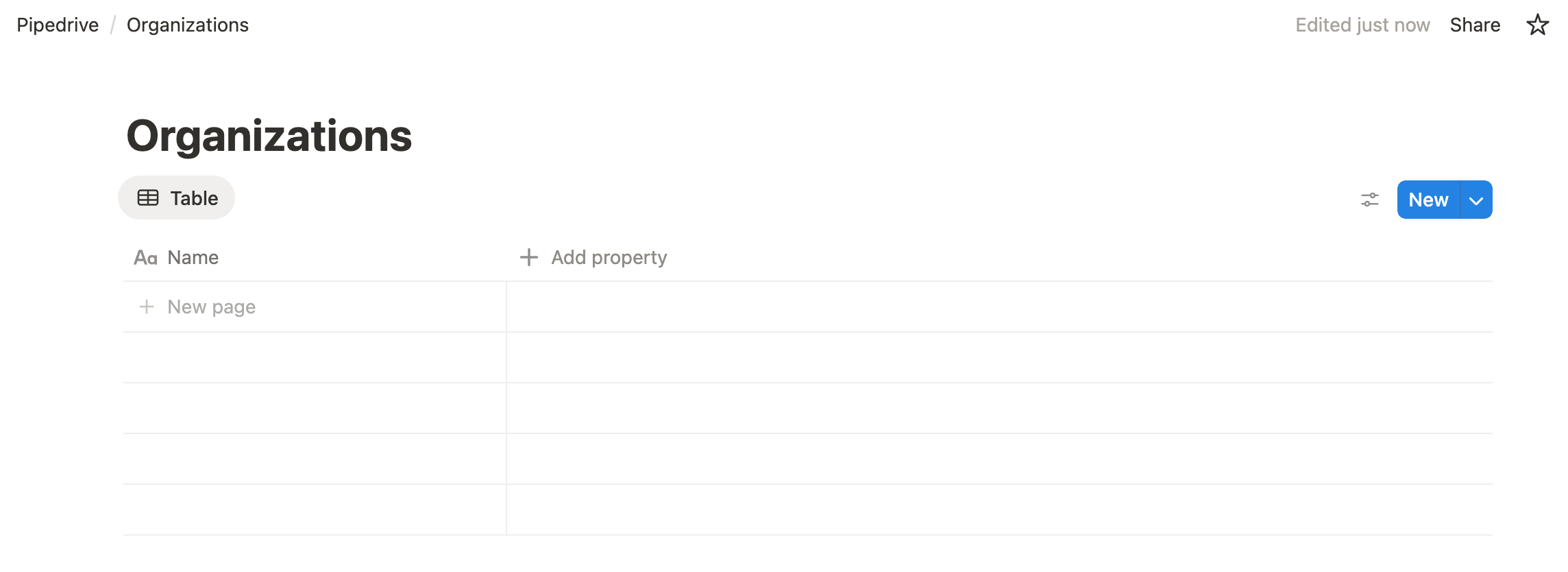
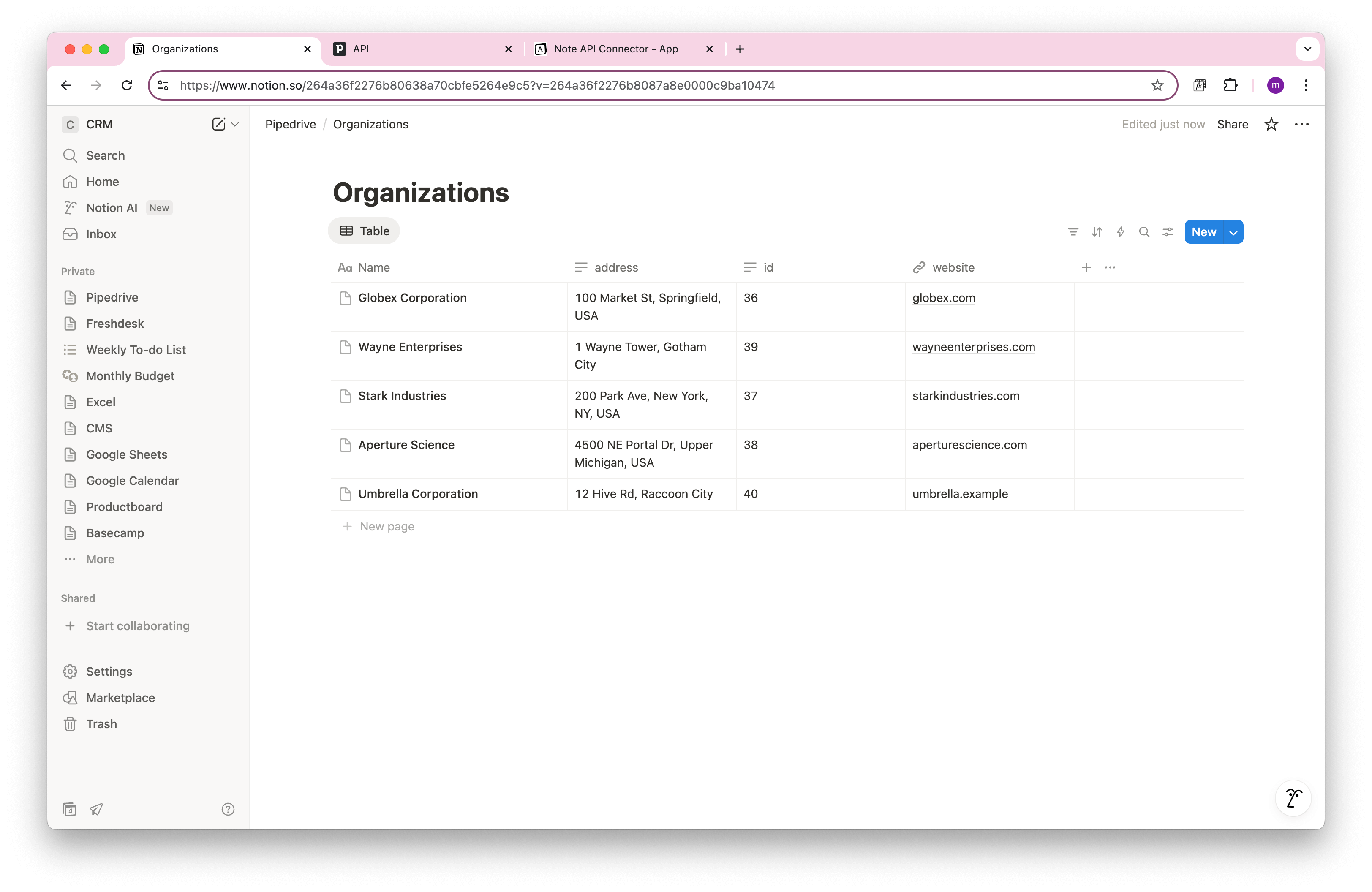
First, create a Notion database where your Pipedrive Organizations data will live. This is the foundation of your Notion Pipedrive Integration and makes it easy to sync Pipedrive with Notion later.
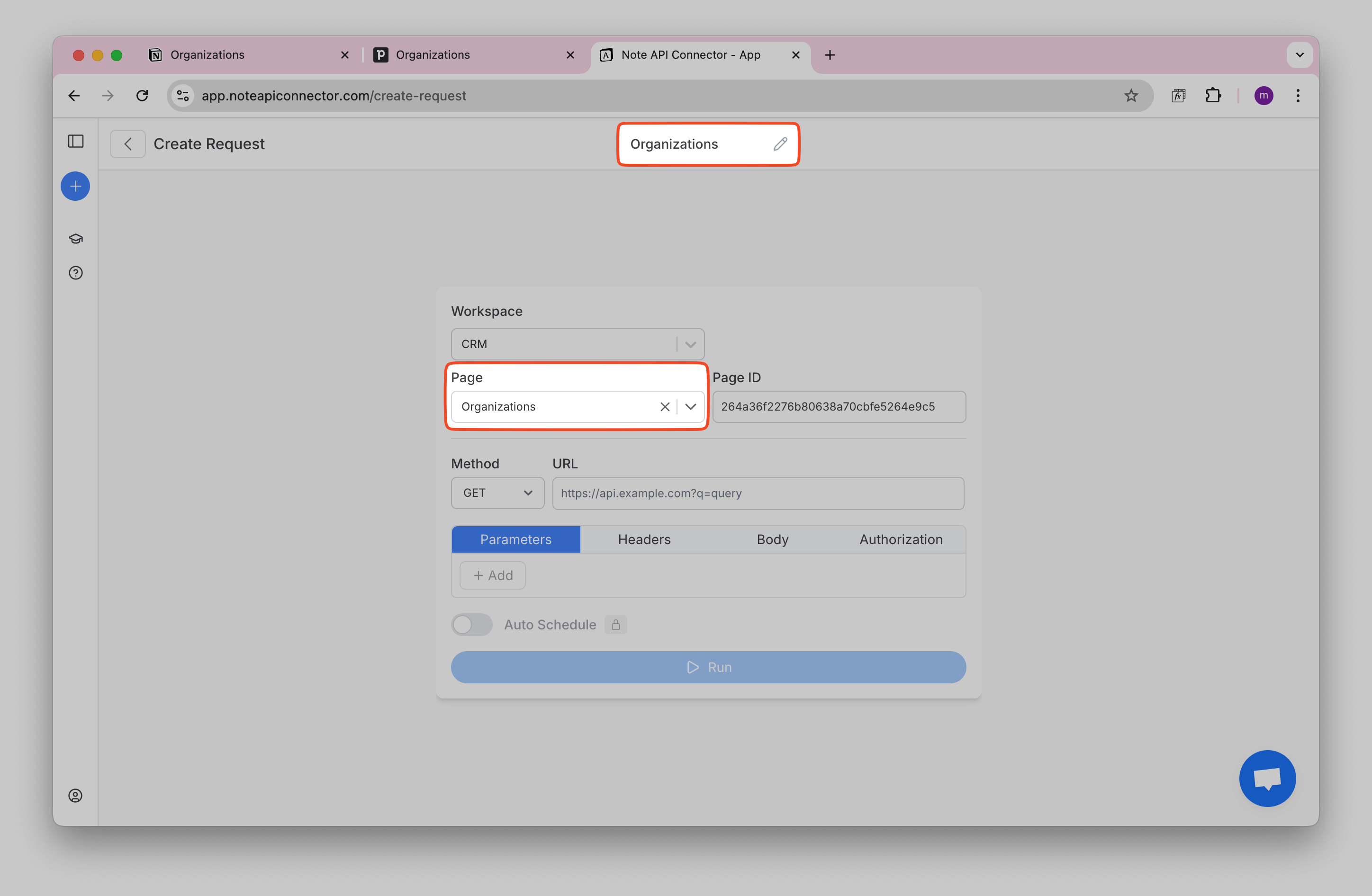
Open Note API Connector and click Create request .
Name your request (e.g., Organizations ). Select the Notion database where you want to import the data.
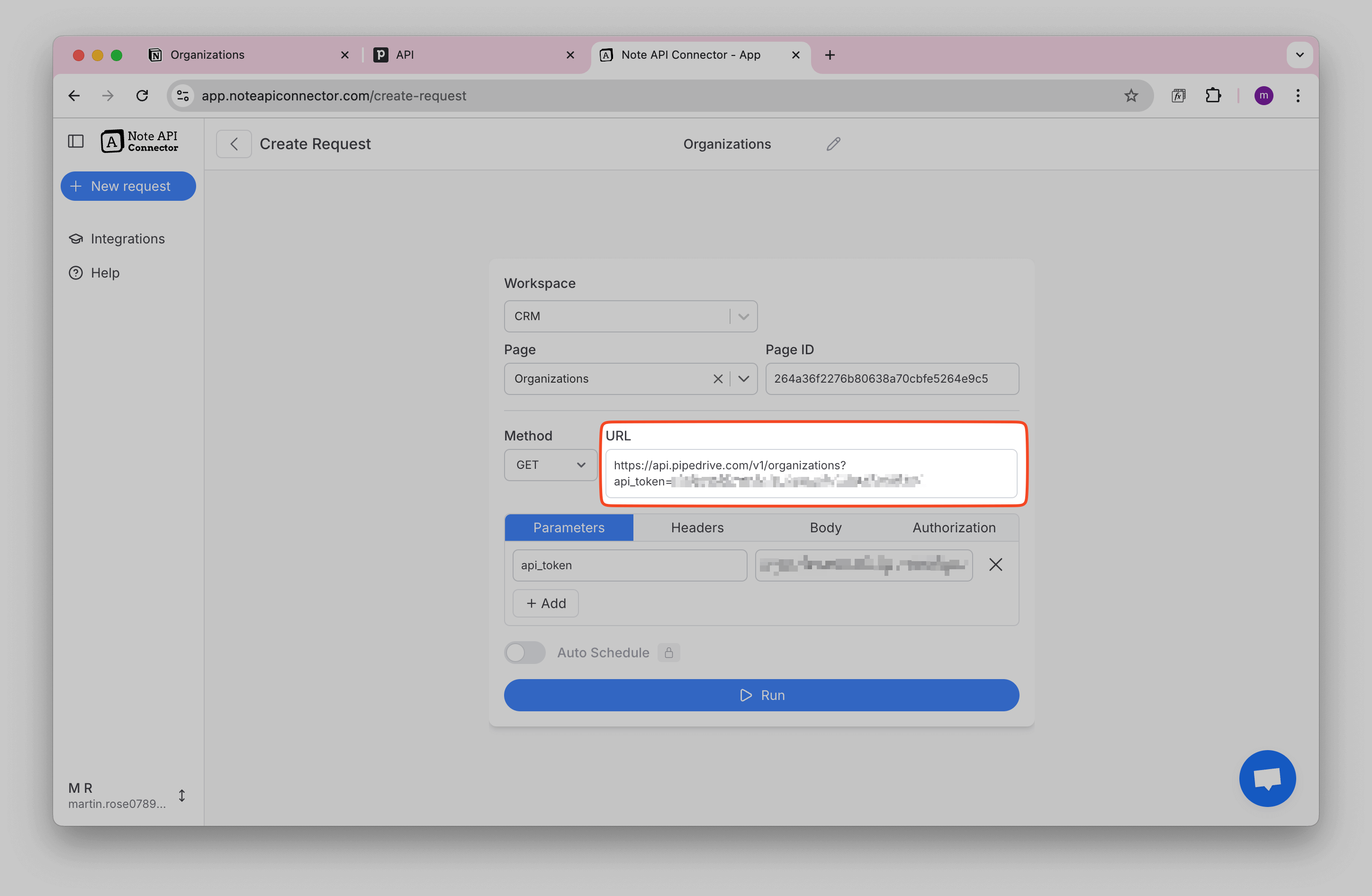
To retrieve Pipedrive contacts, Use this API endpoint (replace
YOUR_API_KEY
with your actual token).
https://api.pipedrive.com/v1/organizations?api_token=YOUR_API_KEY
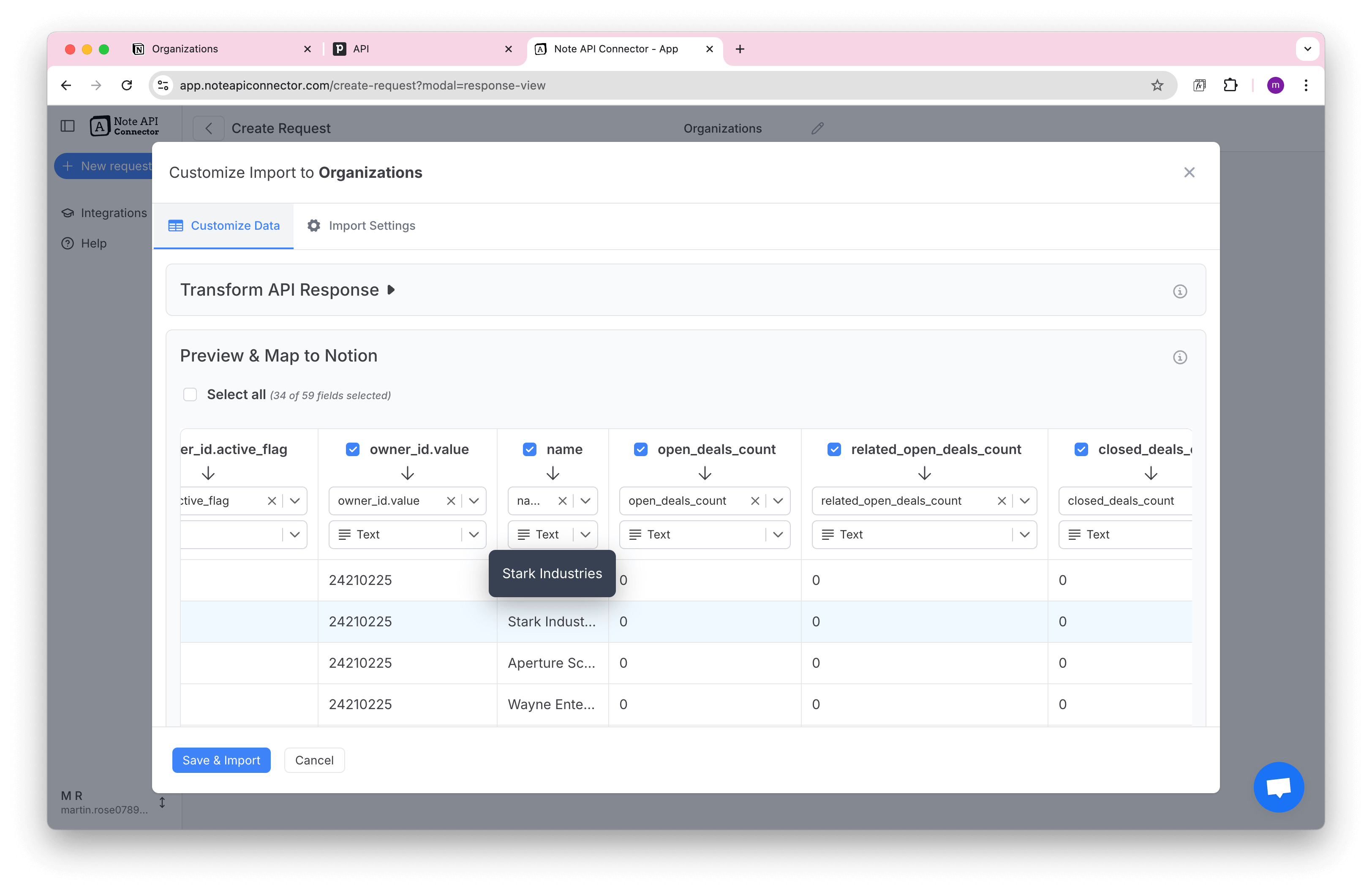
Click Run. In the Response Field Mapping view, preview the Pipedrive organizations and select the fields you want to import into Notion.
Next, open
Import Settings, choose
Update mode and
select id as
field that identifies and update records.
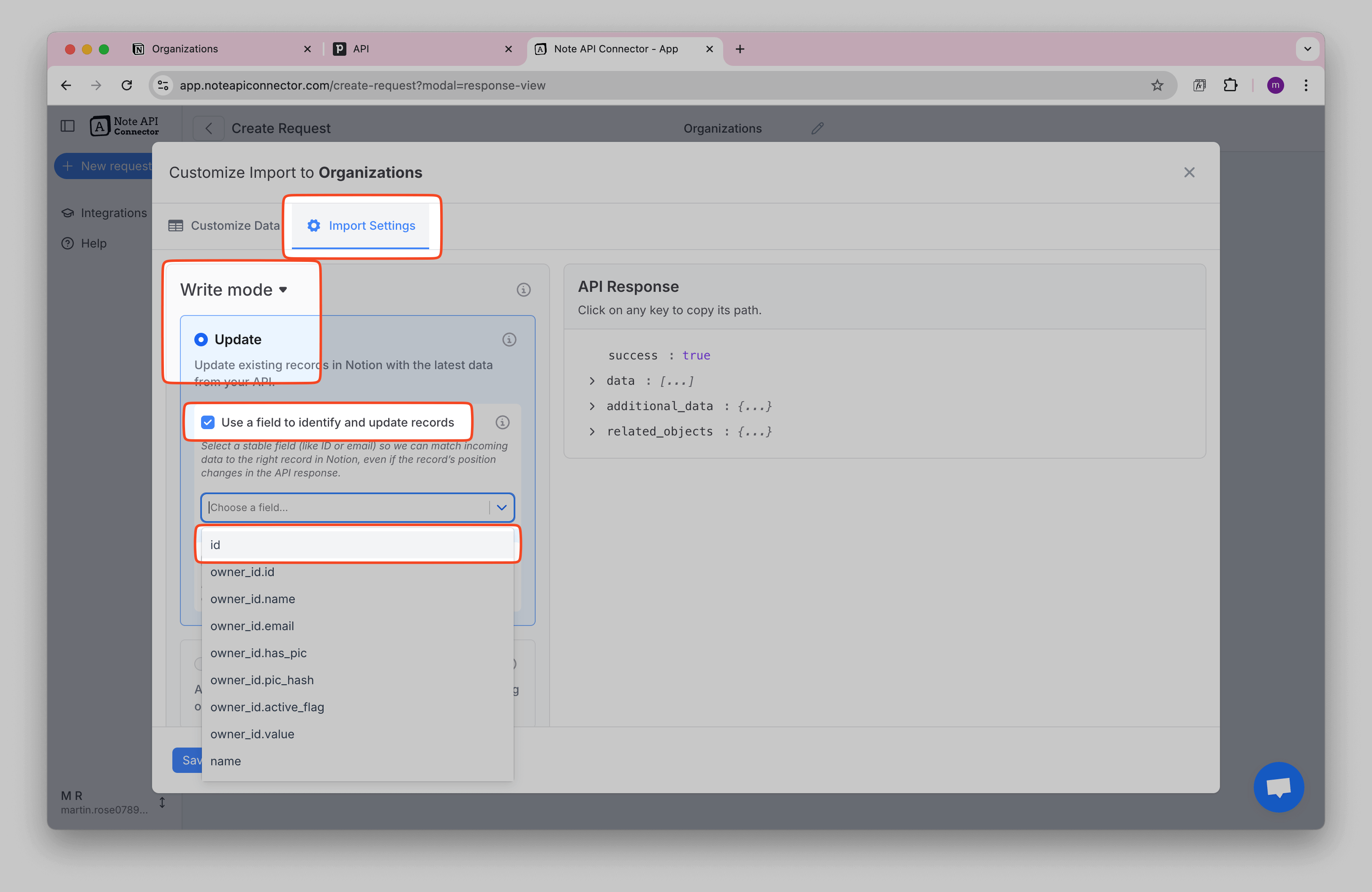
This setting updates the existing Organization (instead of creating a duplicates) and lets you link People to Organizations in the next step.
Click Save & Import to store Pipedrive organizations in your Notion database.
Import Pipedrive People into Notion
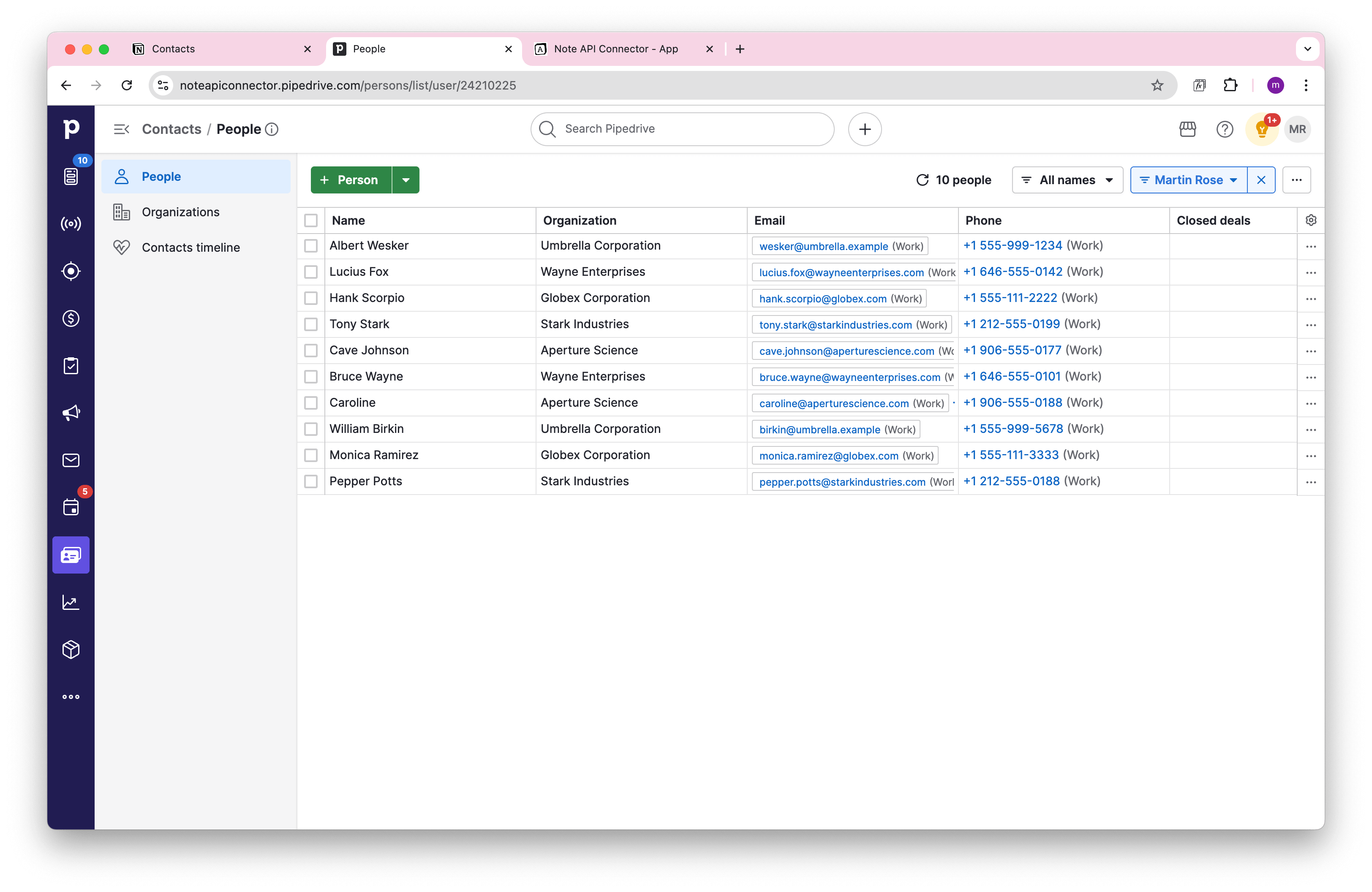
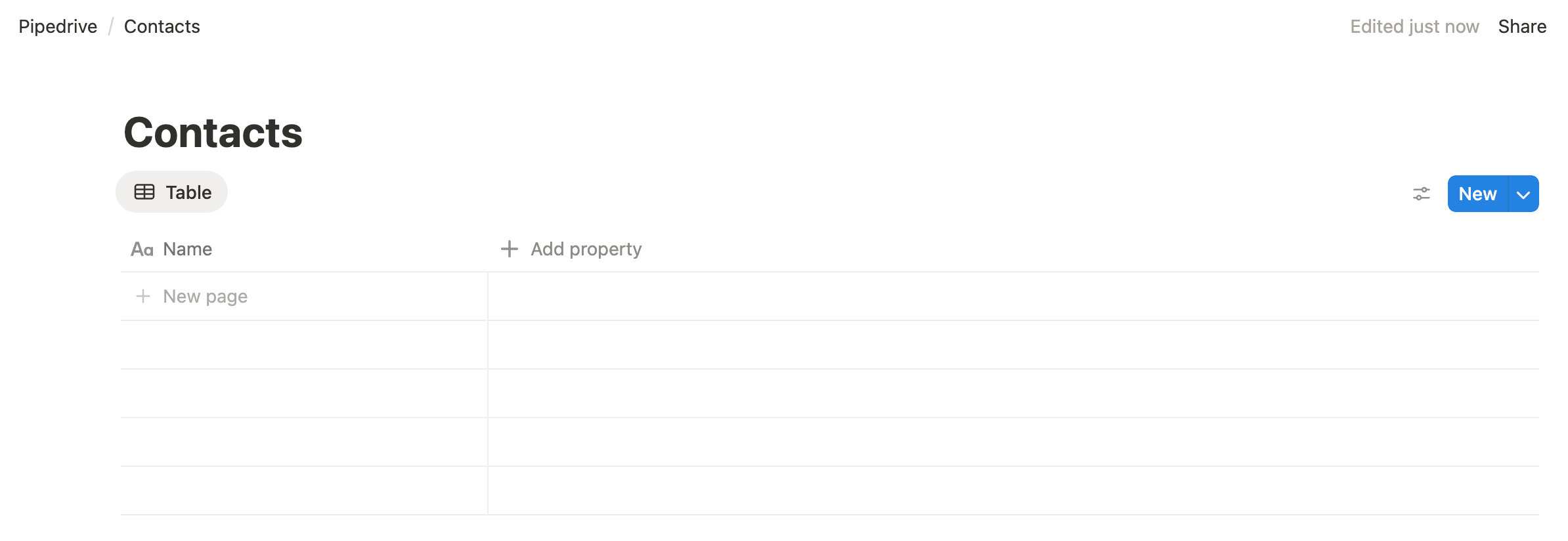
Create a Notion database for your Pipedrive People (contacts). Keeping contacts separate from organizations makes your workspace cleaner and helps you link people to the right company later.
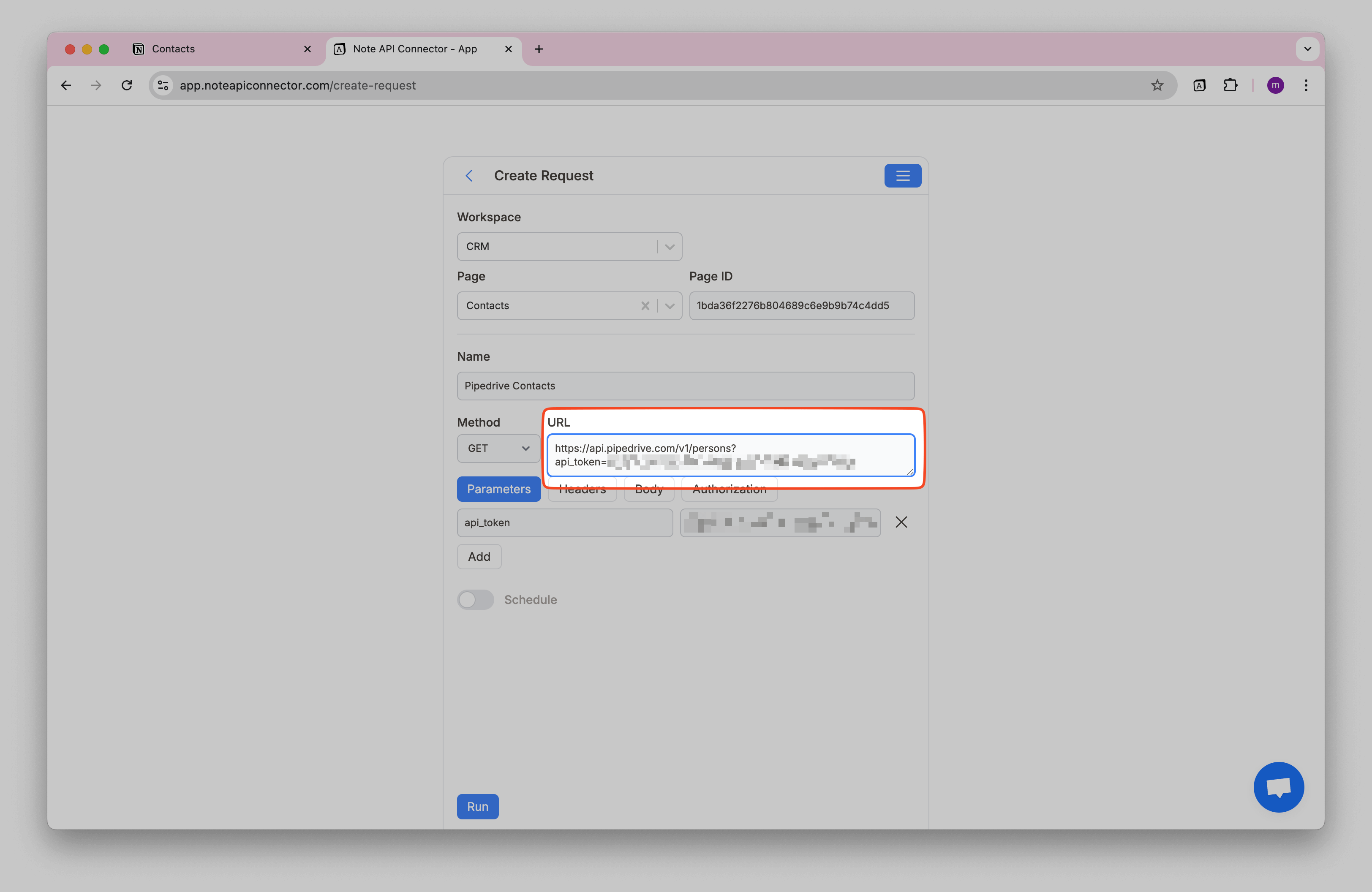
To retrieve Pipedrive contacts, Use this API endpoint (replace
YOUR_API_KEY
with your actual token).
https://api.pipedrive.com/v1/persons?api_token=YOUR_API_KEY
Open Note API Connector and click Create request .
Name your request (e.g., Contacts), select Notion database and paste the API URL into the URL field.
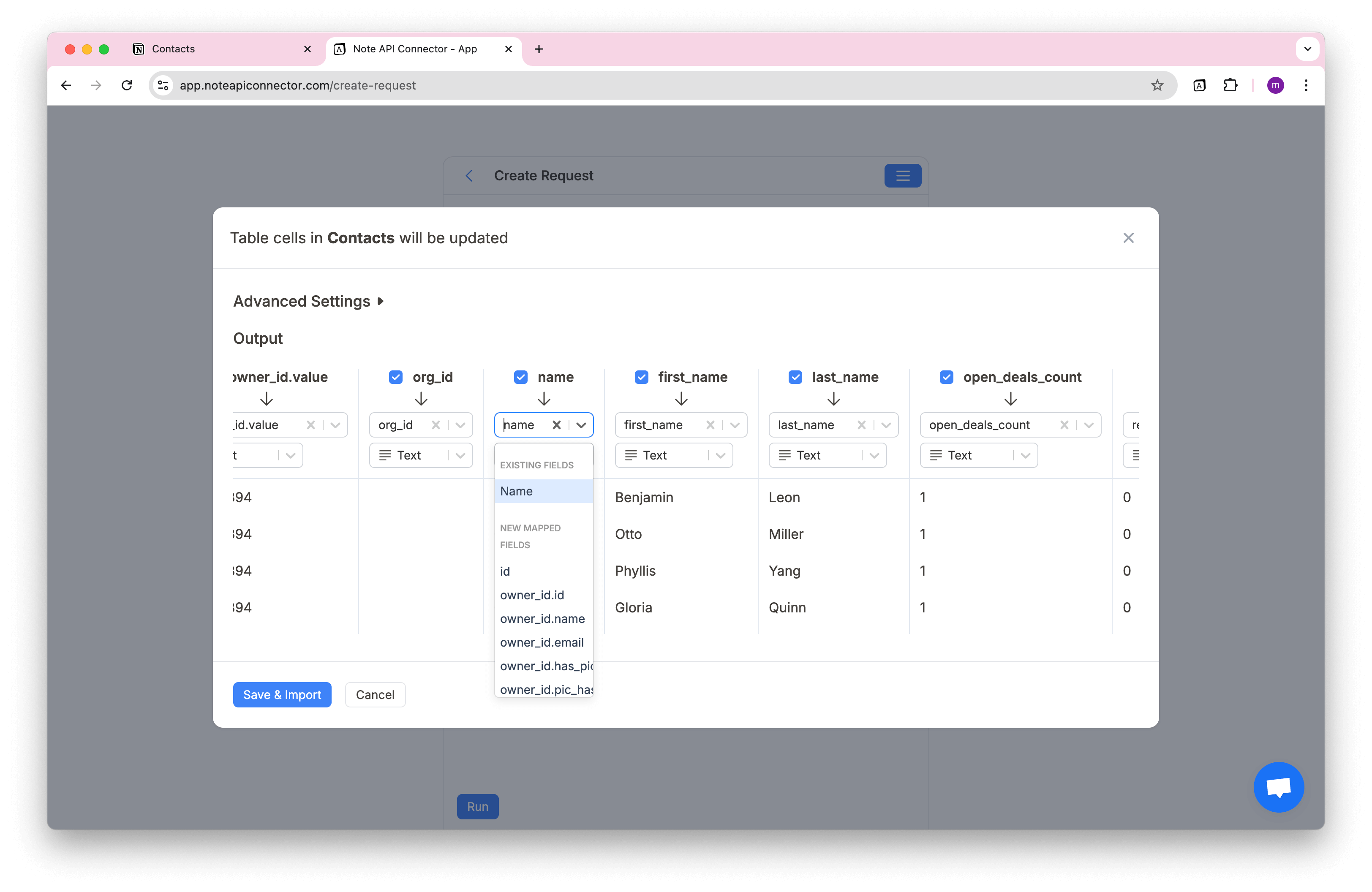
Click Run and review the fetched Pipedrive contacts in the Response Field Mapping view.
Link People to Organizations
Note API Connector can link records automatically so your Notion CRM mirrors Pipedrive. We will use the Relation type to connect People to Organizations.
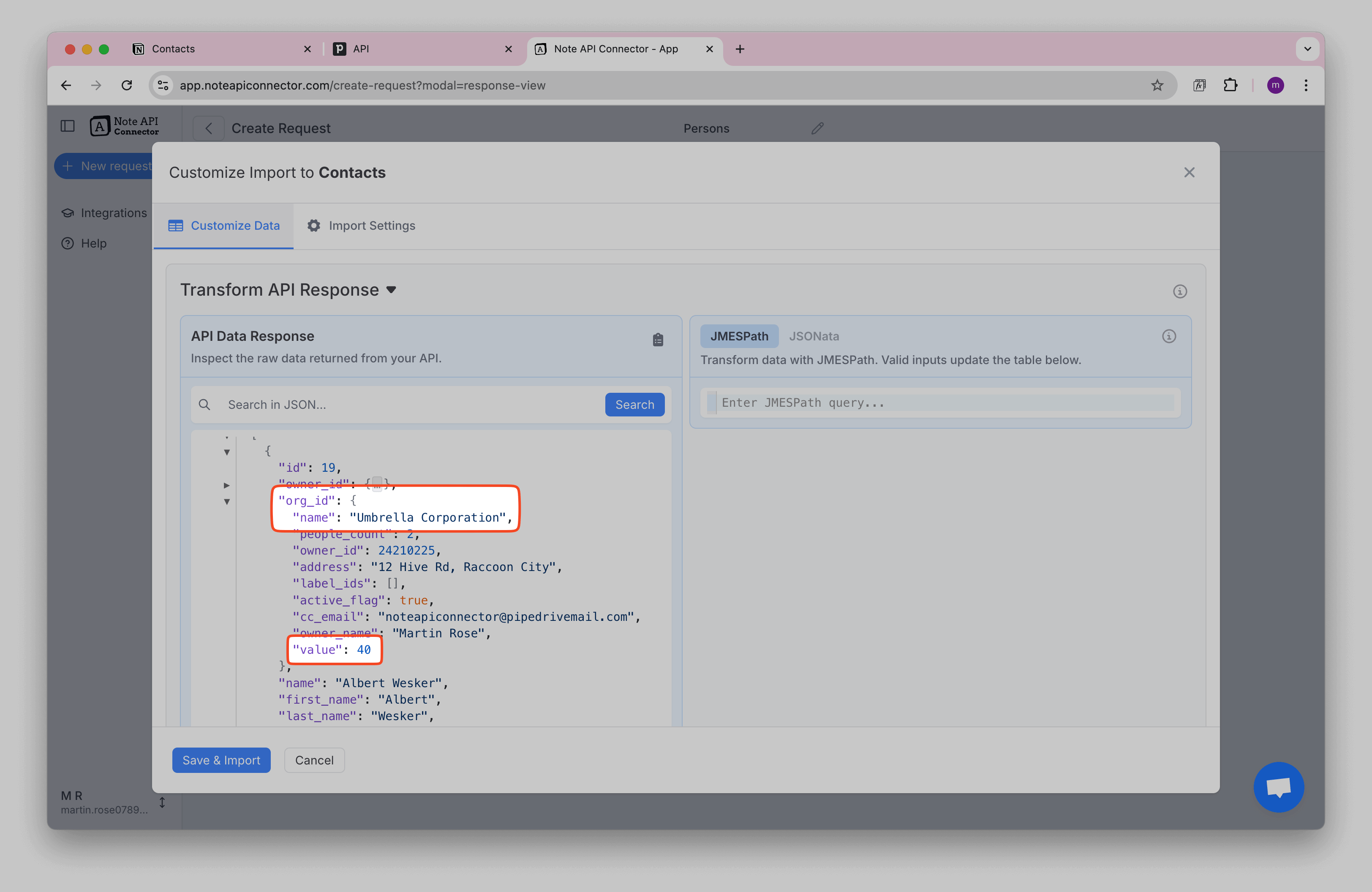
In the People response, look for the field org_id.value. These values are the organization IDs
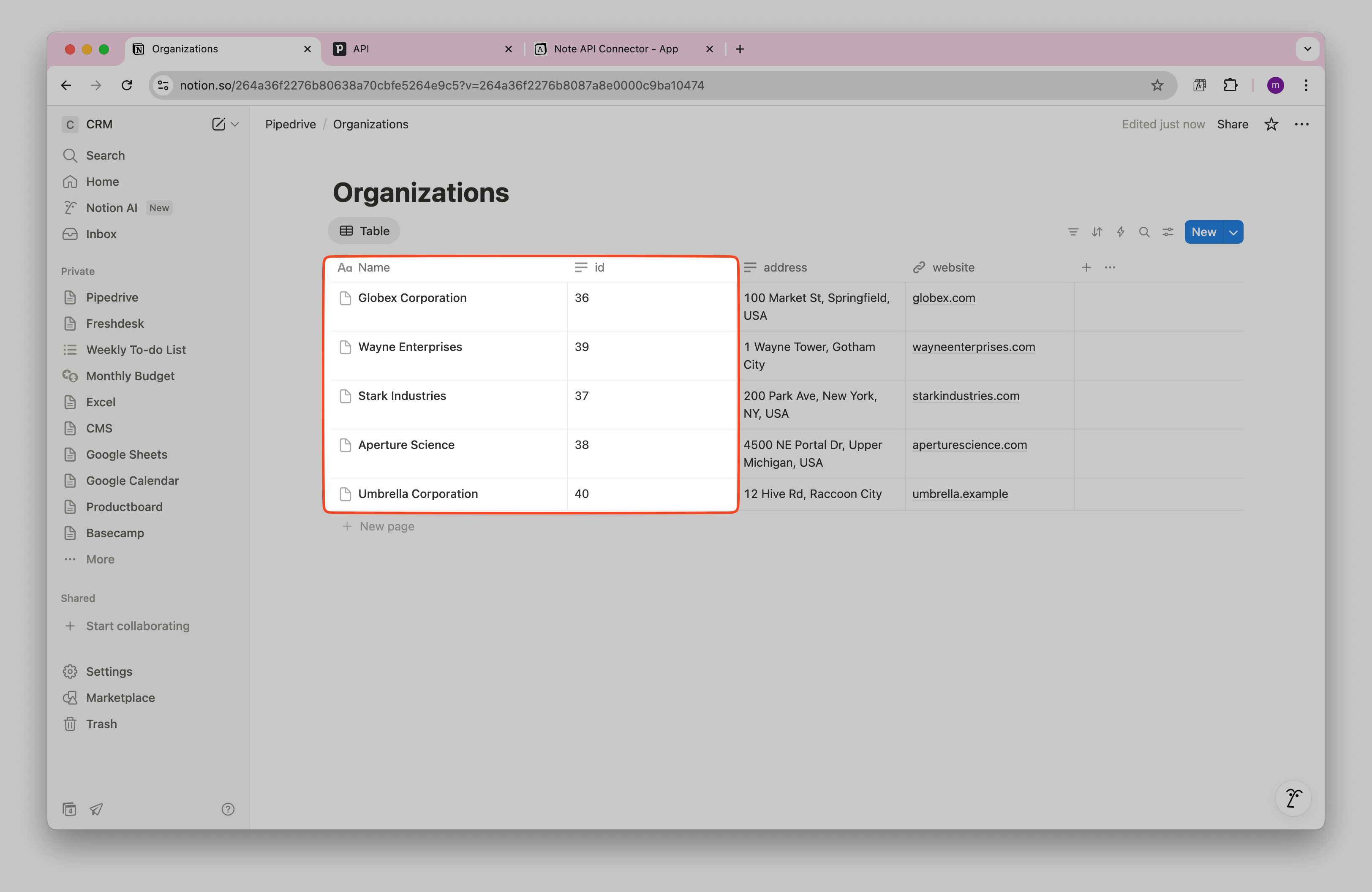
from Pipedrive. In your Organizations import, you already set id as the
identifier used to update records. In the next steps, we will match
org_id.value (People) to id (Organizations).
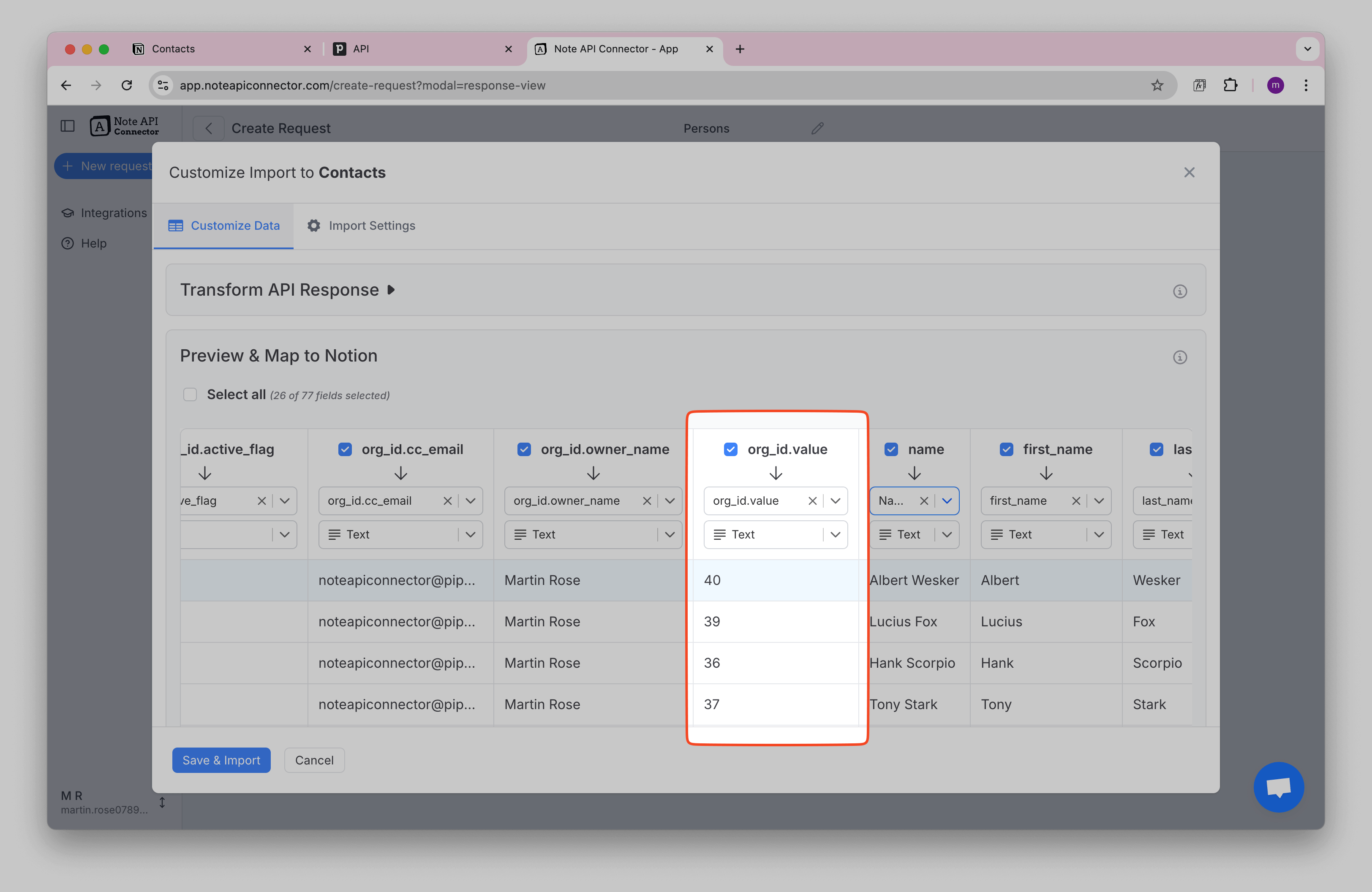
You can verify in the
raw api response
that the org_id.value entries are the organization IDs returned by the API.
Now, we just need to set this field as a Relation and pick the database we want to link to.
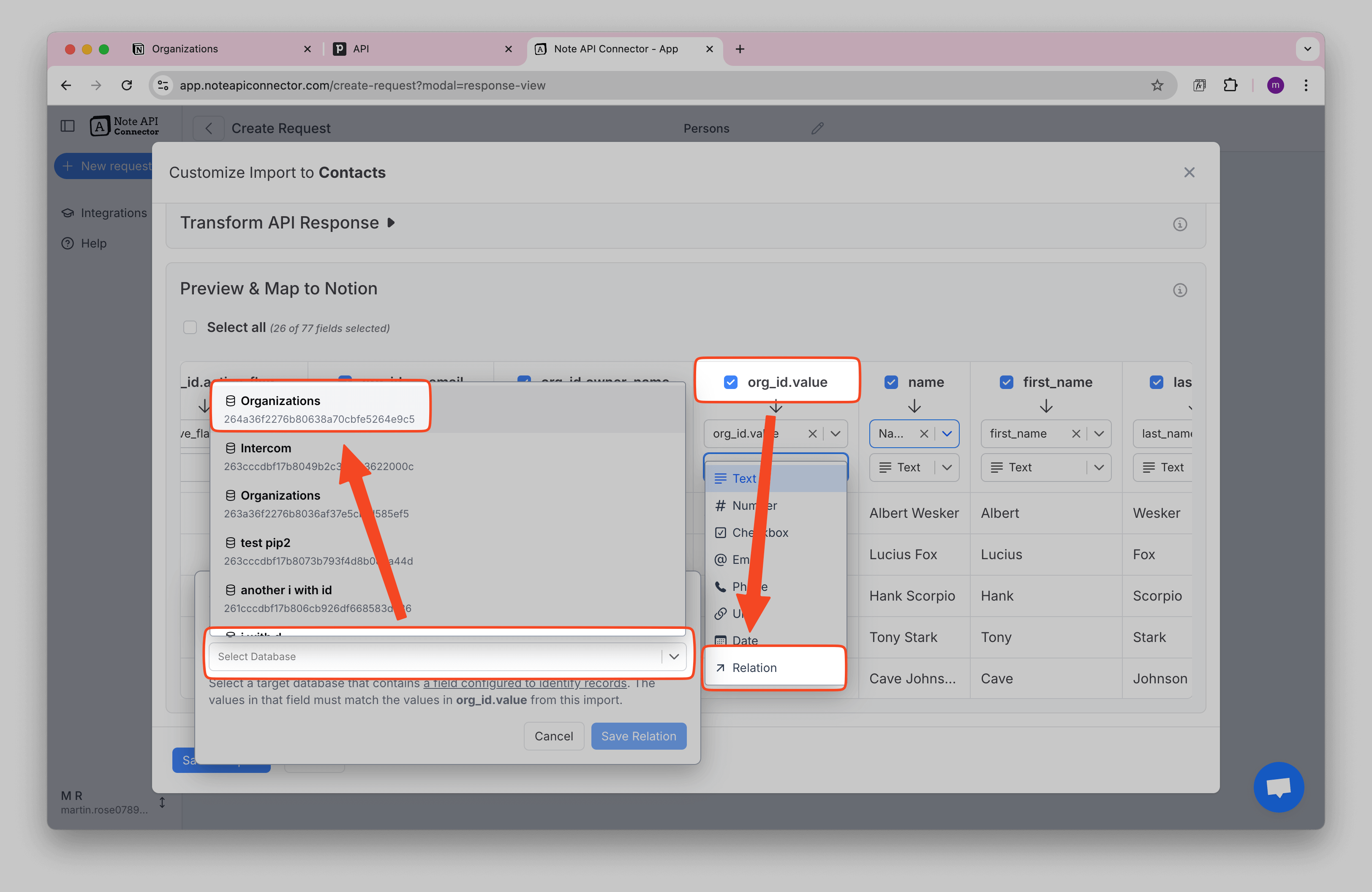
Click Save to confirm the relation settings.
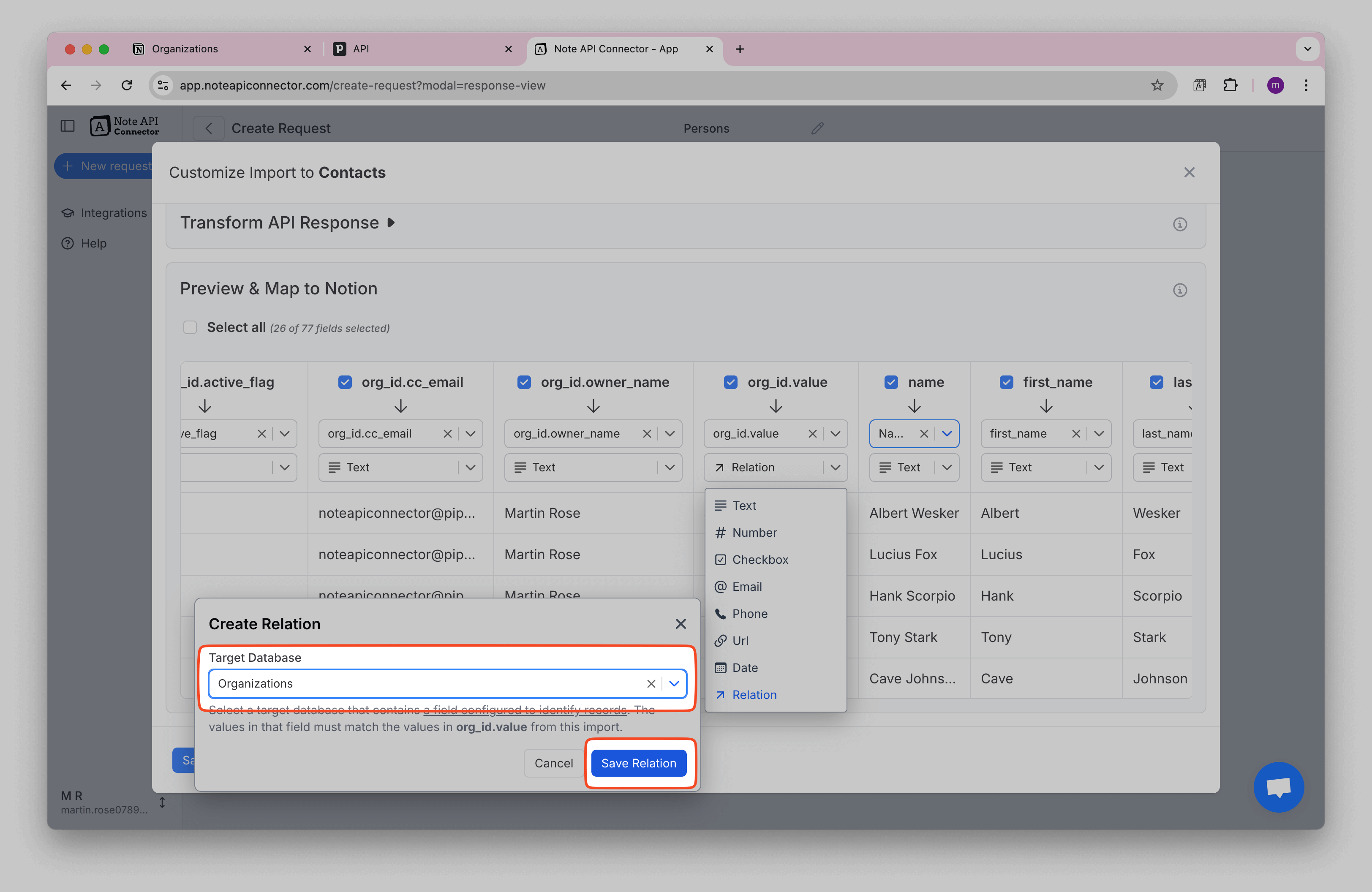
You can also rename this field with a custom name.
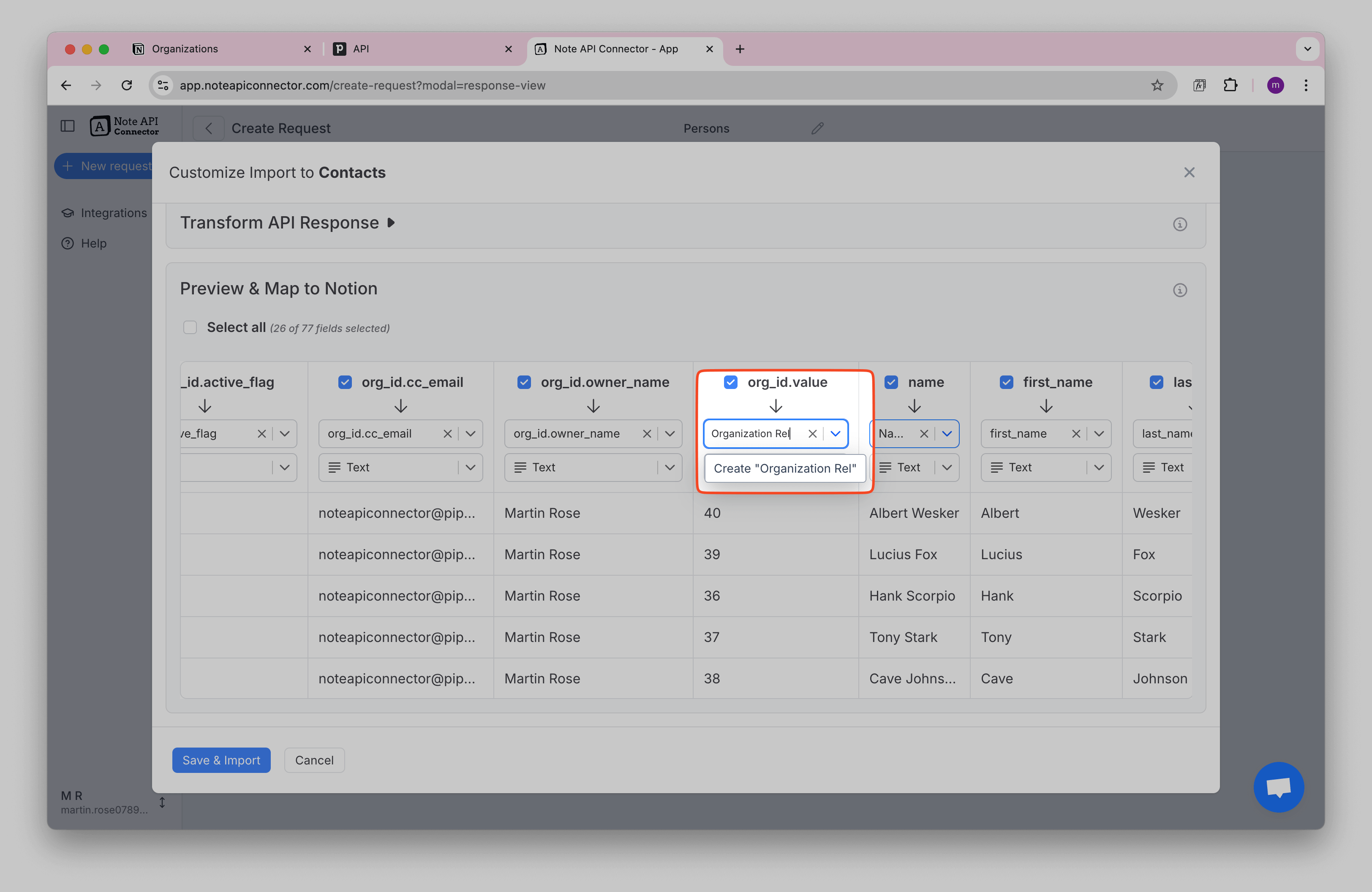
Finally, click Save & Import. Your People will be linked to the correct Organizations in Notion, so teams can jump from a contact to the company record in one click.
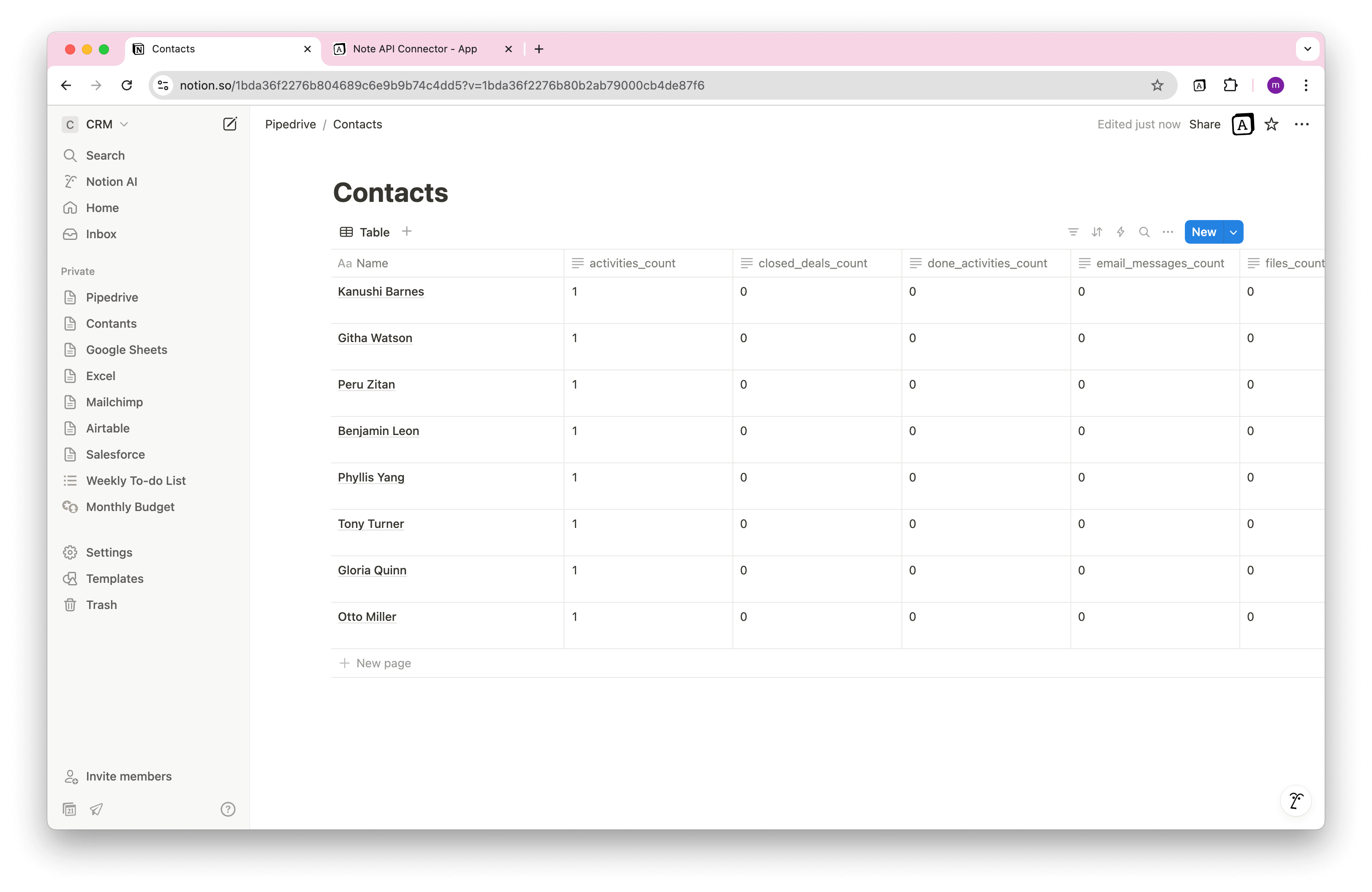
Syncing More Than 100 Items (Paging)
By default, Pipedrive API returns only 100 items per request. If you’re importing a small dataset, this works fine. But if you have more records, Note API Connector can page through them automatically so you get everything in one go.
Option 1: Increase the limit (up to 500 items)
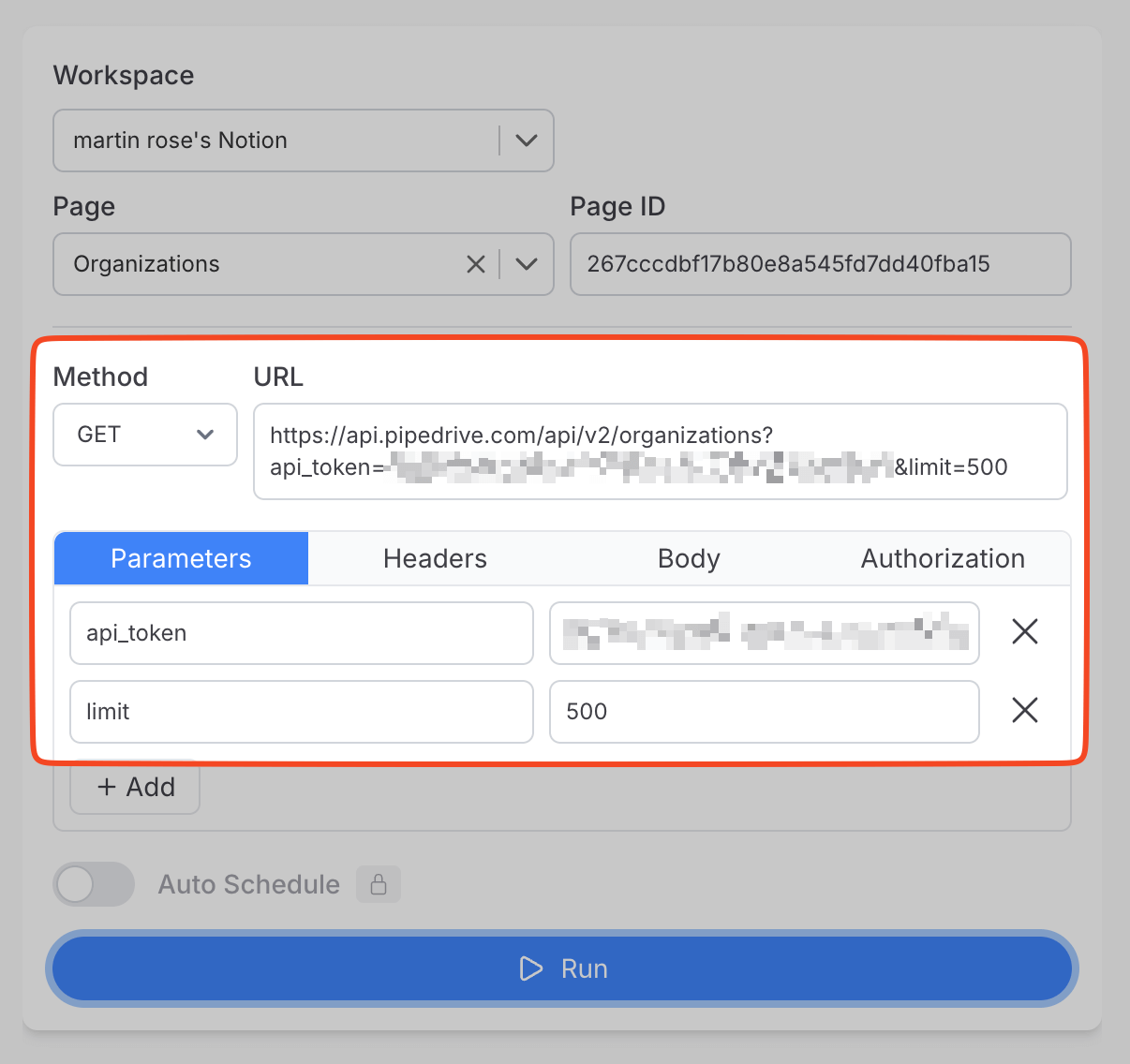
If you have 500 records or fewer, the simplest fix is to add ?limit=500 to your request URL.
Pipedrive will return up to 500 records in a single response and you are done.
https://api.pipedrive.com/v1/organizations?api_token={YOUR_API_TOKEN}&limit=500
Option 2: Offset-limit paging (more than 500 items, recommended for V1)
For larger datasets, Note API Connector supports offset-limit paging, which works seamlessly with Pipedrive API V1. Instead of fetching everything at once, it automatically requests the next batch of records by incrementing the starting position — 0, 500, 1000, and so on — until all records have been imported. You don’t have to do anything manually.
To set it up, go to Import Settings → Pagination and set the type to Offset-Limit. Then configure:
- Offset parameter name:
start(this is what Pipedrive V1 uses) - Limit parameter name:
limit - Limit value:
100
Option 3: Cursor paging (Pipedrive API V2)
If you prefer to use Pipedrive API V2, cursor paging is also supported. With cursor paging,
Pipedrive returns a next_cursor value in each response. Note API Connector uses that value to
request the next batch automatically, repeating until no next_cursor is returned and all
records have been fetched.
Use the V2 endpoint with a limit:
https://api.pipedrive.com/api/v2/organizations?api_token={YOUR_API_TOKEN}&limit=500
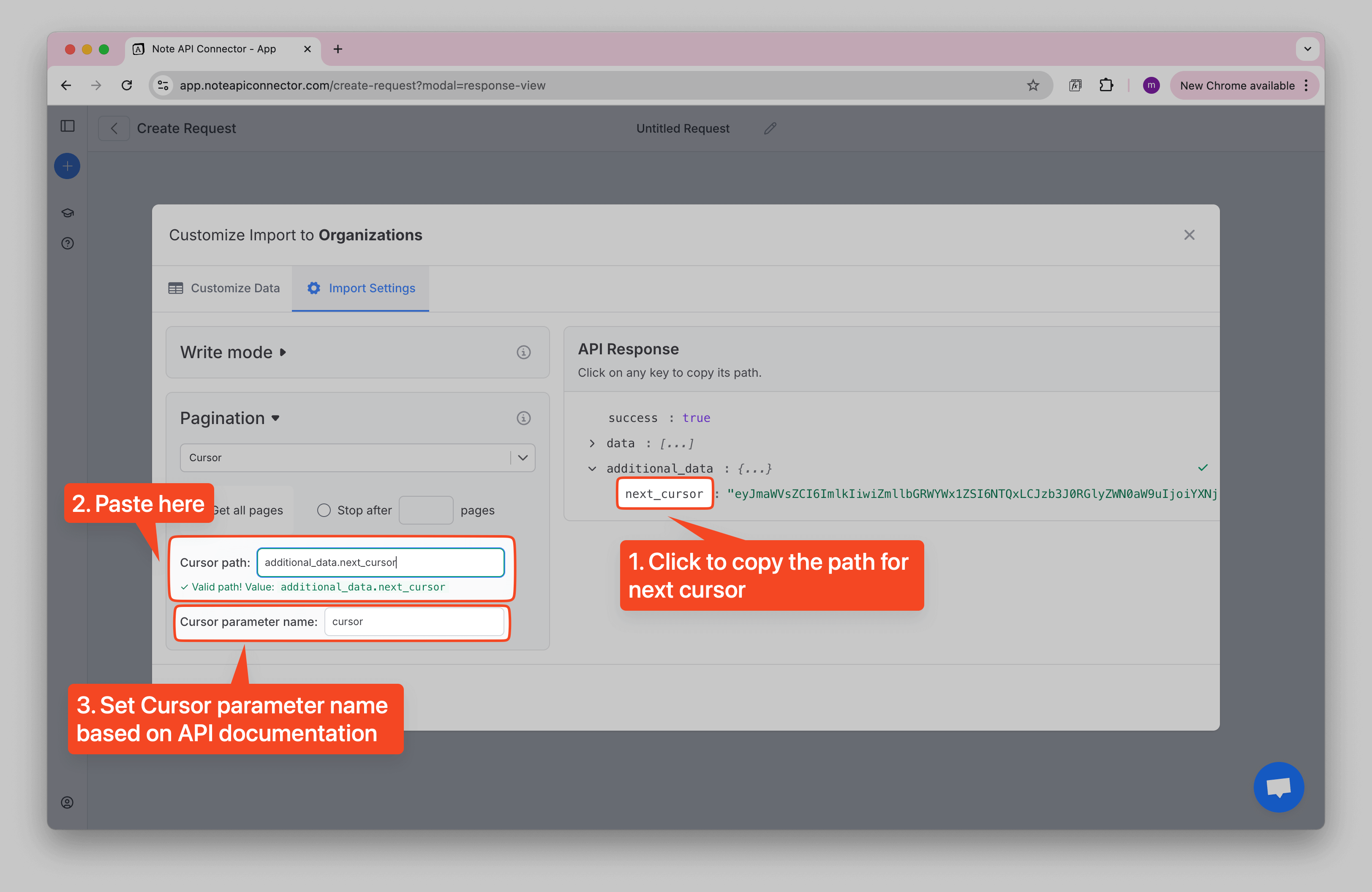
In Note API Connector, go to Import Settings → Pagination, set type to
Cursor, and paste the next_cursor path from the API response. Then enter the
cursor parameter name (usually cursor) as required by the
Pipedrive V2 documentation.
Automate Data Updates in Notion
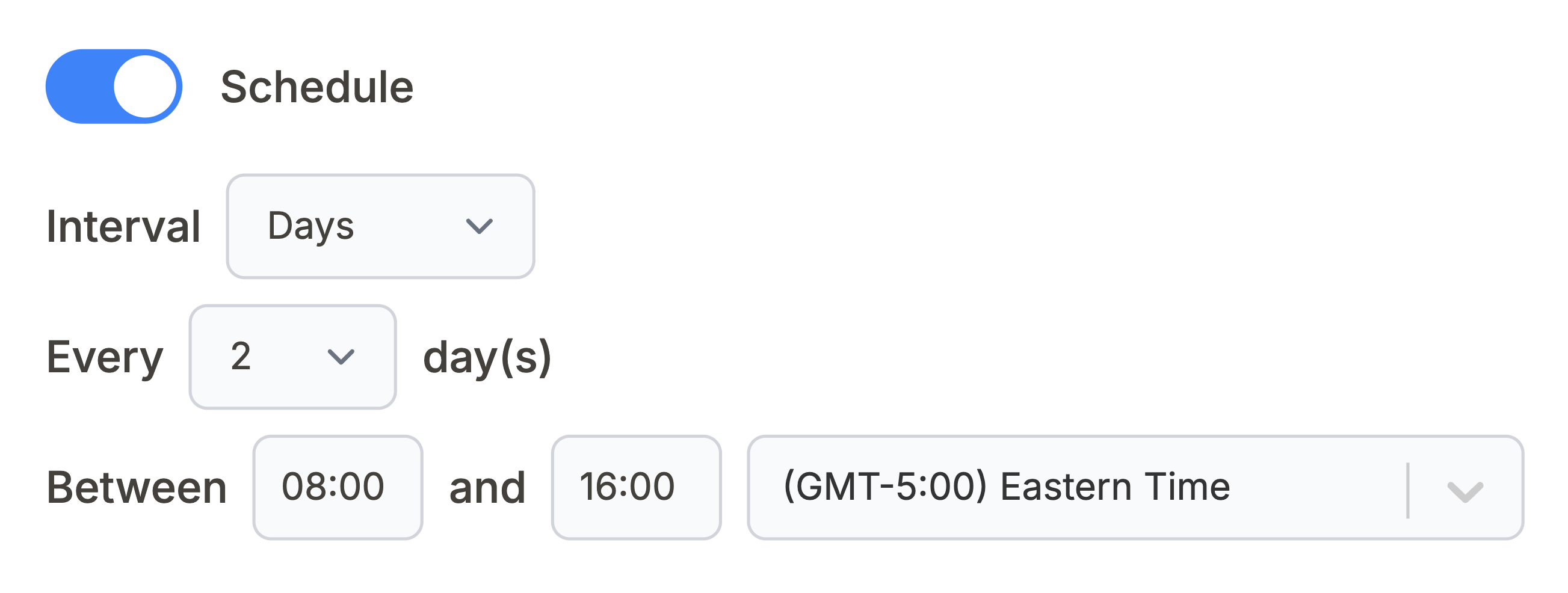
Manually refreshing your Pipedrive data in Notion can be a time-consuming, especially when tracking contacts, and deals. With Note API Connector’s scheduling feature , you can automate data updates , ensuring your Notion dashboard always reflects the latest Pipedrive information, without lifting a finger.
Set it to refresh hourly, daily, or at custom intervals , so you never have to worry about outdated data again. Whether you're monitoring sales pipelines, or analyzing customer relationships.
Supporting references
Use V1 endpoints for most imports. They support both simple requests (up to 500 items with
?limit=500) and offset-limit paging for unlimited records. Switch to
V2 endpoints if you prefer cursor paging.
Pipedrive API V1 (simple imports and offset-limit paging)
-
Owners (Users)
https://api.pipedrive.com/v1/persons?api_token={YOUR_API_KEY} -
Deals
https://api.pipedrive.com/v1/deals?api_token={YOUR_API_KEY} -
Leads
https://api.pipedrive.com/v1/leads?api_token={YOUR_API_KEY} -
Products
https://api.pipedrive.com/v1/products?api_token={YOUR_API_KEY} -
Projects
https://api.pipedrive.com/v1/projects?api_token={YOUR_API_KEY}
Pipedrive API V2 (cursor paging)
-
Organizations
https://api.pipedrive.com/api/v2/organizations?api_token={YOUR_API_KEY}&limit=500 -
Persons (Contacts)
https://api.pipedrive.com/api/v2/persons?api_token={YOUR_API_KEY}&limit=500 -
Deals
https://api.pipedrive.com/api/v2/deals?api_token={YOUR_API_KEY}&limit=500
📖 More details: Pipedrive API v1 docs Pipedrive API v2 docs
Conclusion
With Note API Connector , importing and updating Pipedrive data in Notion is seamless and code-free. This Notion Pipedrive integration centralizes your CRM information in one collaborative workspace, making it easier for teams to access and utilize customer data.
Whether you're tracking contacts, monitoring deals, or analyzing customer interactions, connecting Pipedrive to Notion eliminates data silos and improves team productivity. The ability to create custom views, filters, and dashboards in Notion transforms your Pipedrive data into actionable insights.
🚀 Start automating your CRM workflow today with Note API Connector.
Frequently Asked Questions
You can use Note API Connector to import Pipedrive data into Notion. Simply get your Pipedrive API token, create a request in Note API Connector, and map the data to your Notion database.
No, Note API Connector is a no-code tool that allows you to connect Pipedrive to Notion without any programming knowledge.
Yes. With automatic scheduling , you can set your data to update hourly, daily, or at custom intervals. This ensures your Notion dashboard always reflects real-time Pipedrive data, reducing manual updates.
Yes, Note API Connector uses secure API authentication, and your credentials are not stored. You have full control over the API access settings in Pipedrive.