ClickUp Notion Integration
Sync ClickUp with Notion automatically - tasks, lists, spaces, and team members always up to date, no coding needed.
Free to start. No credit card required.
Trusted worldwide
500+ teams stopped copying data manually.
Yours can too.














The ClickUp Notion integration lets you pull live data directly from your ClickUp workspace into Notion using Note API Connector. Whether you are building a cross-tool project dashboard, archiving completed tasks, giving stakeholders a read-only view of task progress in Notion, or creating a searchable record of your ClickUp hierarchy, this integration keeps your Notion databases in sync with ClickUp automatically.
With Note API Connector you can sync ClickUp with Notion on a fully automated schedule (hourly, daily, or at custom intervals) without writing a single line of code. Connect your ClickUp account via OAuth, choose a Notion database, map the task and list fields visually, and your ClickUp data flows into Notion on autopilot from that point forward.
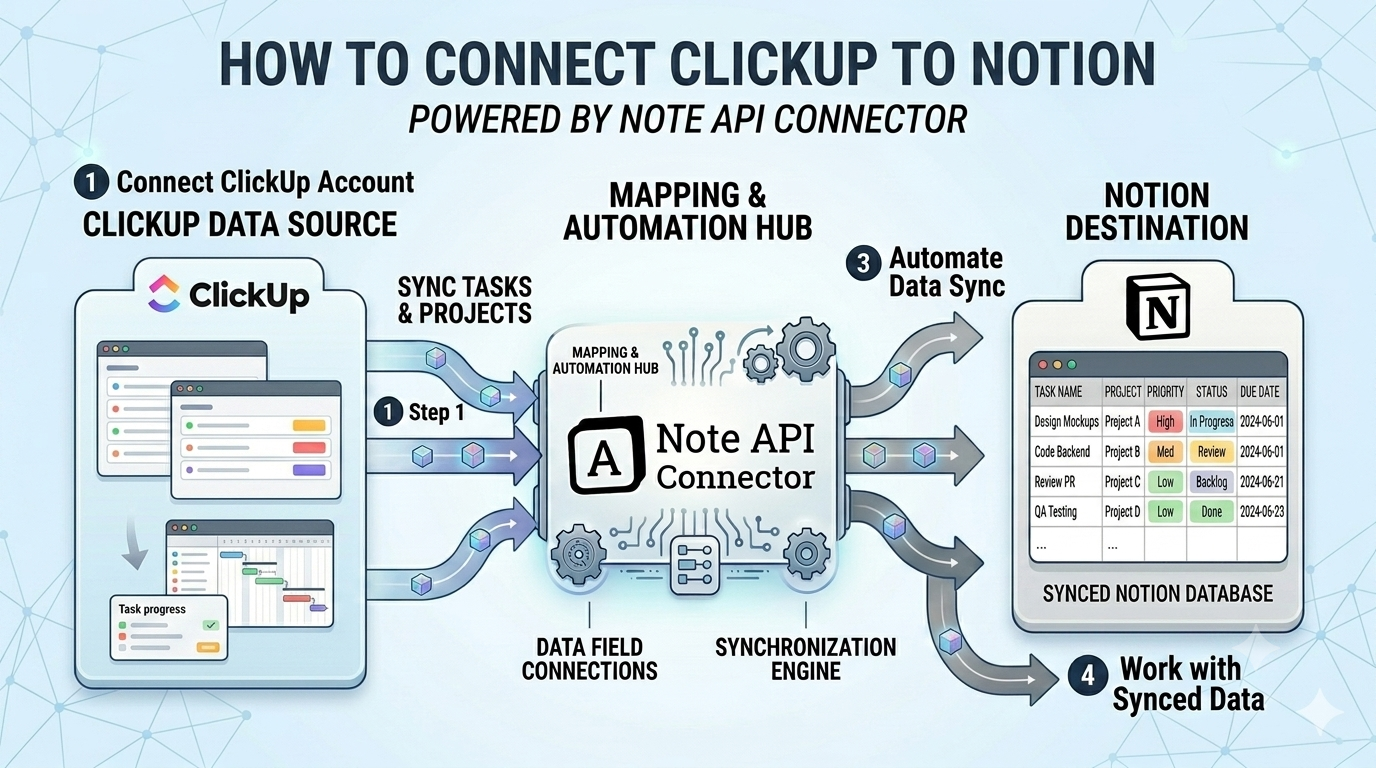
How to connect ClickUp to Notion
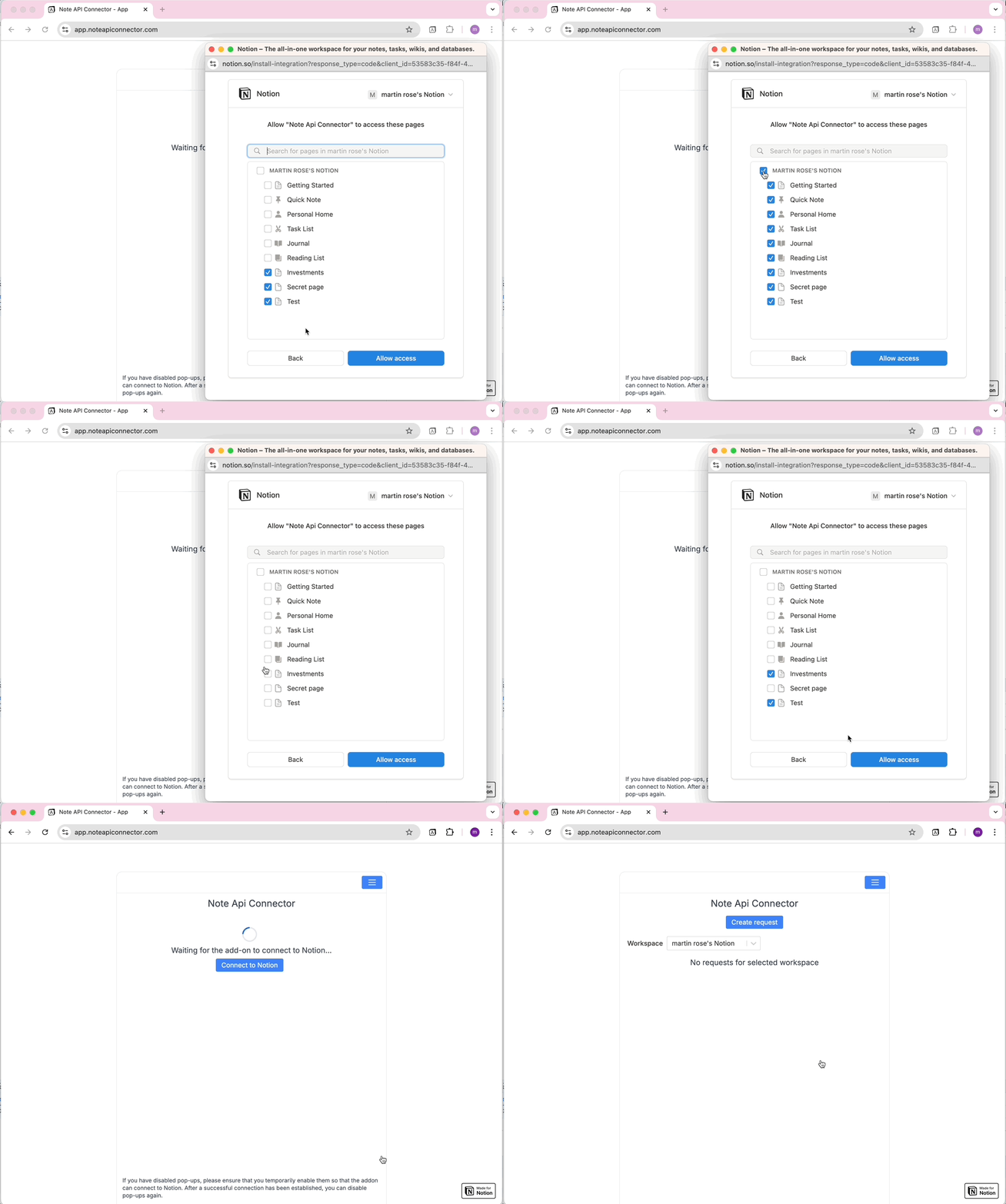
Connect your Notion workspace
Click Connect to Notion, authorize Note API Connector, and select the pages and workspace where your ClickUp data should appear.
Create a ClickUp app and connect via OAuth
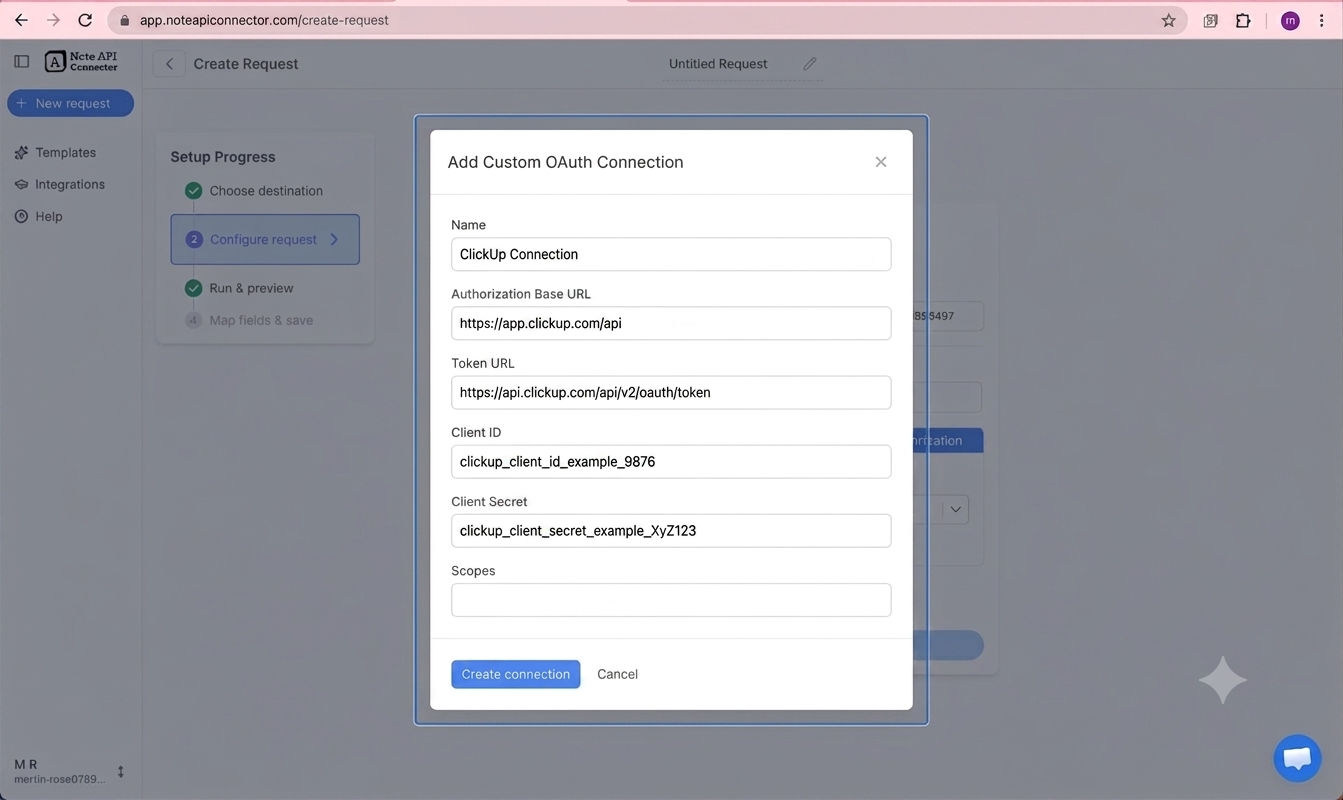
Go to app.clickup.com/settings/apps, click Create an App, and give it a name. Add the Redirect URL https://api.noteapiconnector.com/oauth/callback and click Save. Copy your Client ID and Client Secret from the app page. In Note API Connector, click Create Request, paste your ClickUp API endpoint URL, open the Authorization tab, select OAuth, click New, and fill in the connection form: Authorization Base URL https://app.clickup.com/api, Token URL https://api.clickup.com/api/v2/oauth/token, your Client ID, and Client Secret. ClickUp does not use OAuth scopes, so leave the scopes field empty. Click Create connection and approve access in the popup. See the full guide: Create a custom OAuth connection.
Choose your data and map fields
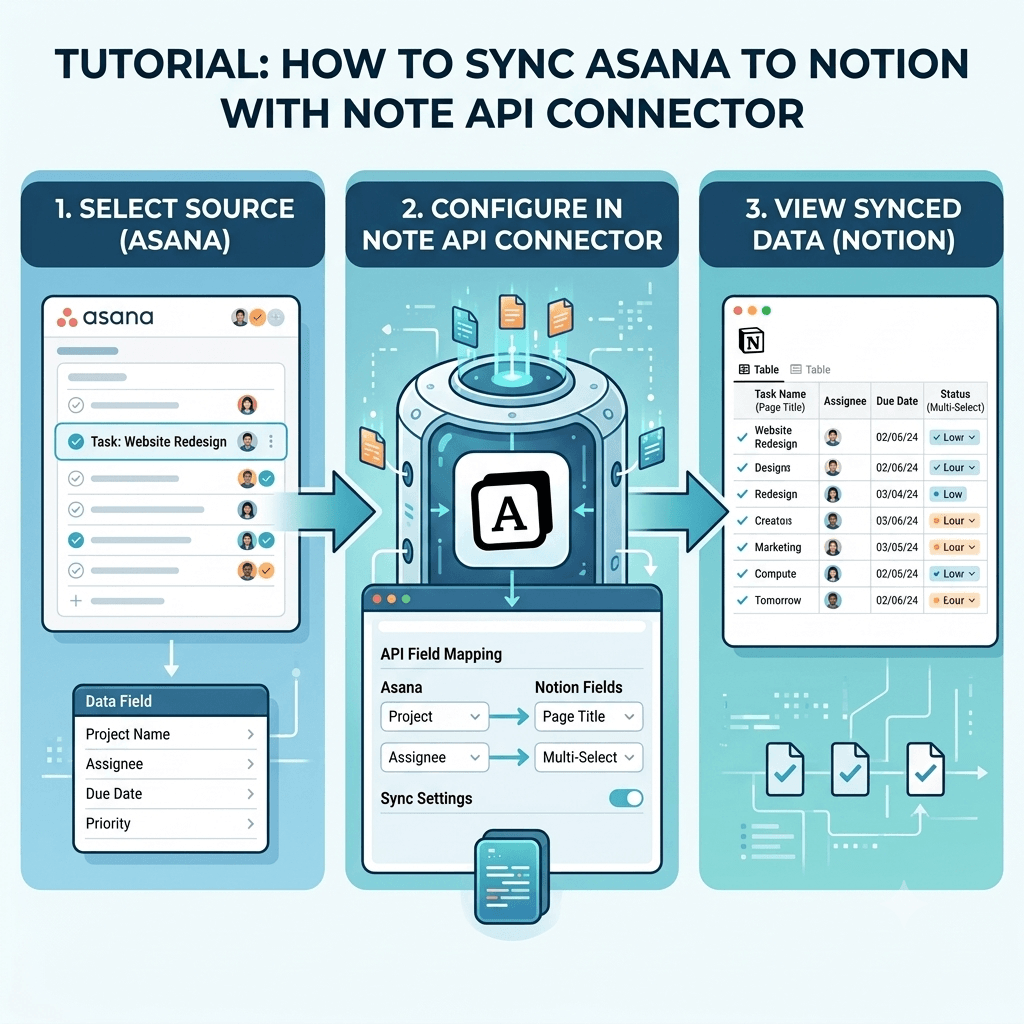
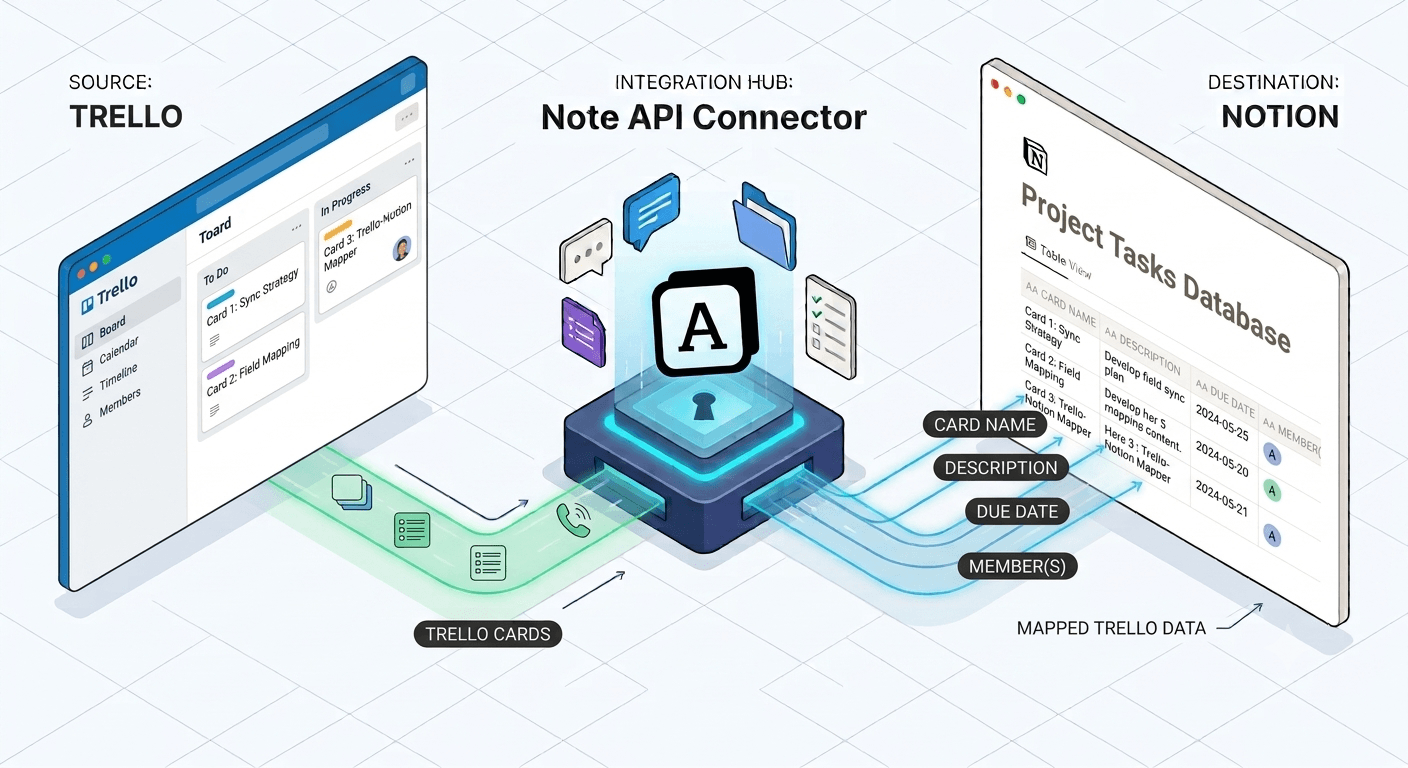
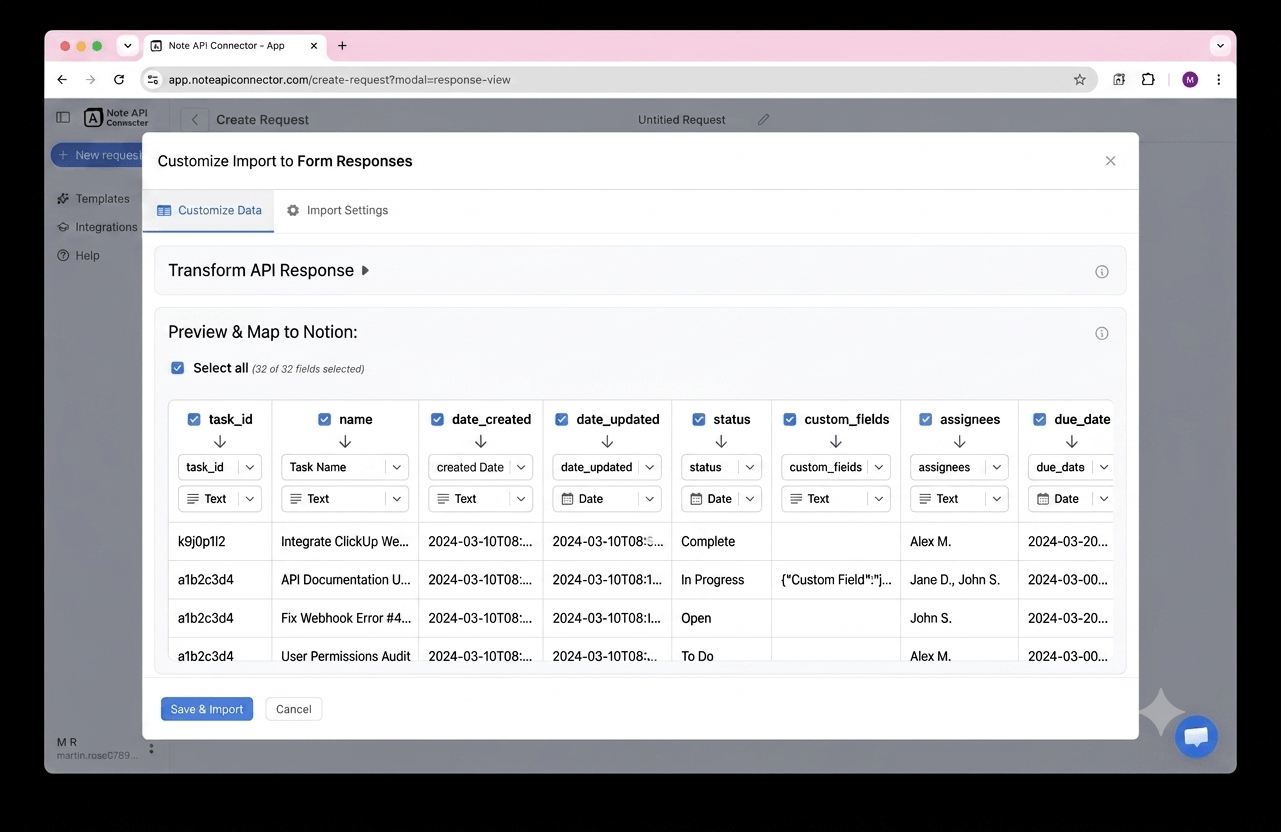
In the Response Field Mapping screen, select which ClickUp fields to include - such as task name, assignee, due date, status, priority, list name, or space name - and map each one to a Notion property. You can match existing properties, create new ones, or set the field type. Click Save & Import when you're done.
Set your sync schedule and go live
Enable Auto Schedule and choose your refresh interval. Your ClickUp data will sync with Notion automatically from that point forward, with no manual refreshes needed.
⏱ Hourly / Daily / Custom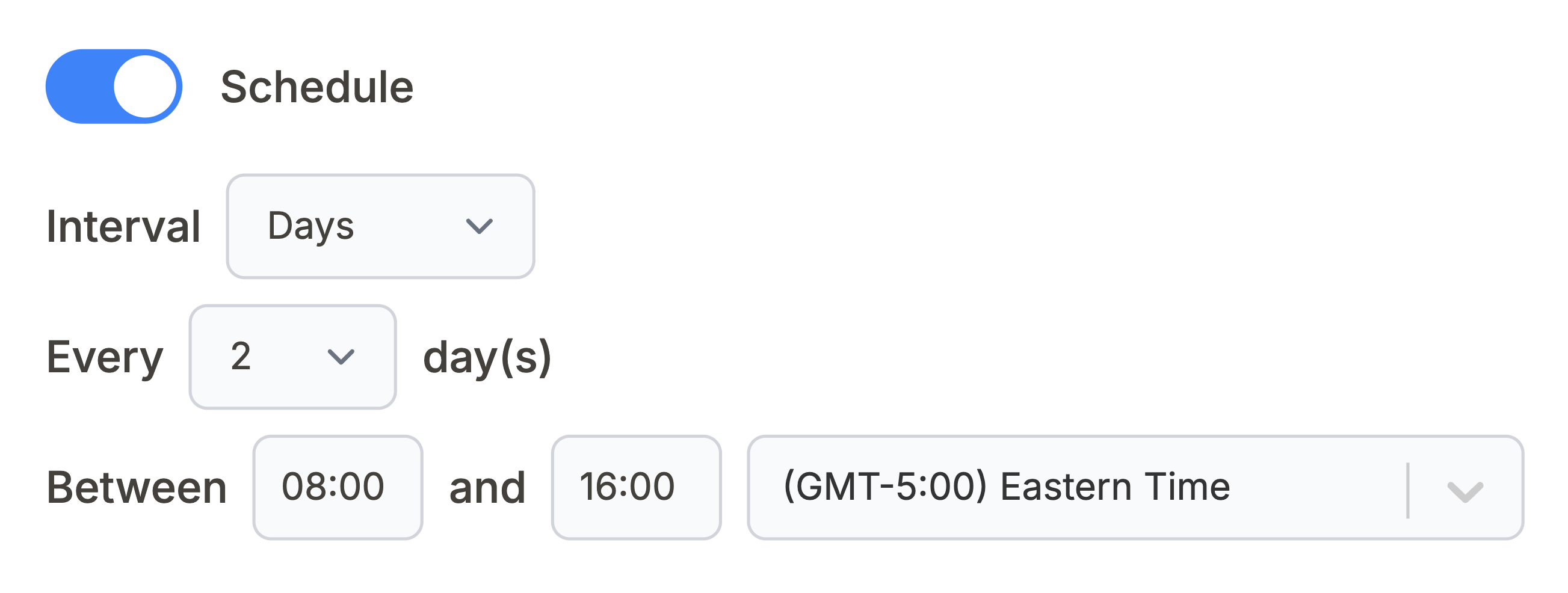
What ClickUp data can you sync with Notion?
Use these ClickUp API endpoints directly in Note API Connector. Each one can be mapped to a separate Notion database. Follow the ClickUp hierarchy - start with Workspaces to get your team ID, then use it to retrieve spaces, folders, lists, and finally tasks.
All ClickUp workspaces (called Teams in the API) the authenticated user belongs to, with workspace name and ID. Start here to get your team ID, which is needed as a parameter for spaces and members endpoints.
https://api.clickup.com/api/v2/team
All spaces in a workspace with name, status, privacy setting, and feature flags. Build a top-level project structure overview in Notion or track which spaces are active. Replace {team_id} with your ClickUp workspace ID.
https://api.clickup.com/api/v2/team/{team_id}/space
All folders in a space with name, task count, lists, and status. ClickUp organizes lists inside folders - use this endpoint to map your project structure before pulling lists and tasks. Replace {space_id} with your ClickUp space ID.
https://api.clickup.com/api/v2/space/{space_id}/folder
All lists inside a folder with name, task count, status, due date, and priority. Lists are where tasks live in ClickUp. Use this endpoint to get list IDs for the tasks endpoint. Replace {folder_id} with your ClickUp folder ID.
https://api.clickup.com/api/v2/folder/{folder_id}/list
All tasks in a list with name, assignees, status, priority, due date, time estimate, description, tags, and custom fields. Build a live task tracker or project log in Notion. Replace {list_id} with your ClickUp list ID.
https://api.clickup.com/api/v2/list/{list_id}/task
All members in a workspace with username, email, role, and profile color. Build a team directory in Notion or cross-reference assignees when importing task data. Replace {team_id} with your ClickUp workspace ID.
https://api.clickup.com/api/v2/team/{team_id}/member
See how it works
Why sync ClickUp with Notion?
Always up to date
Scheduled sync runs automatically. Your Notion database reflects live ClickUp data without any manual work.
No coding required
Point, click, and map fields. Connect ClickUp to Notion in minutes without any programming knowledge.
Custom schedule
Choose hourly, daily, or custom intervals. You control exactly when Notion pulls fresh data from ClickUp.
Conclusion
With Note API Connector, setting up a complete ClickUp Notion integration takes minutes, not days. Your tasks, lists, spaces, and team data sync automatically into Notion on your chosen schedule, with no code and no manual copy-paste.
Whether you are building a project progress dashboard for leadership, archiving completed tasks from finished sprints, giving clients a read-only view of project status in Notion, or cross-referencing ClickUp work with other tools already in your Notion workspace, connecting ClickUp to Notion gives your team a structured, always-current record of everything in your project management system.
Frequently Asked Questions
Yes. ClickUp provides a REST API that exposes workspaces, spaces, folders, lists, tasks, and team members. Note API Connector connects to this API using OAuth 2.0 to pull your ClickUp data into Notion on a scheduled basis.
Go to app.clickup.com/settings/apps, create a new app, add the redirect URL https://api.noteapiconnector.com/oauth/callback, and copy your Client ID and Client Secret. In Note API Connector, connect your Notion workspace, click Create Request, paste a ClickUp API endpoint URL, open the Authorization tab, select OAuth, and fill in the connection form with ClickUp's Authorization Base URL (https://app.clickup.com/api), Token URL (https://api.clickup.com/api/v2/oauth/token), and your credentials. Leave the scopes field empty - ClickUp does not use OAuth scopes. Approve the popup to complete the connection.
Yes. Enable Auto Schedule in Note API Connector and choose your refresh interval: hourly, daily, or custom. Your ClickUp data will sync into Notion automatically on that schedule with no manual action required.
ClickUp organizes data as: Workspace > Space > Folder > List > Task. Start with the workspaces endpoint (https://api.clickup.com/api/v2/team) to get your team ID. Use that to call the spaces endpoint, then the folders endpoint for a space, then the lists endpoint for a folder. Each response includes the ID you need for the next level. Once you have your list ID, use the tasks endpoint to pull all tasks in that list.
No. Unlike many other OAuth apps, ClickUp does not use granular scopes. When you connect via OAuth, the token automatically gets access to all the workspaces, spaces, and tasks that the authorizing user has permission to see. Leave the scopes field empty in the Note API Connector OAuth connection form.
You can sync workspaces, spaces, folders, lists, tasks, and team members. Each ClickUp API endpoint can be mapped to a separate Notion database, so you can build a complete project management overview inside Notion.
No. Note API Connector is a no-code tool. You paste your ClickUp API endpoint URL, set up the OAuth connection using the Authorization tab, select your Notion database, and map fields visually. No programming knowledge is needed.
Yes. Note API Connector connects to ClickUp using OAuth 2.0 for read-only data access. Note API Connector never writes or modifies any data in your ClickUp workspace.