Discord Notion Integration
Sync Discord with Notion automatically - servers, channels, members, and messages always up to date, no coding needed.
Free to start. No credit card required.
Trusted worldwide
500+ teams stopped copying data manually.
Yours can too.













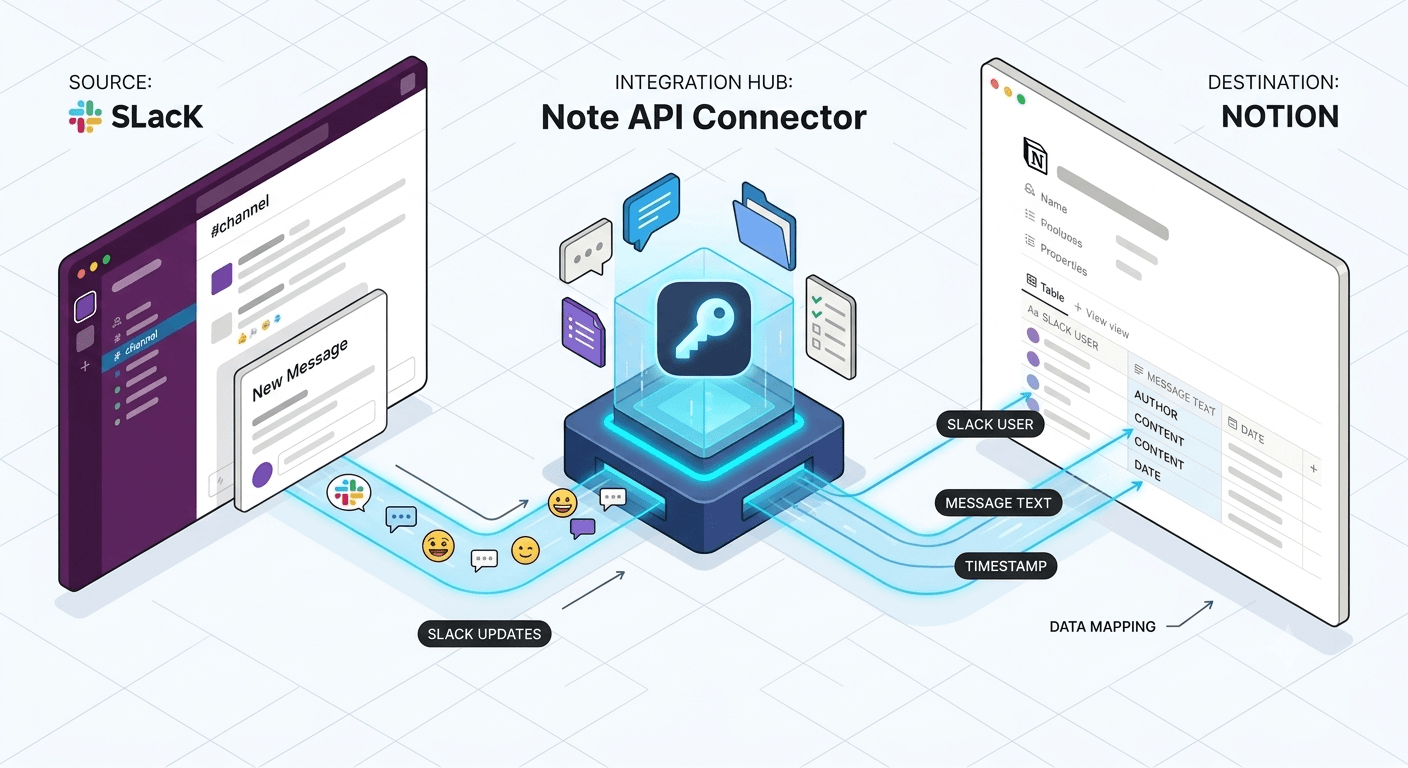
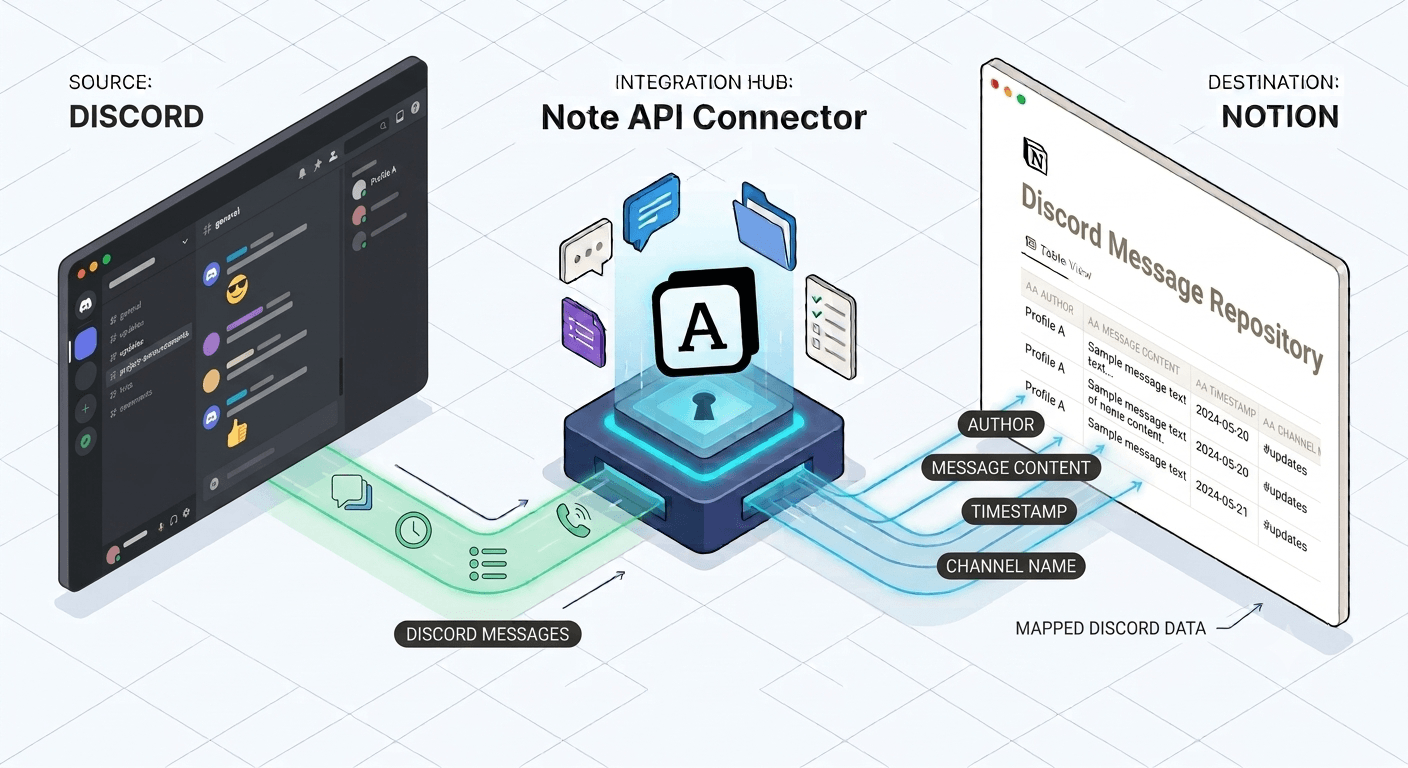
The Discord Notion integration lets you pull live data directly from your Discord servers into Notion using Note API Connector. Whether you are archiving community messages, building a searchable member directory, documenting your server channel structure, or tracking activity across multiple servers, this integration keeps your Notion databases in sync with Discord automatically.
With Note API Connector you can sync Discord with Notion on a fully automated schedule (hourly, daily, or at custom intervals) without writing a single line of code. Connect your Discord application via OAuth, choose a Notion database, map the fields visually, and your Discord data flows into Notion on autopilot from that point forward.
How to connect Discord to Notion
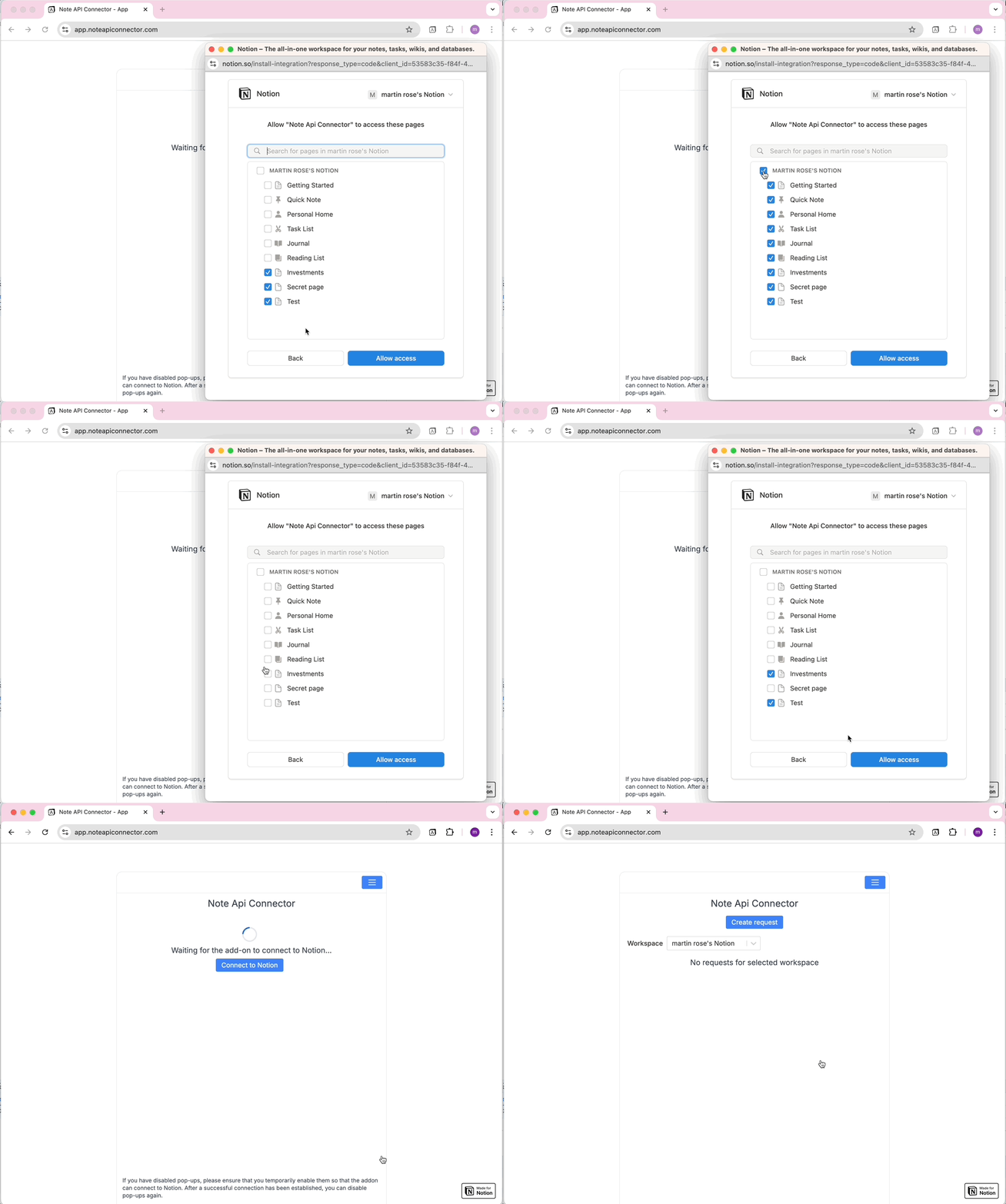
Connect your Notion workspace
Click Connect to Notion, authorize Note API Connector, and select the pages and workspace where your Discord data should appear.
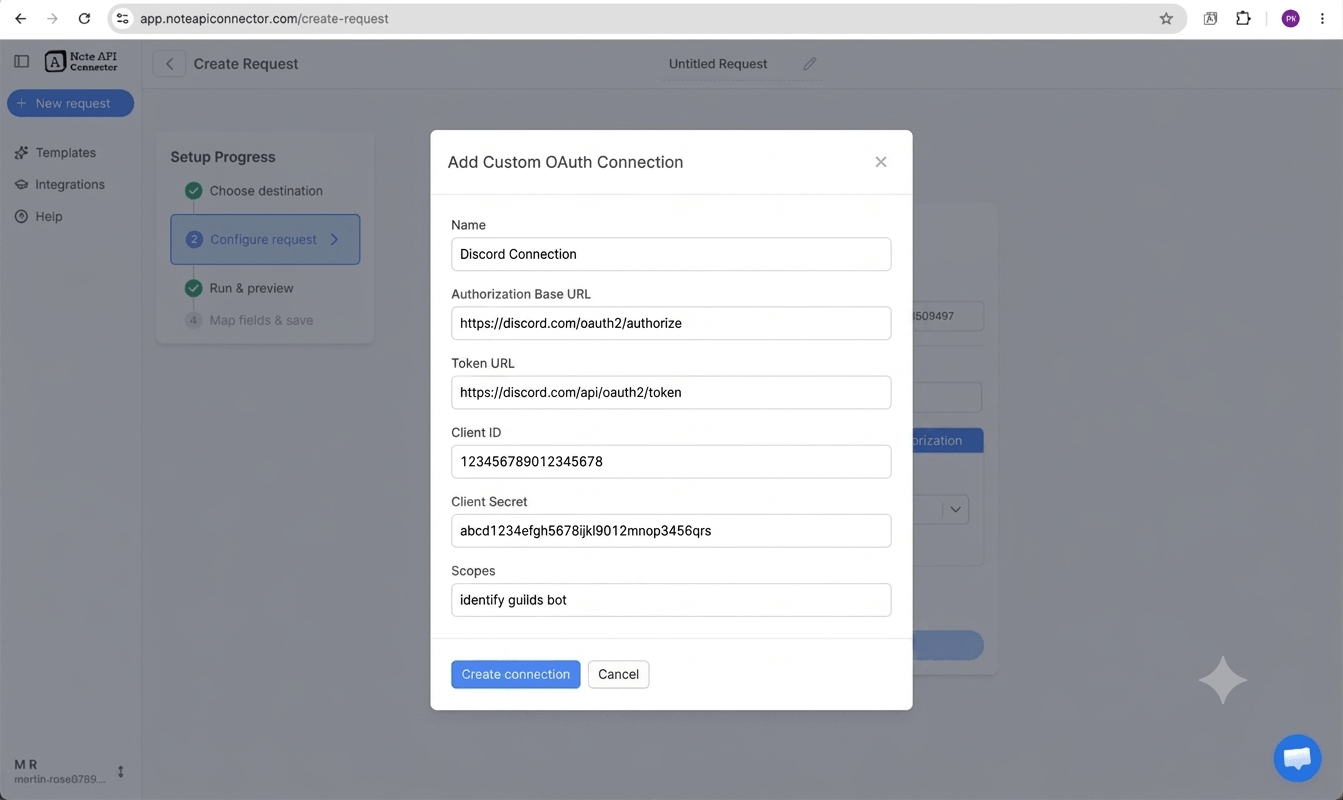
Create a Discord application and connect via OAuth
Go to discord.com/developers/applications, click New Application, and give it a name. Under OAuth2 > General, add the Redirect URL https://api.noteapiconnector.com/oauth/callback. Copy your Client ID and Client Secret from the same page. To access server channels, members, and messages, go to Bot, click Add Bot, enable the Server Members Intent and Message Content Intent under Privileged Gateway Intents, and note your bot token. In Note API Connector, click Create Request, paste your Discord API endpoint URL, open the Authorization tab, select OAuth, click New, and fill in the connection form: Authorization Base URL https://discord.com/oauth2/authorize, Token URL https://discord.com/api/oauth2/token, your Client ID, Client Secret, and scopes identify guilds bot separated by spaces. Click Create connection and approve access in the popup. See the full guide: Create a custom OAuth connection.
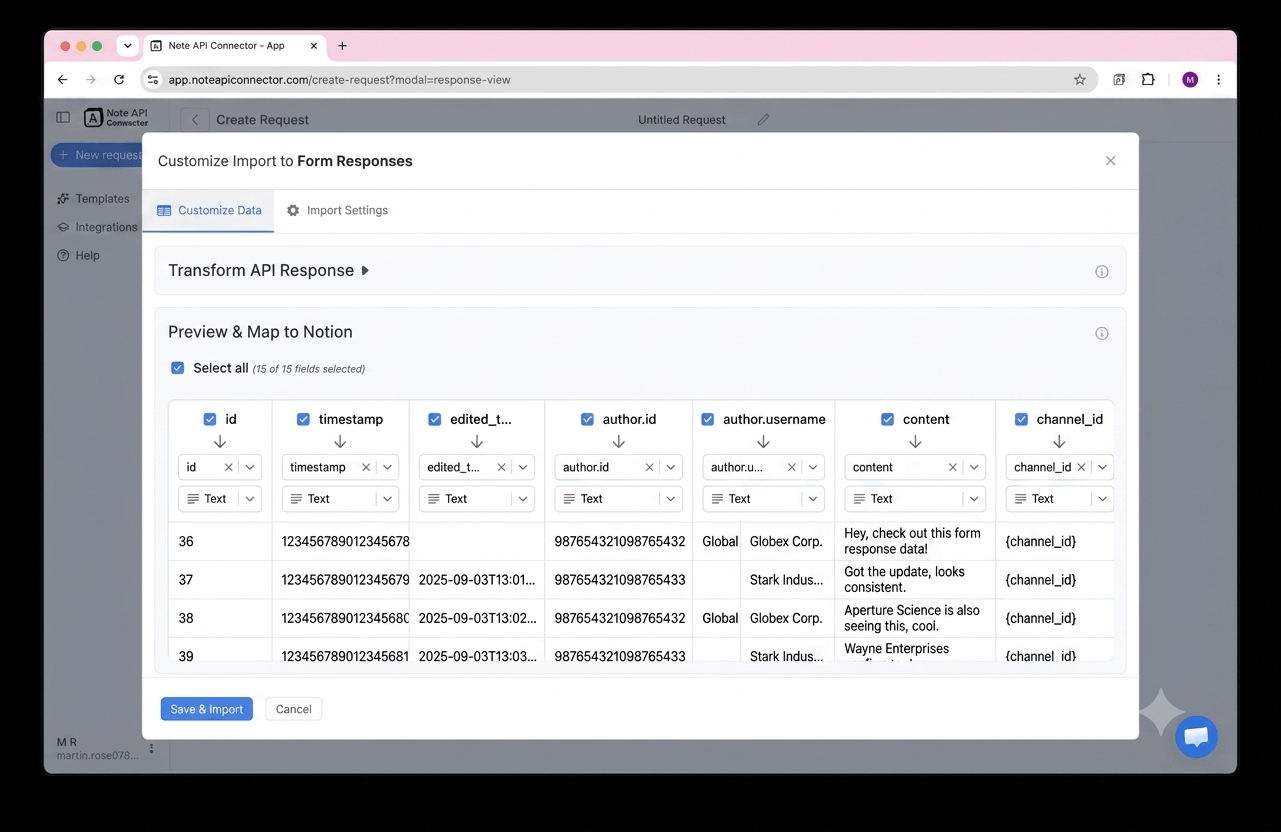
Choose your data and map fields
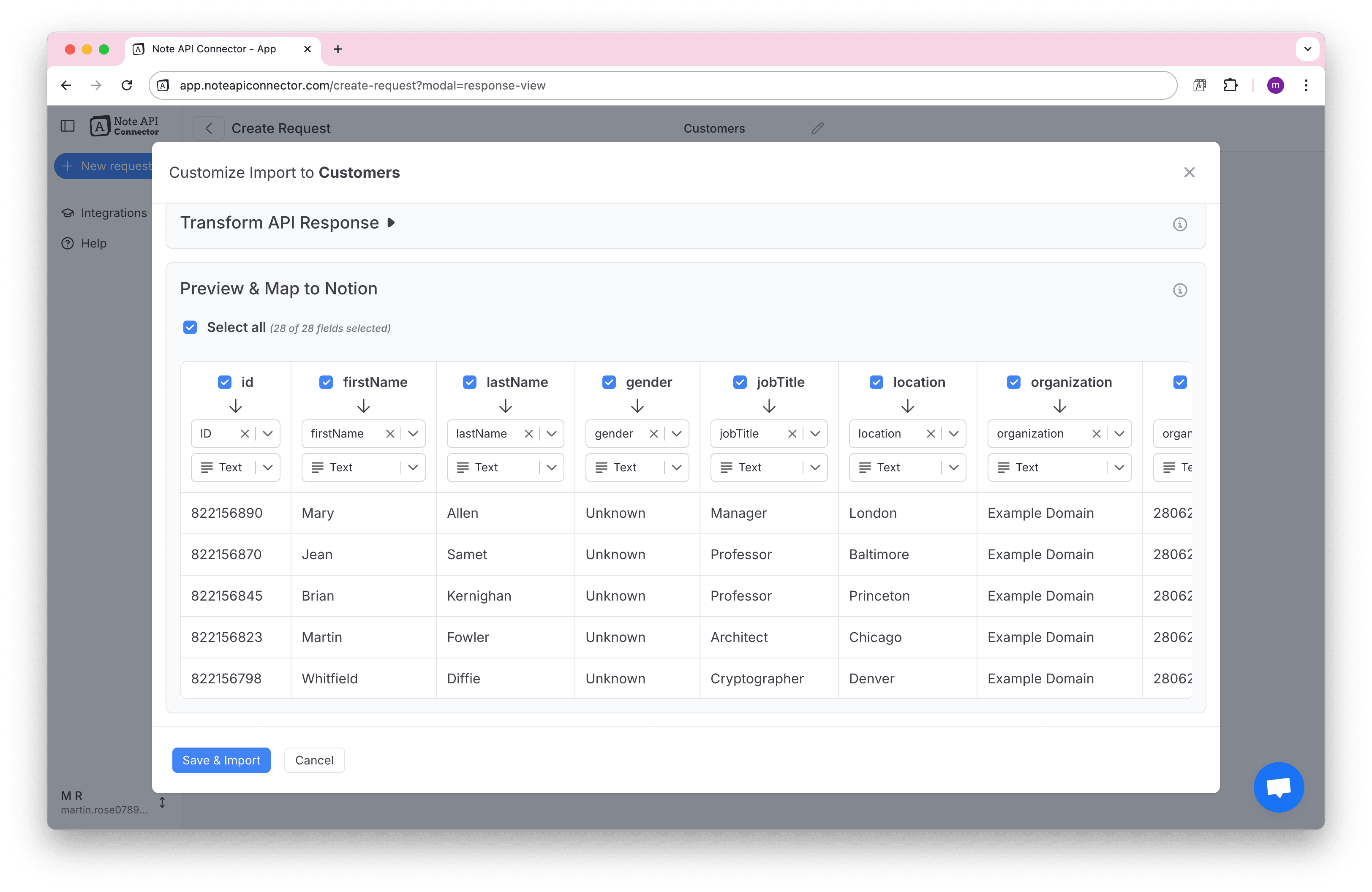
In the Response Field Mapping screen, select which Discord fields to include - such as server name, channel name, member username, message content, or join date - and map each one to a Notion property. You can match existing properties, create new ones, or set the field type. Click Save & Import when you're done.
Set your sync schedule and go live
Enable Auto Schedule and choose your refresh interval. Your Discord data will sync with Notion automatically from that point forward, with no manual refreshes needed.
⏱ Hourly / Daily / Custom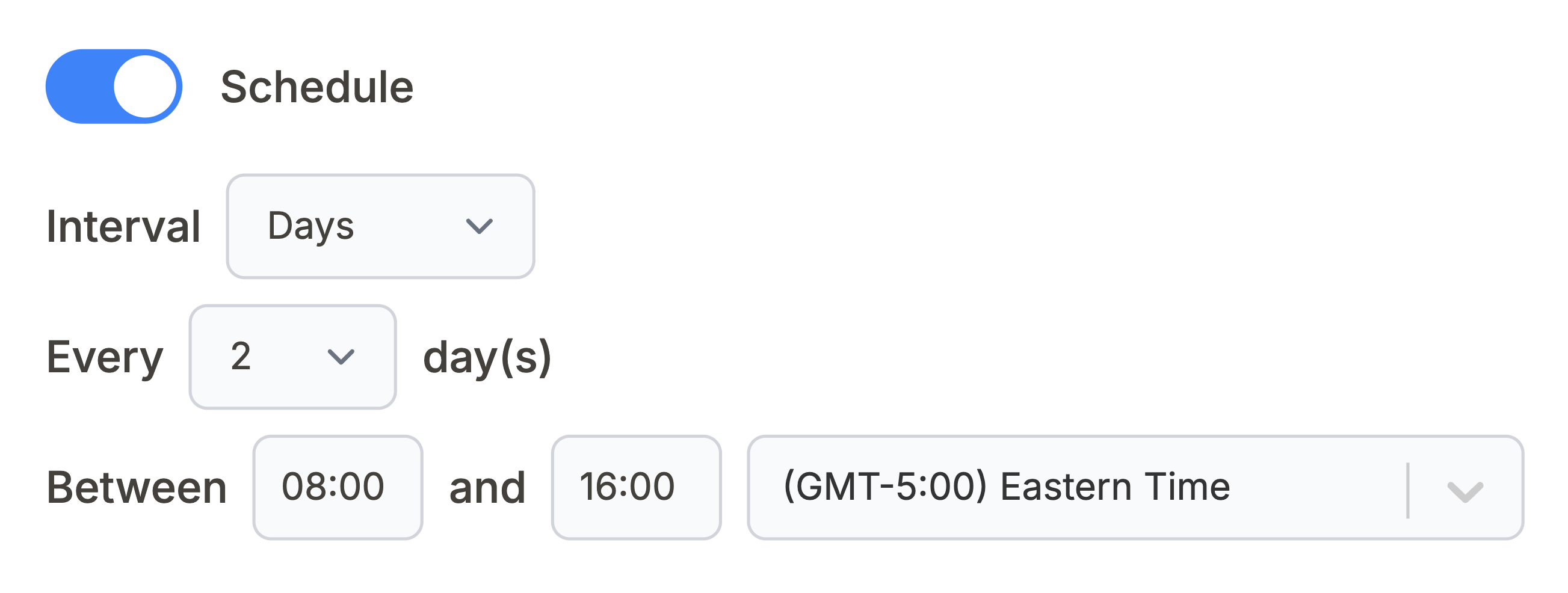
What Discord data can you sync with Notion?
Use these Discord API
endpoints directly in Note API Connector. Each one can be mapped to a separate Notion database.
Replace {guild_id} and {channel_id} placeholders with your actual
Discord server and channel IDs.
All Discord servers the authenticated user is a member of, with server name, ID, icon, and owner flag. Use this to get your server IDs and build a server directory in Notion. Requires the guilds OAuth scope.
https://discord.com/api/v10/users/@me/guilds
All channels in a server with name, type (text, voice, forum), position, and topic. Document your community structure or track channel categories inside Notion. Replace {guild_id} with your Discord server ID.
https://discord.com/api/v10/guilds/{guild_id}/channels
All members of a server with username, display name, roles, avatar, and join date. Build a live community member directory or track member growth over time in Notion. Replace {guild_id} with your server ID.
https://discord.com/api/v10/guilds/{guild_id}/members
Messages from any text channel with author, content, timestamp, and attachment details. Archive community conversations, capture announcements, or build a searchable message log in Notion. Replace {channel_id} with your Discord channel ID.
https://discord.com/api/v10/channels/{channel_id}/messages
All roles defined in a server with name, color, position, and permissions. Document your community role structure or cross-reference roles when building a member database in Notion. Replace {guild_id} with your server ID.
https://discord.com/api/v10/guilds/{guild_id}/roles
Your Discord user profile with username, global display name, email, and avatar. Useful for verifying the connected account and confirming which servers the OAuth token has access to.
https://discord.com/api/v10/users/@me
See how it works
Why sync Discord with Notion?
Always up to date
Scheduled sync runs automatically. Your Notion database reflects live Discord server data without any manual work.
No coding required
Point, click, and map fields. Connect Discord to Notion in minutes without any programming knowledge.
Custom schedule
Choose hourly, daily, or custom intervals. You control exactly when Notion pulls fresh data from Discord.
Conclusion
With Note API Connector, setting up a complete Discord Notion integration takes minutes, not days. Your server data, channel history, and member lists sync automatically into Notion on your chosen schedule, with no code and no manual copy-paste.
Whether you are building a community member directory, archiving important channel announcements, tracking server activity for moderation reports, or giving stakeholders a read-only view of your Discord community in Notion, connecting Discord to Notion gives your team a structured, searchable record of everything happening in your servers.
Frequently Asked Questions
Yes. Discord provides a REST API that exposes server (guild) data, channels, members, messages, roles, and user profiles. Note API Connector connects to this API using OAuth 2.0 to pull your Discord data into Notion on a scheduled basis.
Create a Discord Application at discord.com/developers/applications, add the redirect URL https://api.noteapiconnector.com/oauth/callback under OAuth2, and copy your Client ID and Client Secret. In Note API Connector, connect your Notion workspace, click Create Request, paste a Discord API endpoint URL, open the Authorization tab, select OAuth, and fill in the connection form with Discord's Authorization Base URL, Token URL, your credentials, and scopes (identify guilds bot). Approve the popup to complete the connection.
Yes. Enable Auto Schedule in Note API Connector and choose your refresh interval: hourly, daily, or custom. Your Discord server data will sync into Notion automatically on that schedule with no manual action required.
Discord's API separates user-level access from server-level access. User OAuth tokens (with the guilds scope) can list servers but need a bot present in the server to access channels, members, and messages. When you include the bot scope in the OAuth flow, Discord adds your application's bot to the server and grants access to that server's data.
In Discord, go to Settings > Advanced and enable Developer Mode. Then right-click any server name to Copy Server ID, or right-click any channel to Copy Channel ID. Use these IDs to replace {guild_id} or {channel_id} in the Discord API endpoint URLs.
You can sync servers (guilds), server channels, server members, channel messages, and server roles. Each Discord API endpoint can be mapped to a separate Notion database, so you can build a complete community overview inside Notion.
No. Note API Connector is a no-code tool. You paste your Discord API endpoint URL, set up the OAuth connection using the Authorization tab, select your Notion database, and map fields visually. No programming knowledge is needed.
Yes. Note API Connector connects to Discord using OAuth 2.0 for read-only data access. Note API Connector never writes or modifies any data in your Discord servers.