The Complete Guide to Notion Date Range Formulas (with Examples)
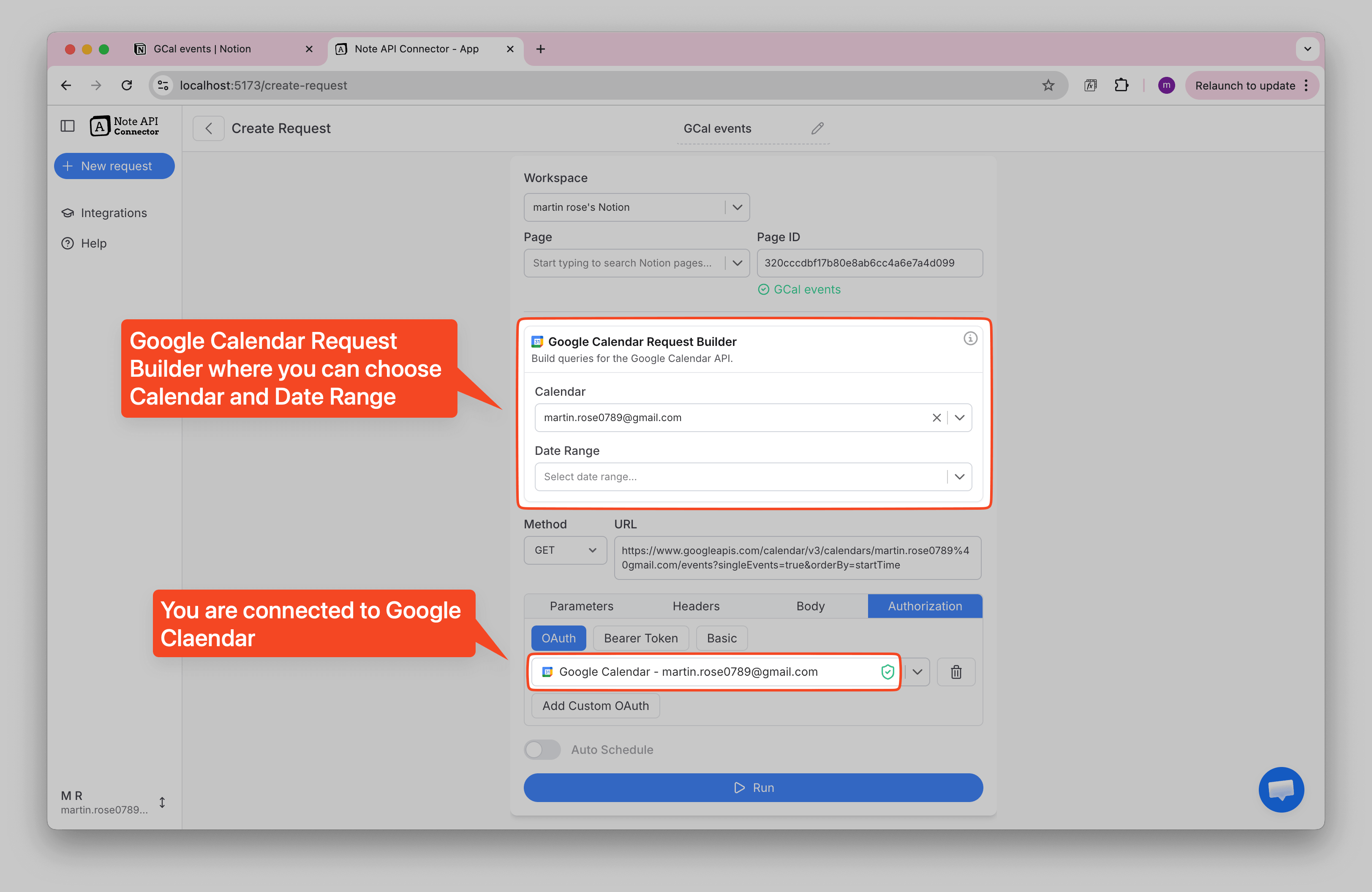
When working with timelines, events, tasks, and projects in Notion, date ranges become essential. But Notion doesn’t always treat start and end dates the way we want—especially when importing data from tools like Google Calendar or using API connectors.
The good news? With a Notion date range formula, you can combine separate date fields, calculate durations, and display beautiful, readable ranges in a single column.
In this guide, you'll learn exactly how to do that—step-by-step.
Why You Need a Notion Date Range Formula
Many integrations (including Google Calendar imports) add Start Date and End Date as separate properties. While Notion supports native date ranges, external tools often don’t merge them automatically.
That’s where formulas come in.
A Notion date range formula lets you:
- Combine Start and End dates into one formatted range
- Make timelines easier to read
- Display dates consistently, regardless of database or integration
- Calculate the duration between two dates
- Power timelines, project plans, and event views
How to Combine Start and End Dates Into One Date Range Column
To display a clean date range like:
Jan 3, 2025 → Jan 7, 2025
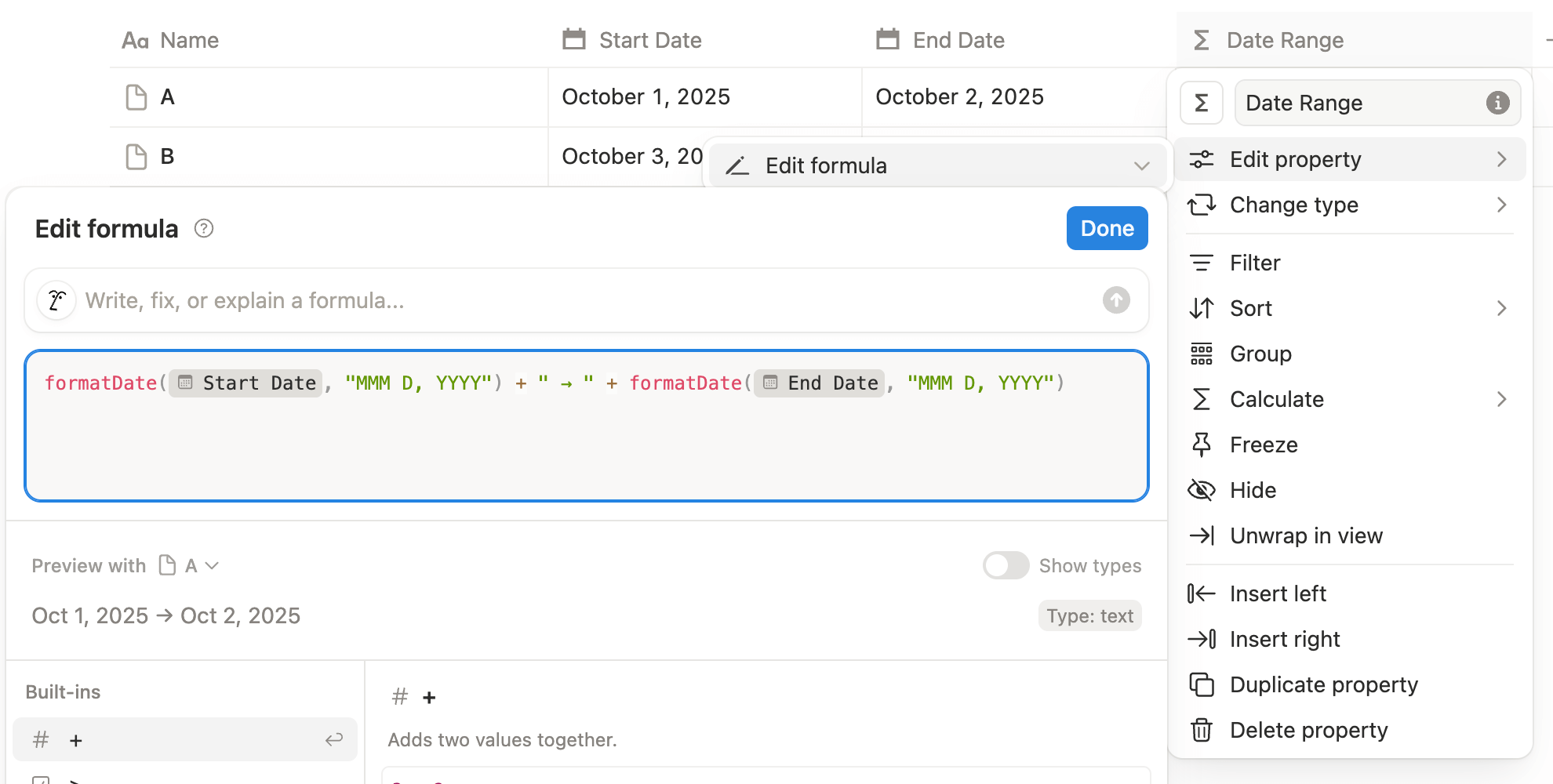
Create a new Formula property called Date Range and paste this:
formatDate(prop("Start Date"), "MMM D, YYYY")
+ " → " +
formatDate(prop("End Date"), "MMM D, YYYY")
What This Formula Does
formatDate()converts a raw Notion date into a readable text format" → "adds a visually clean arrow separator- The final output is a text string that looks like a date range
This is perfect for:
- Calendars
- Project timelines
- Event databases
- Imported Google Calendar events
- Anything where Notion doesn’t automatically merge the dates
How to Calculate the Number of Days Between Two Dates
If you want to know the length of your event or project, use Notion’s built-in
dateBetween() formula.
Example: Duration in days
dateBetween(prop("End Date"), prop("Start Date"), "days")
Other Options
You can replace "days" with:
"hours""minutes""weeks""months"
This is useful for:
- Sprint lengths
- Project durations
- Booking periods
- Event spans
- Time tracking
Pro Tip: Combine Both Concepts for a Dual-Purpose Date Range Column
You can enhance the date range formula by adding the duration:
formatDate(prop("Start Date"), "MMM D, YYYY")
+ " → " +
formatDate(prop("End Date"), "MMM D, YYYY")
+ " (" +
format(dateBetween(prop("End Date"), prop("Start Date"), "days"))
+ " days)"
Example output:
Jan 3, 2025 → Jan 7, 2025 (4 days)
When You Should Use a Notion Formula Instead of a Native Date Range
Use native date ranges when:
- You manually enter dates
- You rely on timeline or calendar views to behave naturally
- You don't need text formatting
Formulas give you visual control and consistency that native ranges don't.
Final Thoughts
A Notion date range formula is one of the most practical upgrades you can add to your workspace if you work with projects, schedules, or imported data. Whether you're formatting imported Google Calendar events or building advanced project systems, these formulas unlock the flexibility Notion is missing out of the box.
Frequently Asked Questions
A Notion date range formula is a custom formula that combines separate start and end date properties into one readable date range or calculates the duration between them.
Use a formula like: formatDate(prop("Start Date"), "MMM D, YYYY") + " → " + formatDate(prop("End Date"), "MMM D, YYYY")
Yes. Use dateBetween(prop("End Date"), prop("Start Date"), "days") to calculate the duration.
Absolutely. Replace "days" with "weeks", "months", "hours", or "minutes" depending on the calculation you need.