HubSpot Notion CRM: Build a Fully Connected CRM Dashboard in Notion
What if you could see all your HubSpot sales data inside Notion with contacts linked to their companies, deals connected to the right people, and everything updating automatically?
That's exactly what we'll build in this guide: a fully connected HubSpot Notion CRM that keeps your Notion workspace in sync with HubSpot. You'll get a ready-to-use HubSpot Notion CRM template that creates three linked databases Contacts, Companies, and Deals so you can filter, sort, and build custom reports without ever leaving Notion.
This guide shows you exactly how to create a HubSpot Notion CRM, where HubSpot remains your source of truth and Notion becomes a powerful CRM dashboard for reporting, filtering, and collaboration.
Here's what makes this setup powerful: HubSpot stays your source of truth. All changes happen in HubSpot, and Notion simply reflects that data. This one-way sync means you never have to worry about conflicts, duplicates, or accidentally overwriting important CRM information.
Best of all? You don't need to write a single line of code. Note API Connector handles everything from pulling HubSpot data to linking related records together.
Why Use Notion as Your HubSpot CRM Dashboard?
HubSpot is fantastic for managing your sales pipeline, but sometimes you need a different view of your data. Maybe you want to:
- Create custom reports that HubSpot doesn't offer out of the box
- Share deal information with team members who don't have HubSpot access
- Combine CRM data with project notes, meeting agendas, or company wikis—all in one place
- Build filtered views that match your specific workflow
A HubSpot Notion CRM dashboard gives you all of this. Your sales data flows automatically from HubSpot into Notion, where you can slice and dice it however you want. And because it's a one-way sync, you never risk messing up your actual CRM records.
Quick setup: Connect Note API Connector
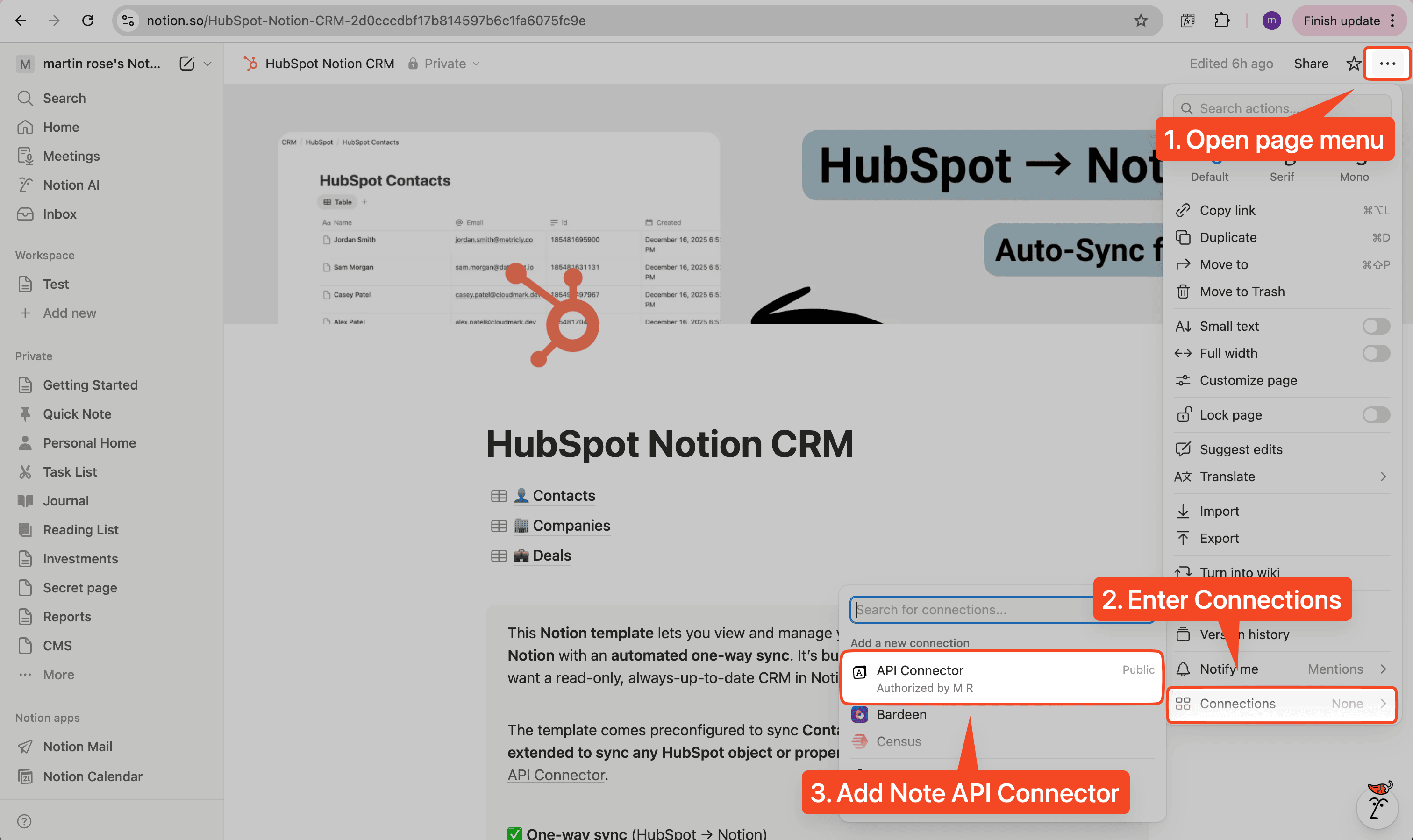
Before we start syncing data, you'll need to connect Note API Connector to your Notion workspace. This takes about two minutes and only needs to happen once.
👉 Follow the official setup guide to connect your workspace.
Once connected, make sure to share your HubSpot Notion CRM databases with Note API Connector so it can import data into them.
HubSpot to Notion CRM Template (Free & Ready to Use)
We've created a ready-to-use template that gives you three connected Notion databases:
- Deals – Track deal names, values, stages, pipelines, and timestamps
- Companies – Store company names, domains, and related information
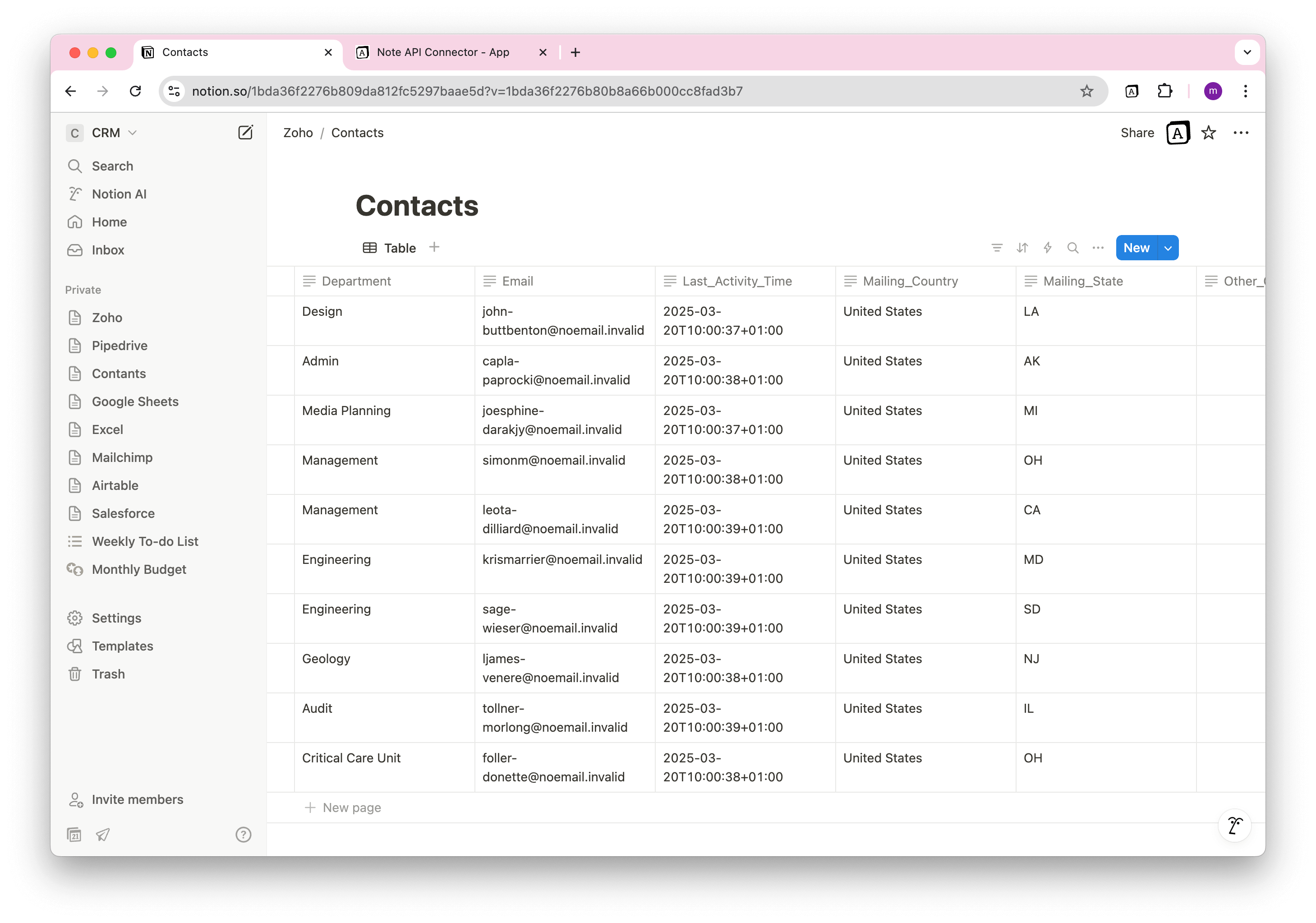
- Contacts – Keep contact details with automatic links to their companies and deals
👉 Get the free HubSpot Notion CRM template and duplicate it into your workspace.
After you clone the template, make sure to share these databases with Note API Connector. This is how the tool will be able to write your HubSpot data into Notion.
Want to customize the template? Feel free to rename properties or add new ones.
Create Your HubSpot Access Token
To pull data from HubSpot, you'll need an access token. This is like a secure password that lets Note API Connector read your HubSpot data.
👉 We've covered this process in detail in our HubSpot Notion Integration guide. Here's a quick summary:
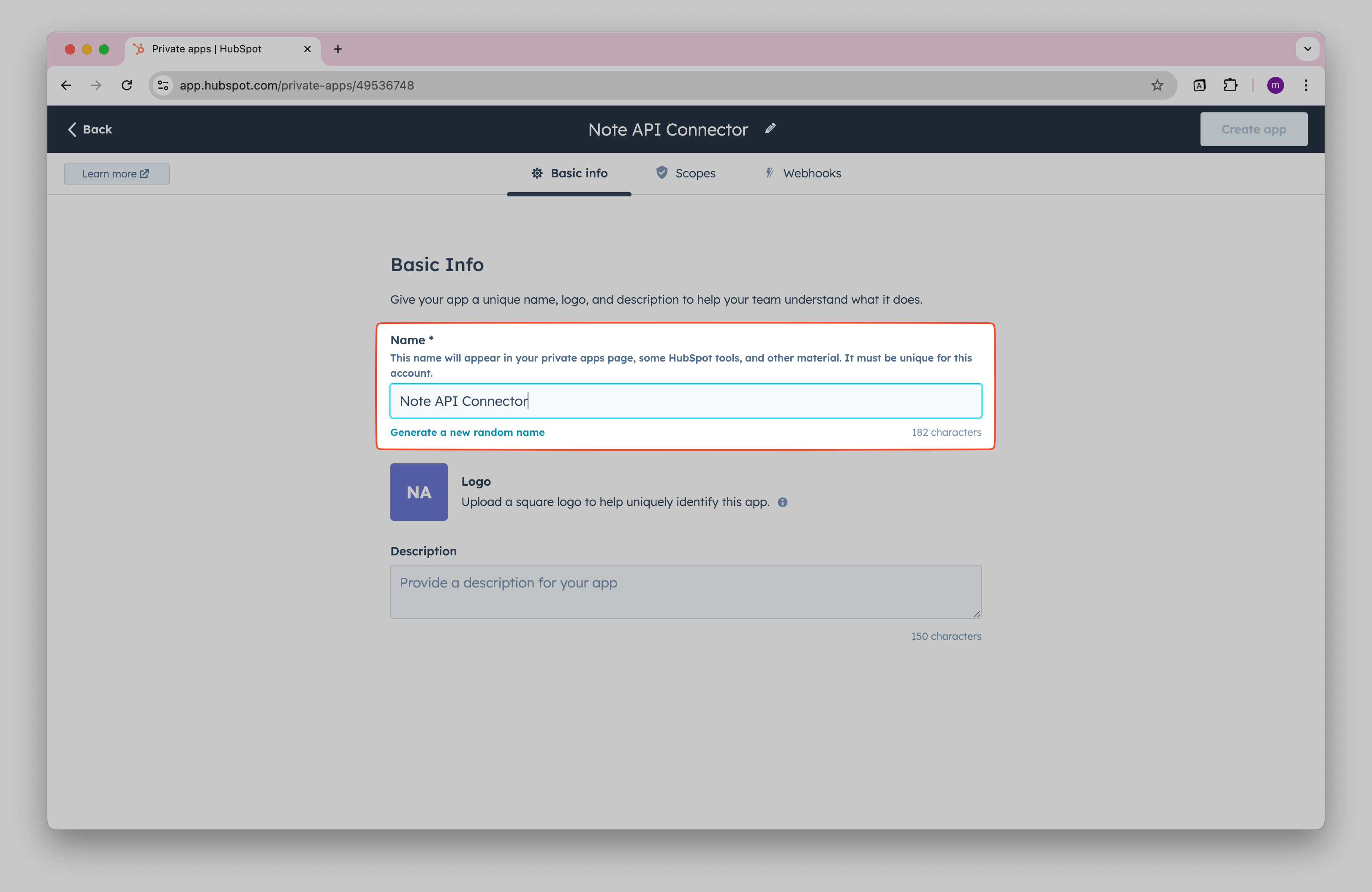
- Go to HubSpot Settings → Integrations → Private Apps
- Click Create private app and name it (e.g., "Notion CRM Sync")
- Under Scopes, enable read access for contacts, companies, and deals
- Click Create app and copy your access token
Keep this token safe. You'll paste it into Note API Connector in the next steps.
Sync Your HubSpot Data to Notion
Now for the fun part: bringing your HubSpot data into Notion. We'll set up three separate syncs, one for each database, starting with Deals.
Step 1: Import Your Deals
Let's start with your HubSpot deals.
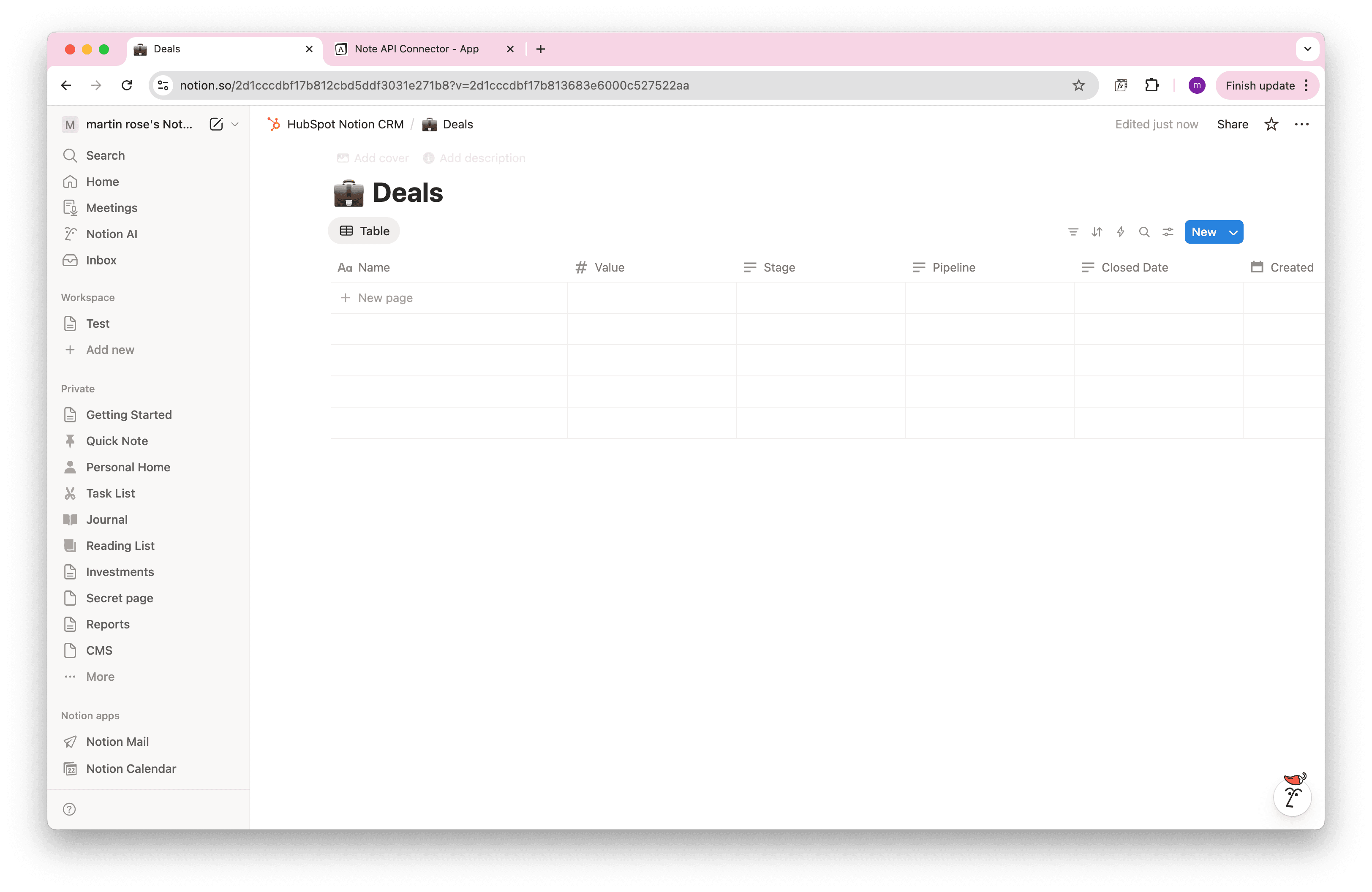
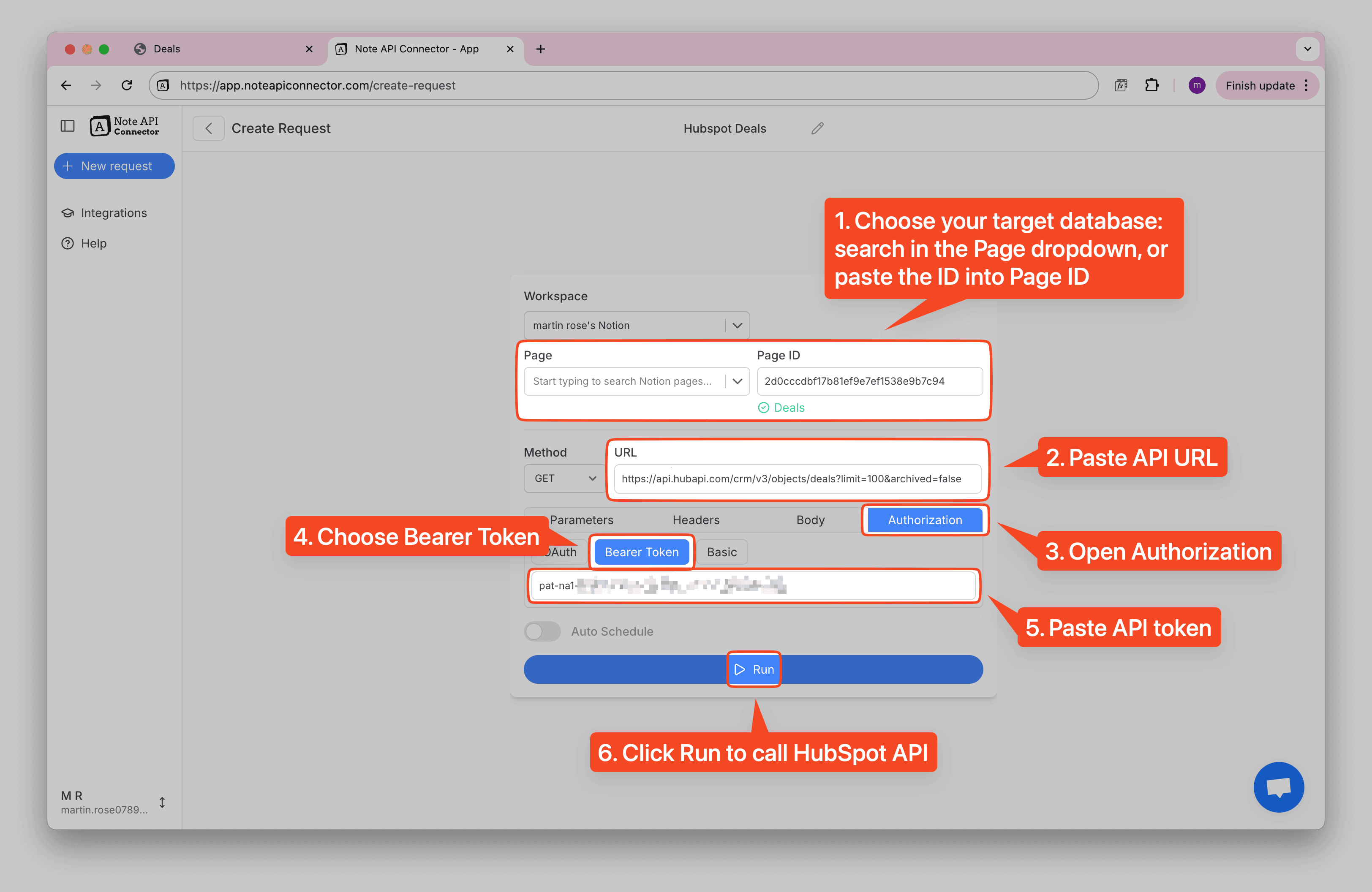
Open Note API Connector and click Create request.
Give your request a name like "HubSpot Deals" and select your Deals database from the template.
In the URL field, paste this HubSpot API endpoint:
https://api.hubapi.com/crm/v3/objects/deals?limit=100&archived=false
Next, go to Authorization → Bearer Token and paste your HubSpot access token. Click Run to test the connection.
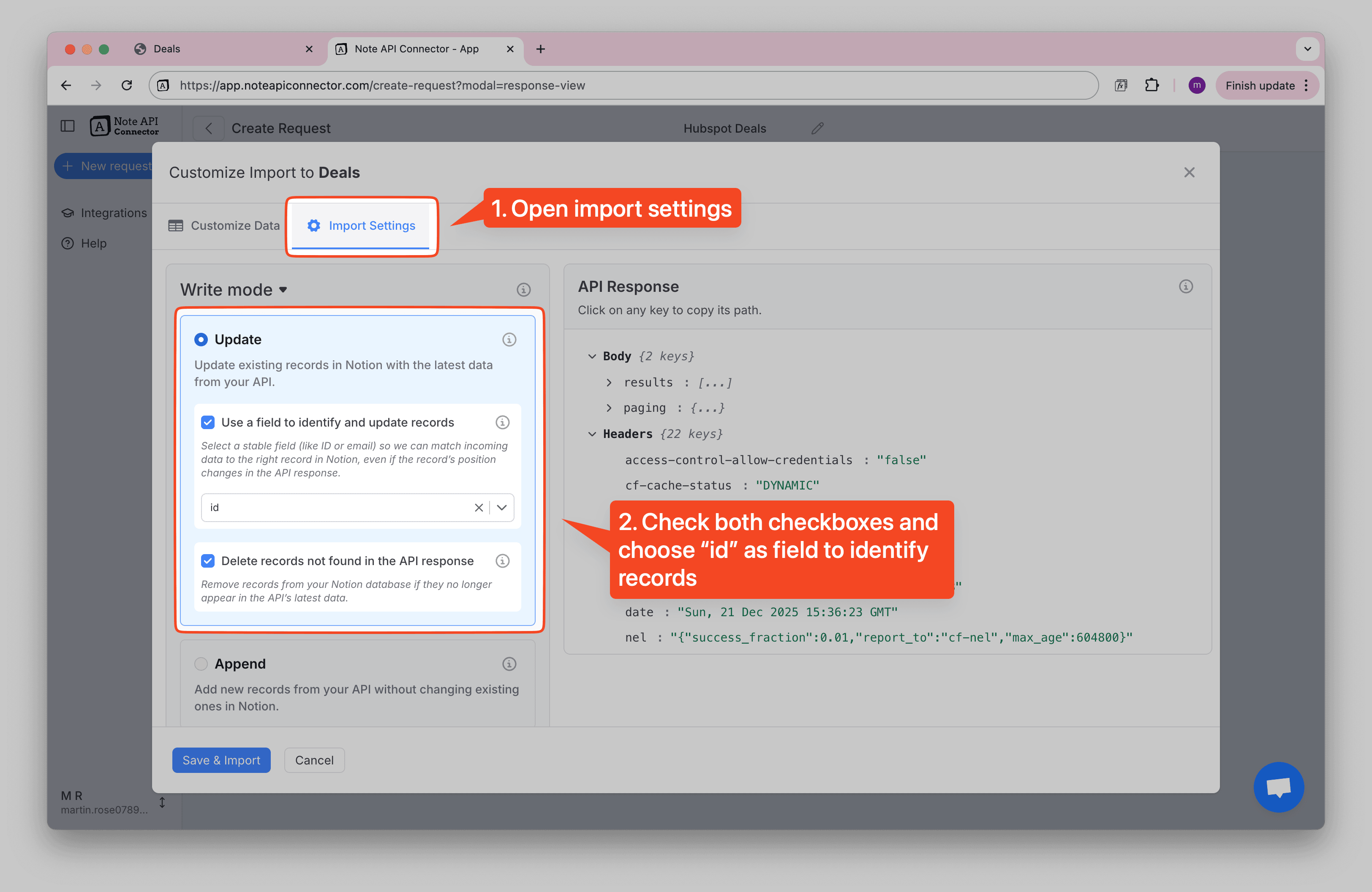
Important settings to configure:
Update mode: Set this to update existing records instead of creating duplicates. Use the ID field to match records.
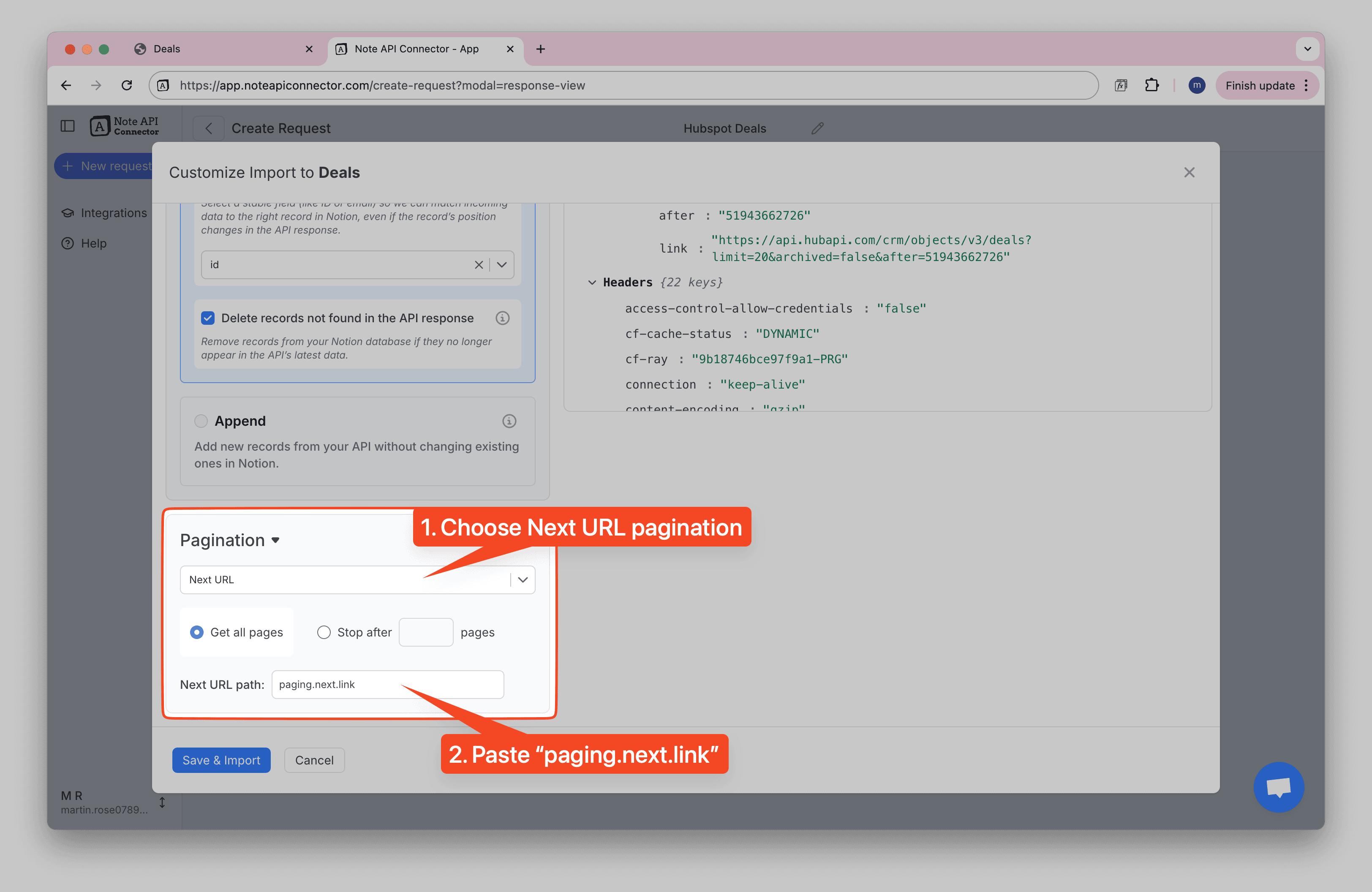
Pagination: If you have more than 100 deals, enable pagination by setting
paging.next.link as the Next URL Path. This tells Note API Connector to automatically fetch all
your deals, not just the first 100.
You'll see your deals appear in the Response Field Mapping view. Now you need to tell Note API Connector which HubSpot fields go into which Notion columns:
id→ IDproperties.dealname→ Nameproperties.amount→ Valueproperties.dealstage→ Stageproperties.pipeline→ PipelinecreatedAt→ CreatedupdatedAt→ Updated
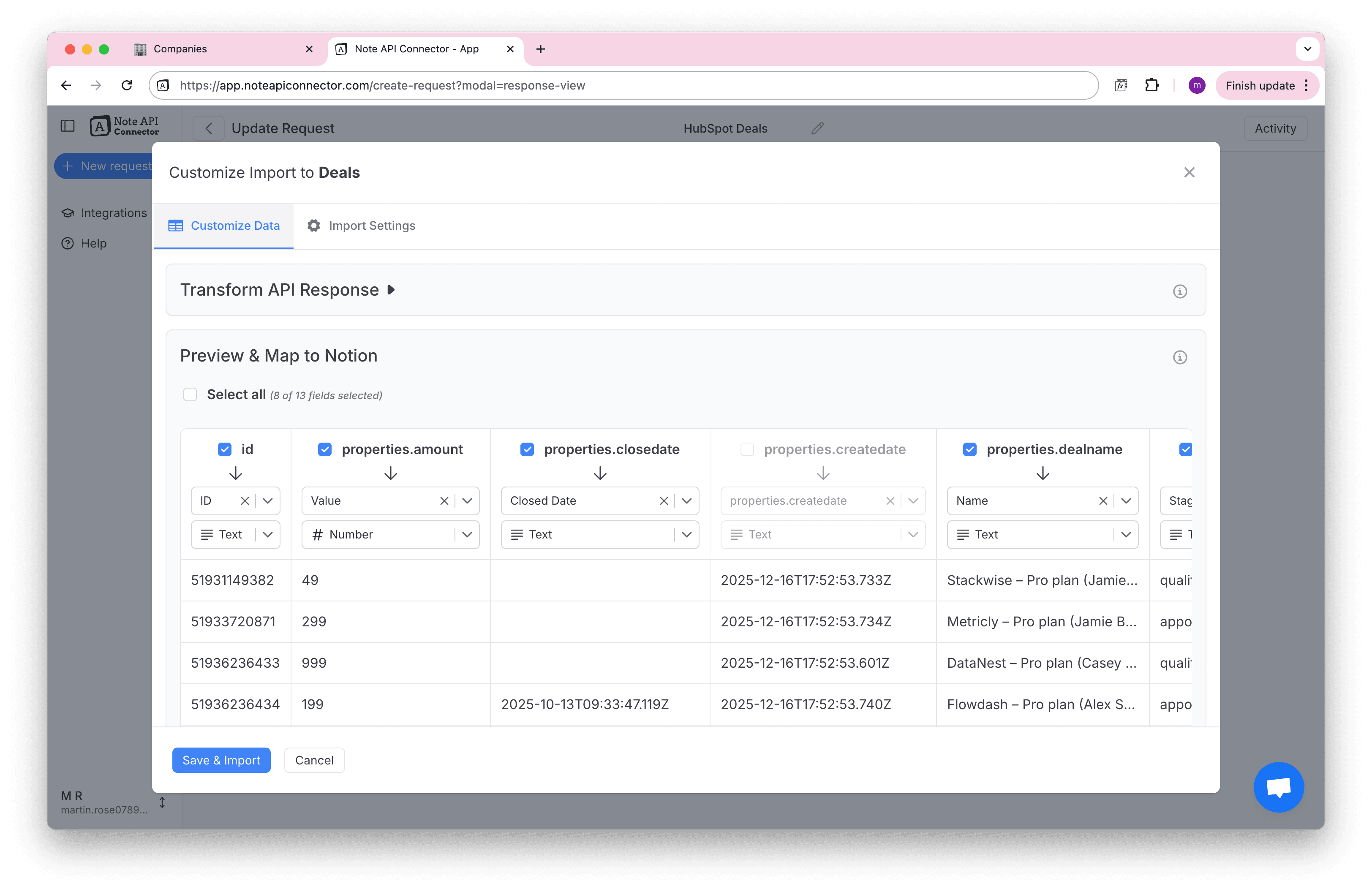
Click Save & Import. Your HubSpot deals are now in Notion! 🎉
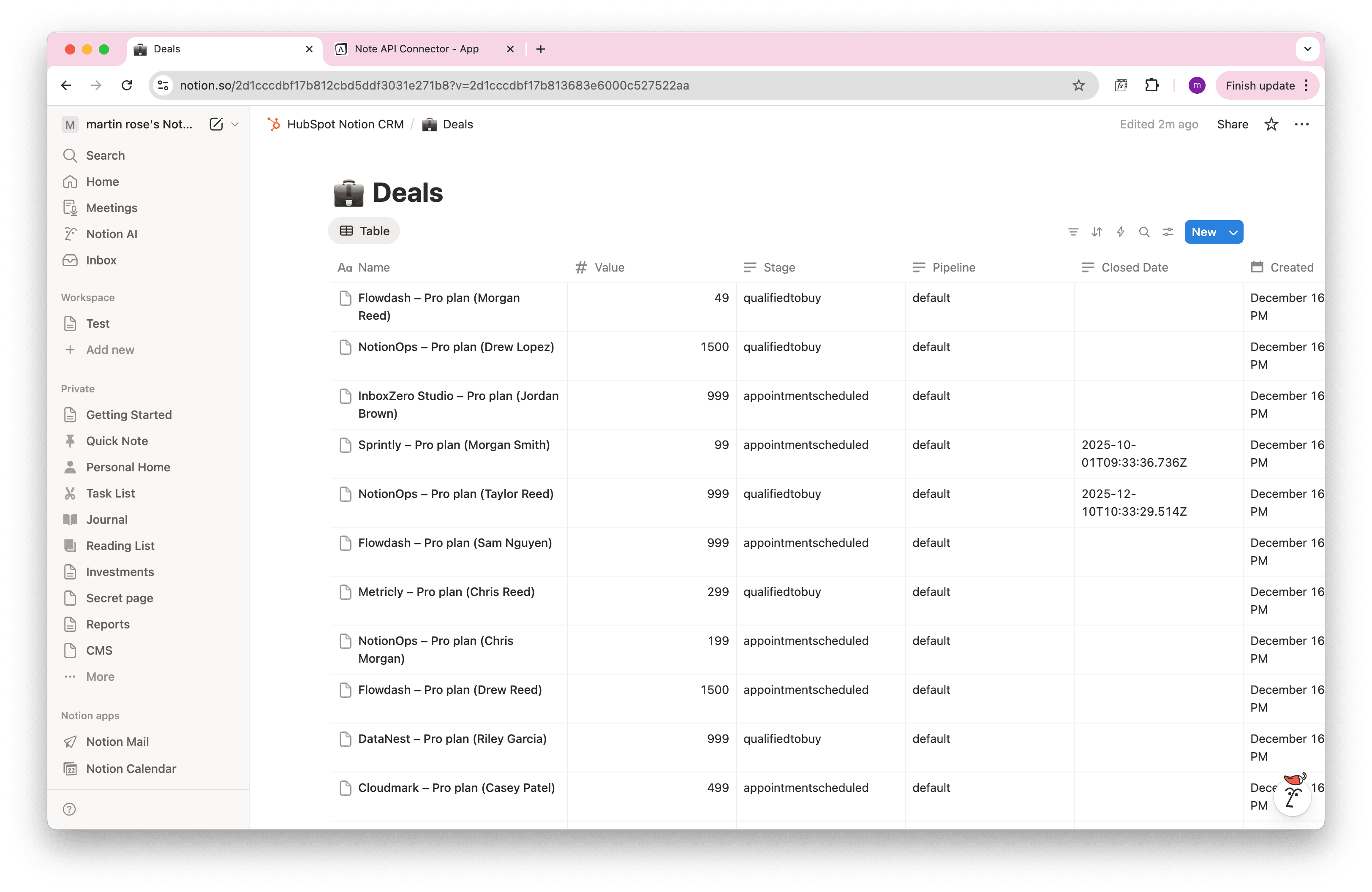
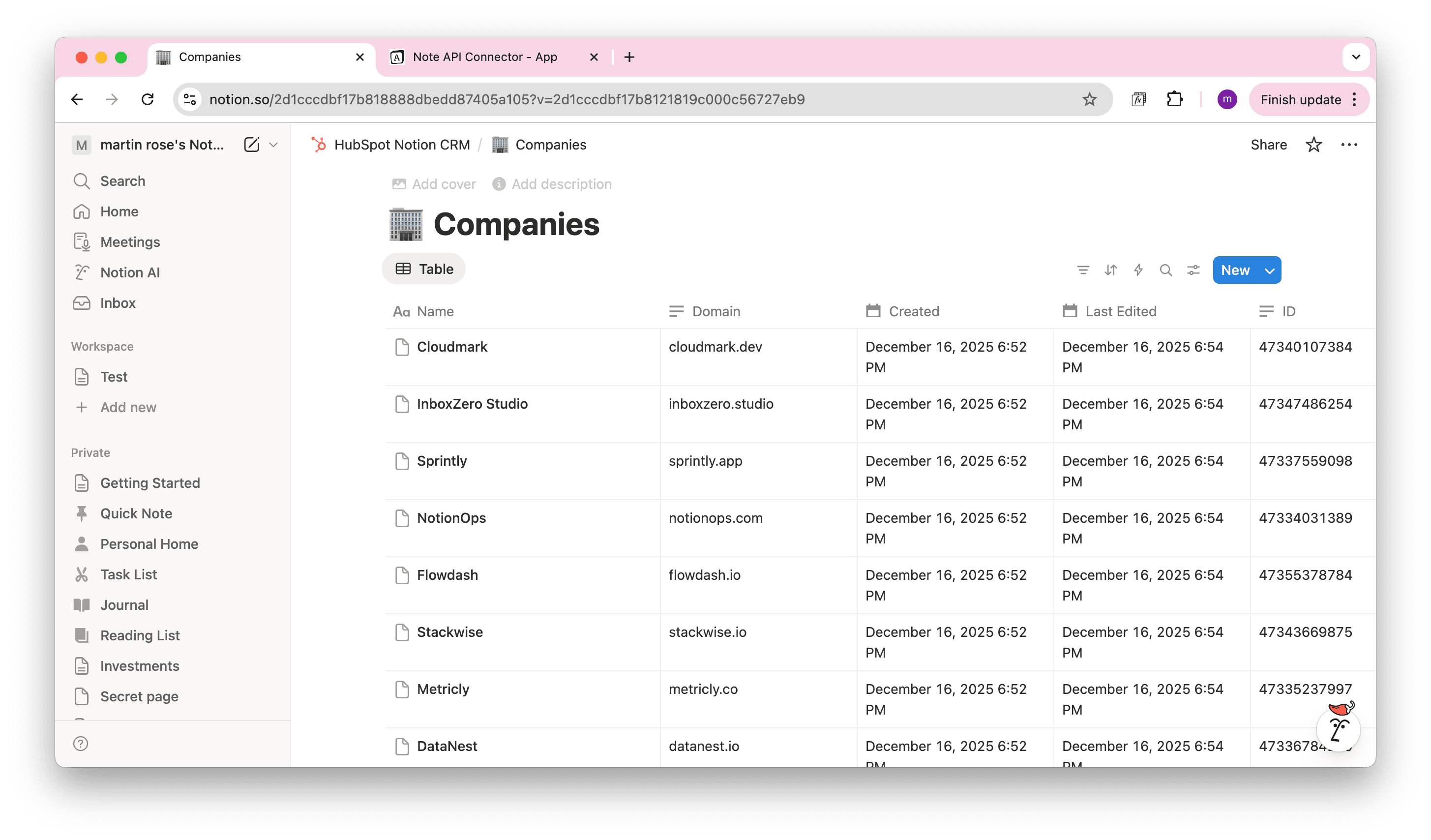
Step 2: Import Your Companies
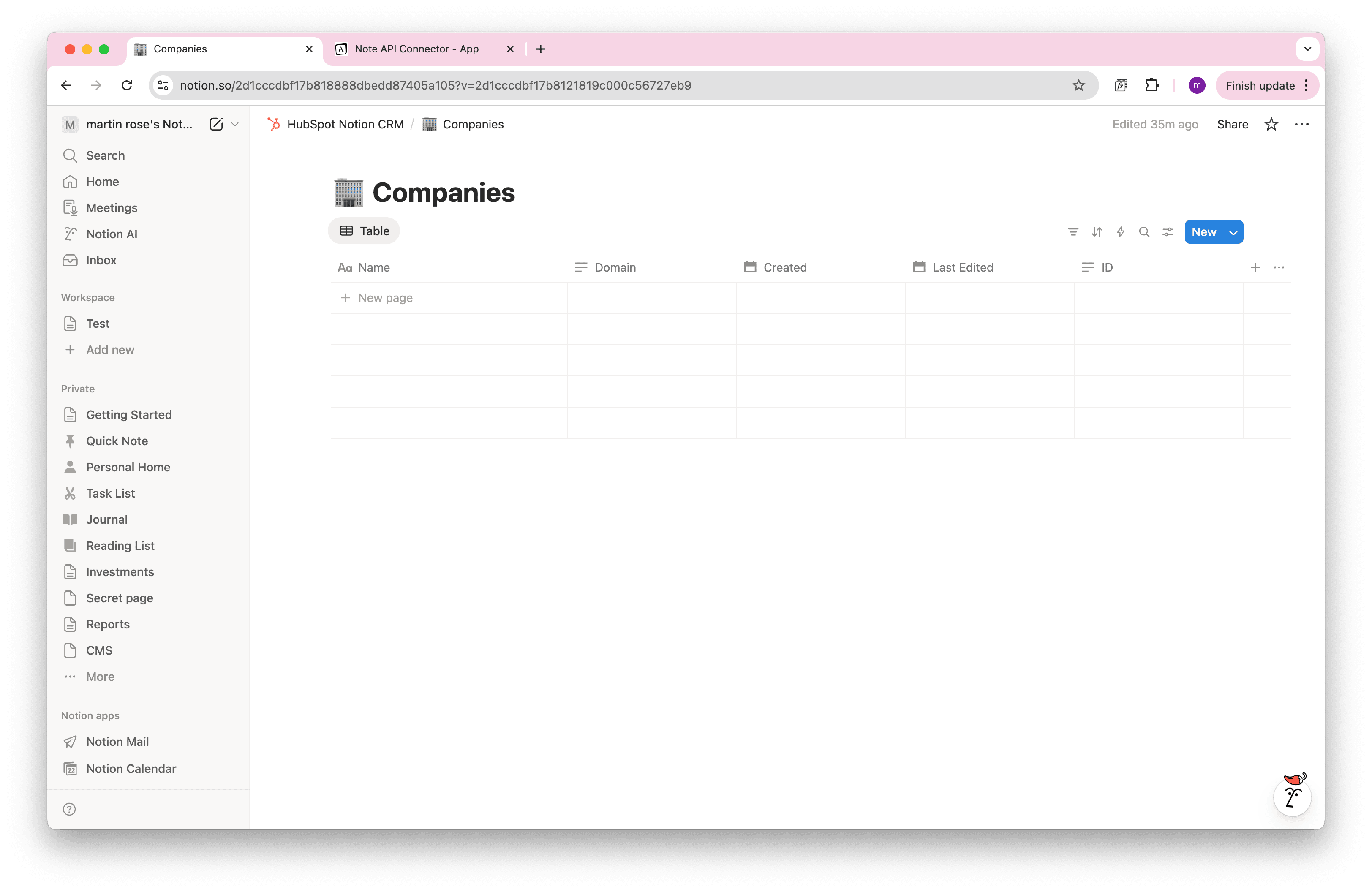
Next up: companies. Create another request in Note API Connector, select your Companies database, and use this API endpoint:
https://api.hubapi.com/crm/v3/objects/companies?limit=100&archived=false
Add your Bearer Token (same as before), click Run.
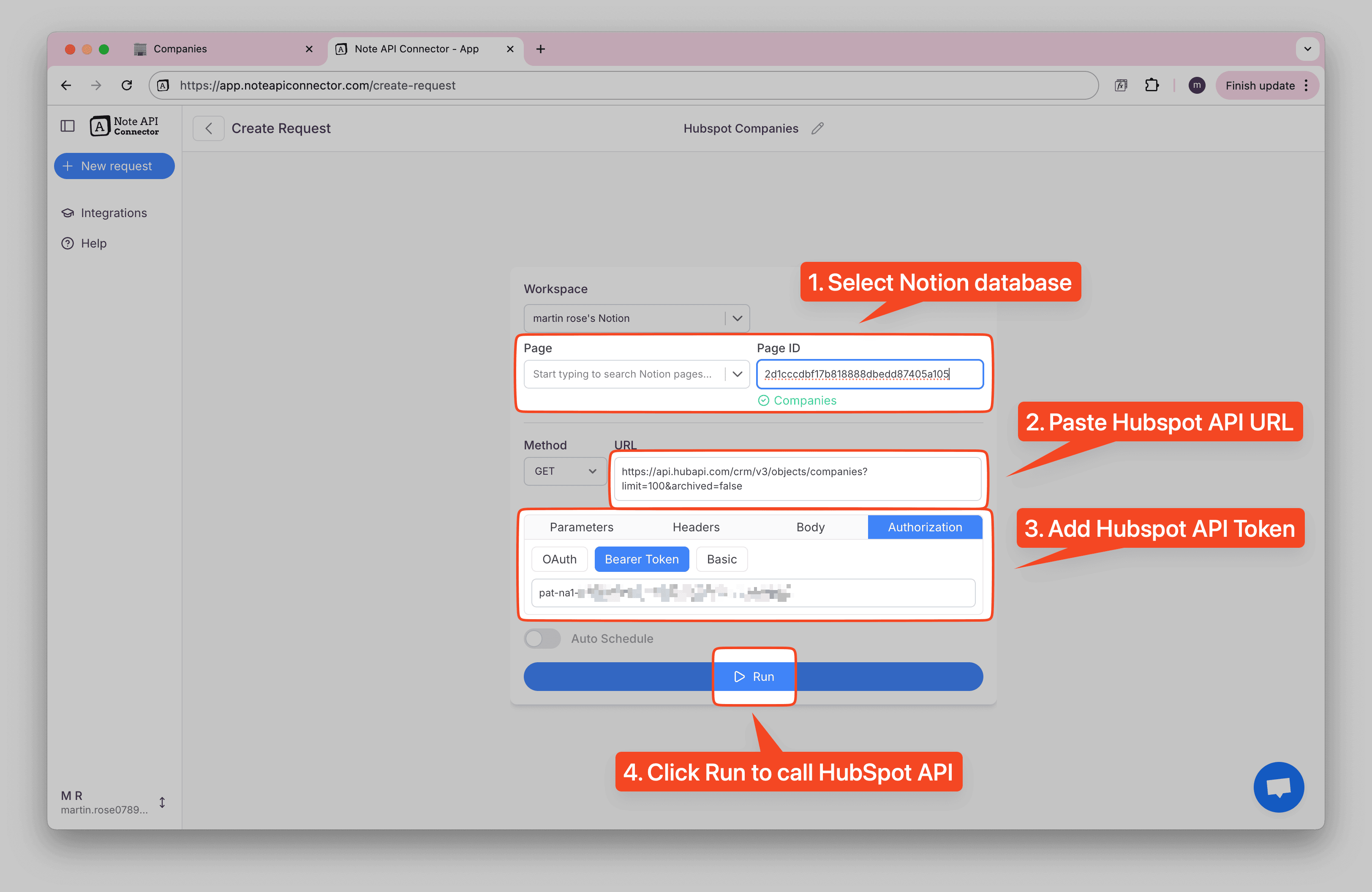
Set update mode and pagination in the same way as previous request.
Map the fields:
id→ IDproperties.name→ Nameproperties.domain→ DomaincreatedAt→ CreatedupdatedAt→ Updated
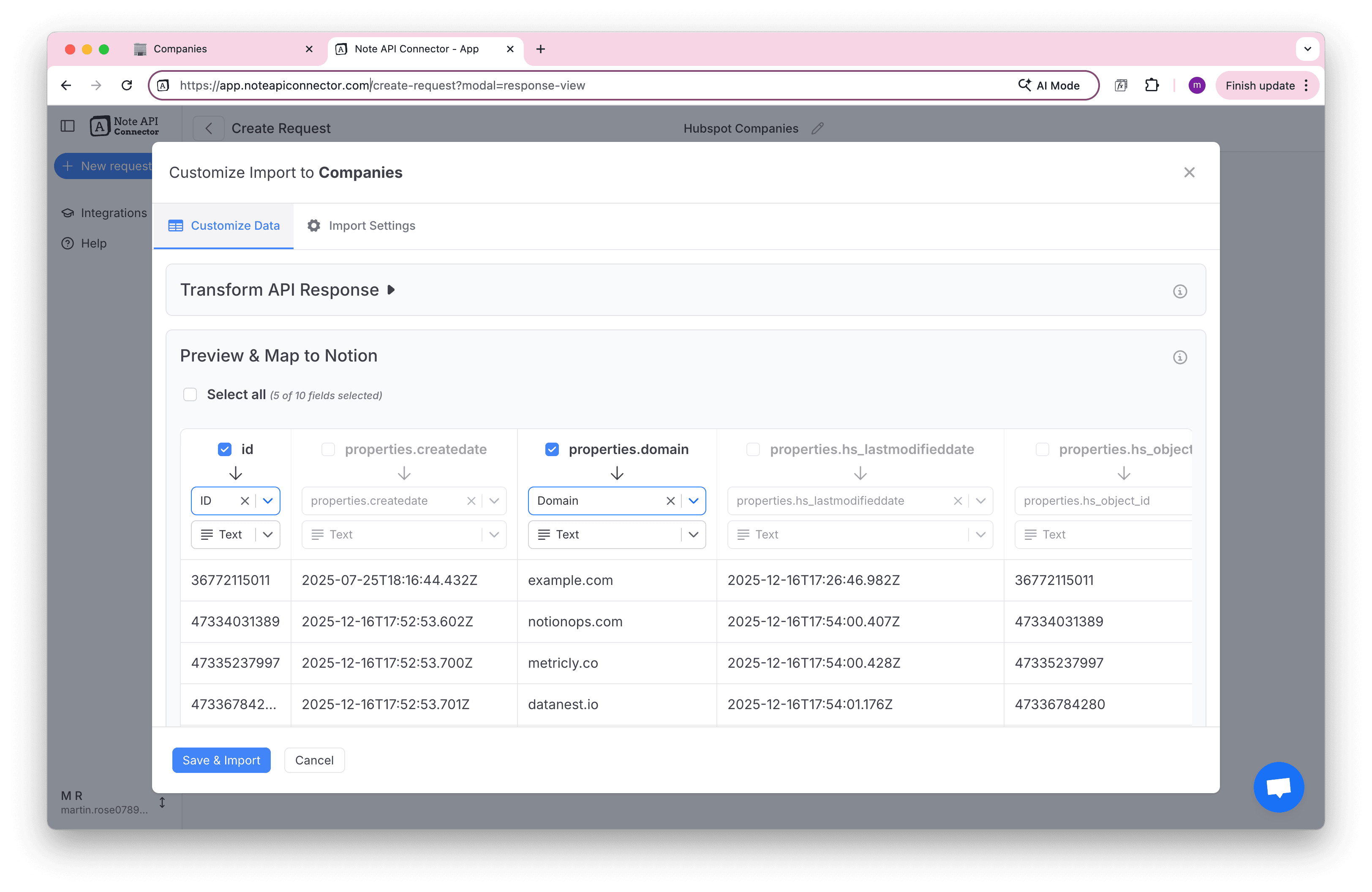
Click Save & Import.
Step 3: Import Contacts with Relationships
Here's where things get interesting. When we import contacts, we also want to pull in their associations, which companies and deals each contact is linked to in HubSpot.
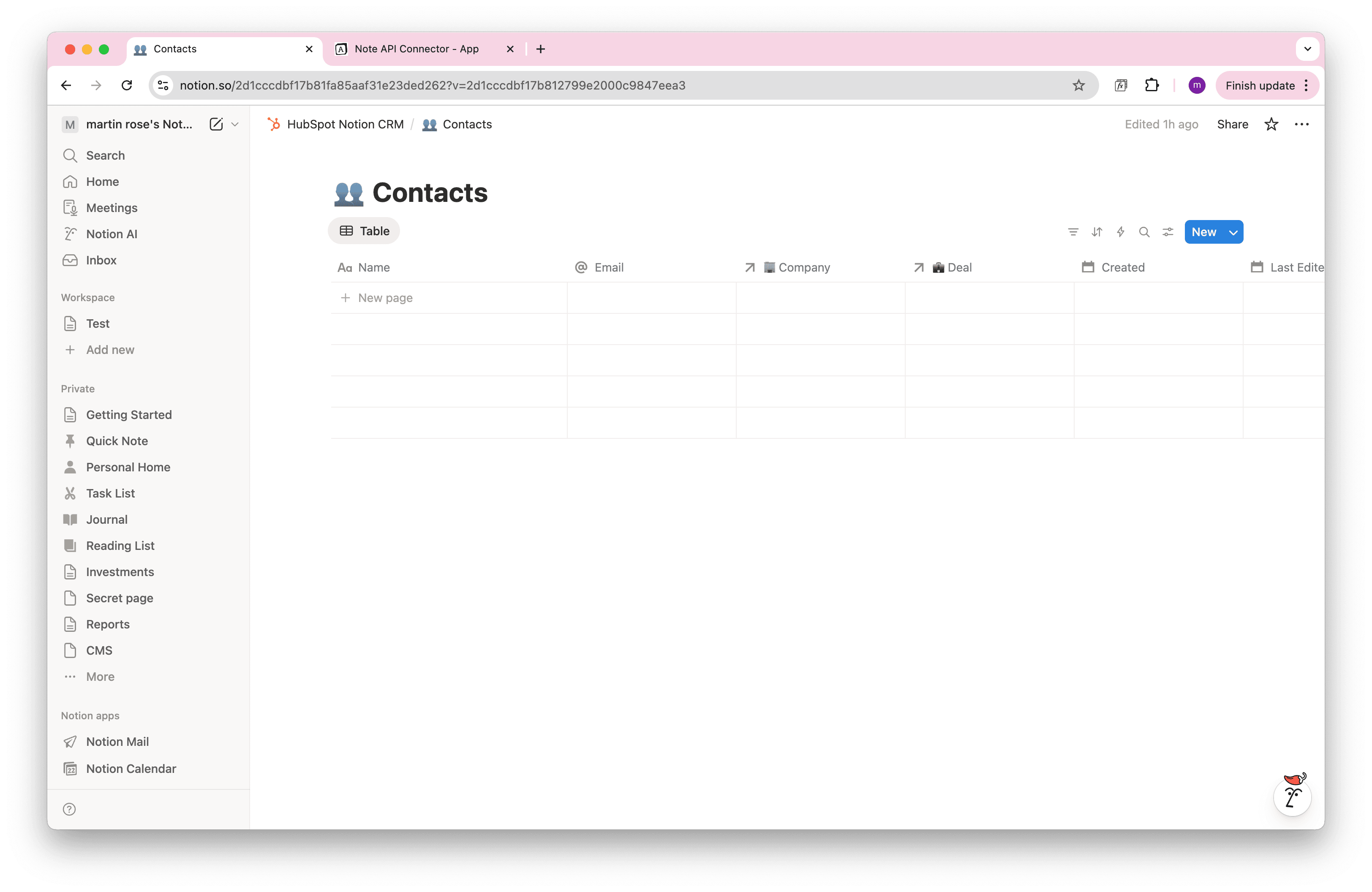
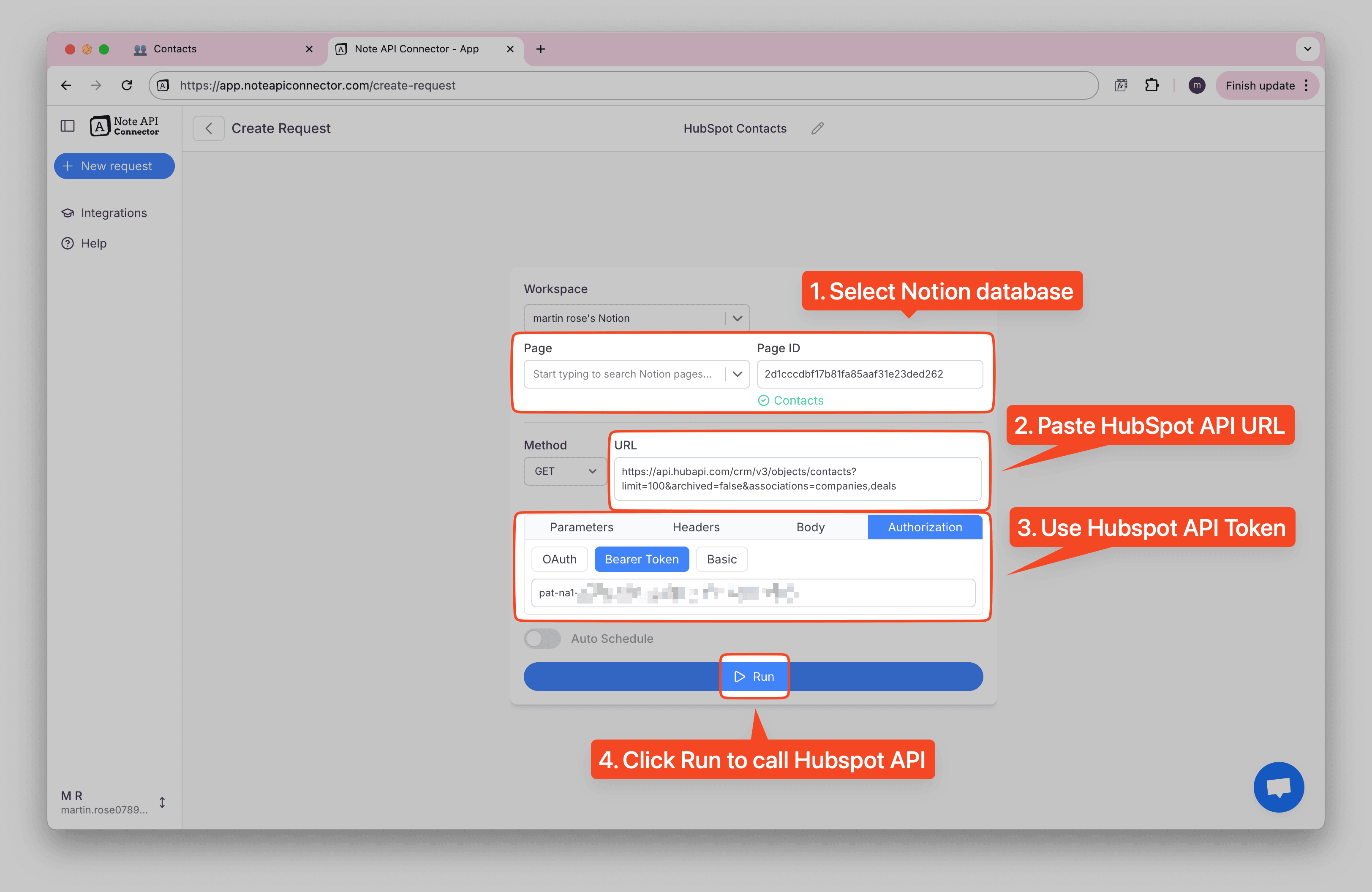
Create a new request, select your Contacts database, and use this enhanced API endpoint:
https://api.hubapi.com/crm/v3/objects/contacts?limit=100&archived=false&associations=companies,deals
Notice the associations=companies,deals parameter at the end. This tells HubSpot to include
relationship data with each contact.
Set update mode and pagination in the same way as in previous requests.
Combining first and last names: HubSpot stores first and last names separately, but you
probably want a single fullName column in Notion. Note API Connector can handle this with a
simple
transformation. In the Data Transformation section, add this JSONata
expression:
$map($, function($item) {
  $merge([
    $item,
    {
      "fullName": $trim(
        ($item.properties.firstname ? $item.properties.firstname : "")
        & " " &
        ($item.properties.lastname ? $item.properties.lastname : "")
      ),
      "associations": $item.associations ? $each($item.associations, function($v, $k) {
        {$k: $v.results[0].id}
      }) ~> $merge() : null
    }
  ])
})
Don't worry if this looks complex. It simply combines firstname and lastname into a
fullName field and
reformats the association data so Note API Connector can create proper Notion relations.
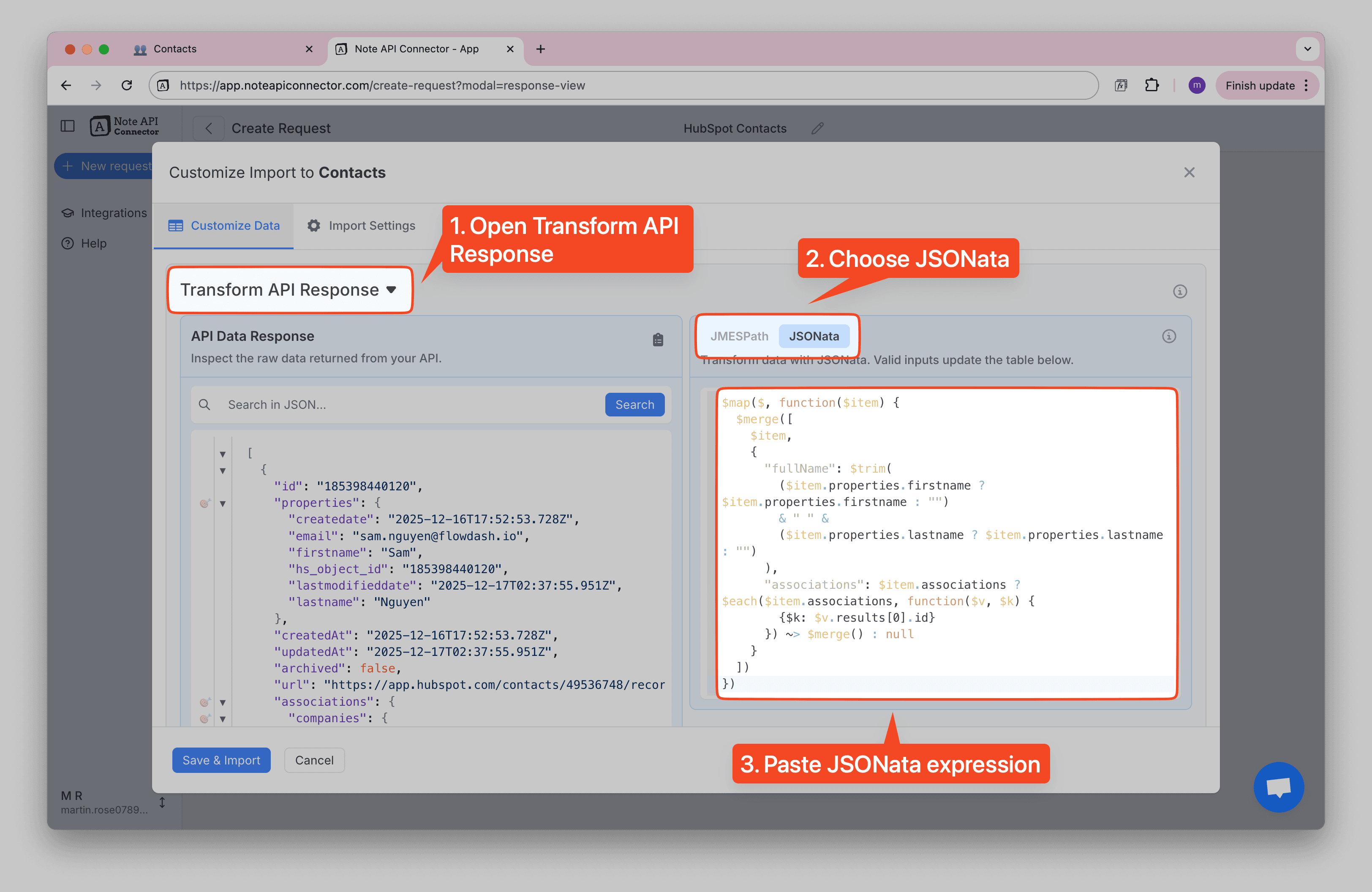
Now map your fields:
id→ IDfullName→ Nameproperties.email→ EmailcreatedAt→ CreatedupdatedAt→ Updated
How Records Get Linked Automatically
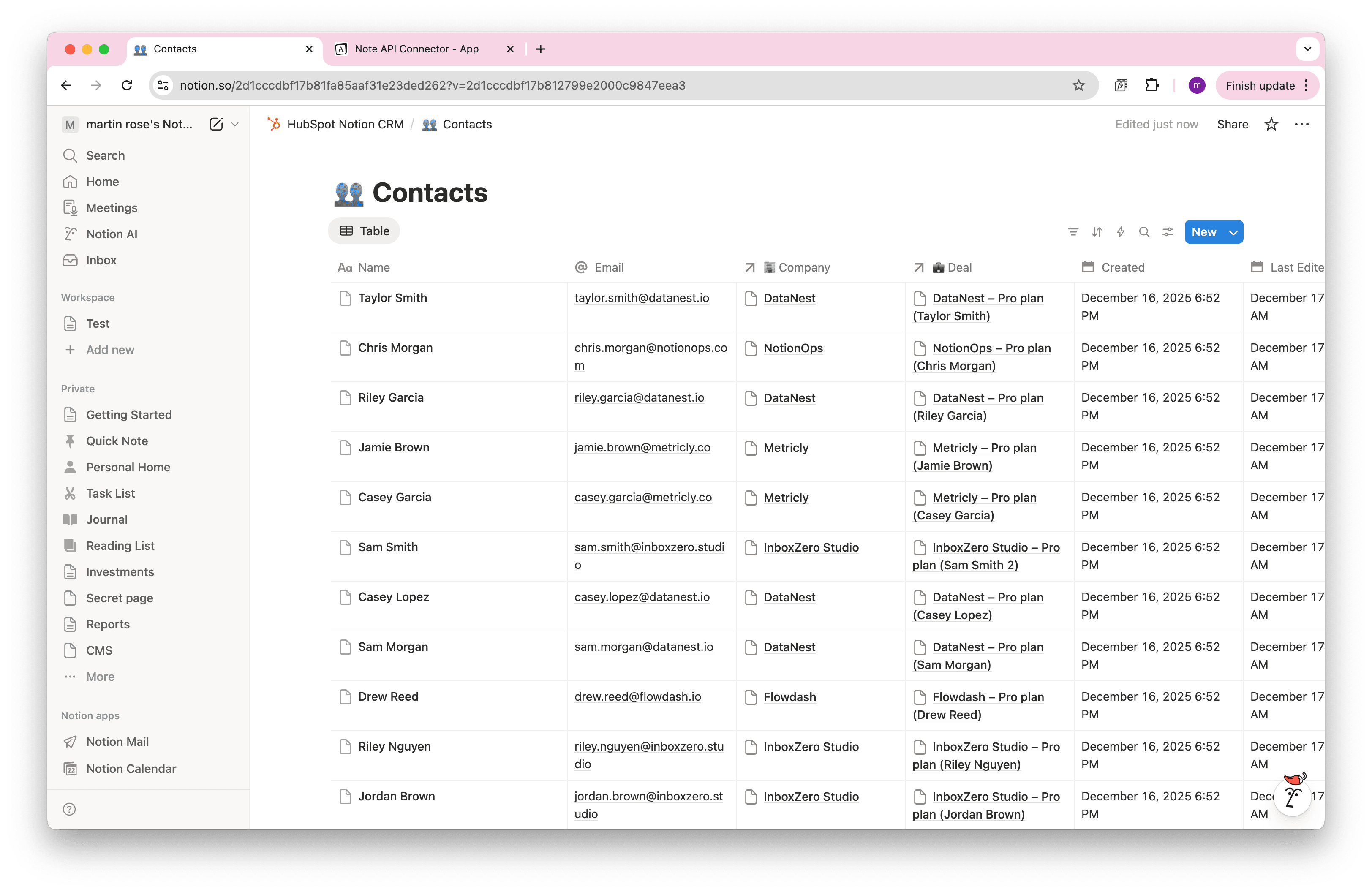
Here's the magic of a connected HubSpot Notion CRM: your contacts can automatically link to their related companies and deals.
In the Response Field Mapping view, find the associations.companies field. Set its type to
Relation and choose your Companies database as the target. Do the same for
associations.deals, pointing it to your Deals database.
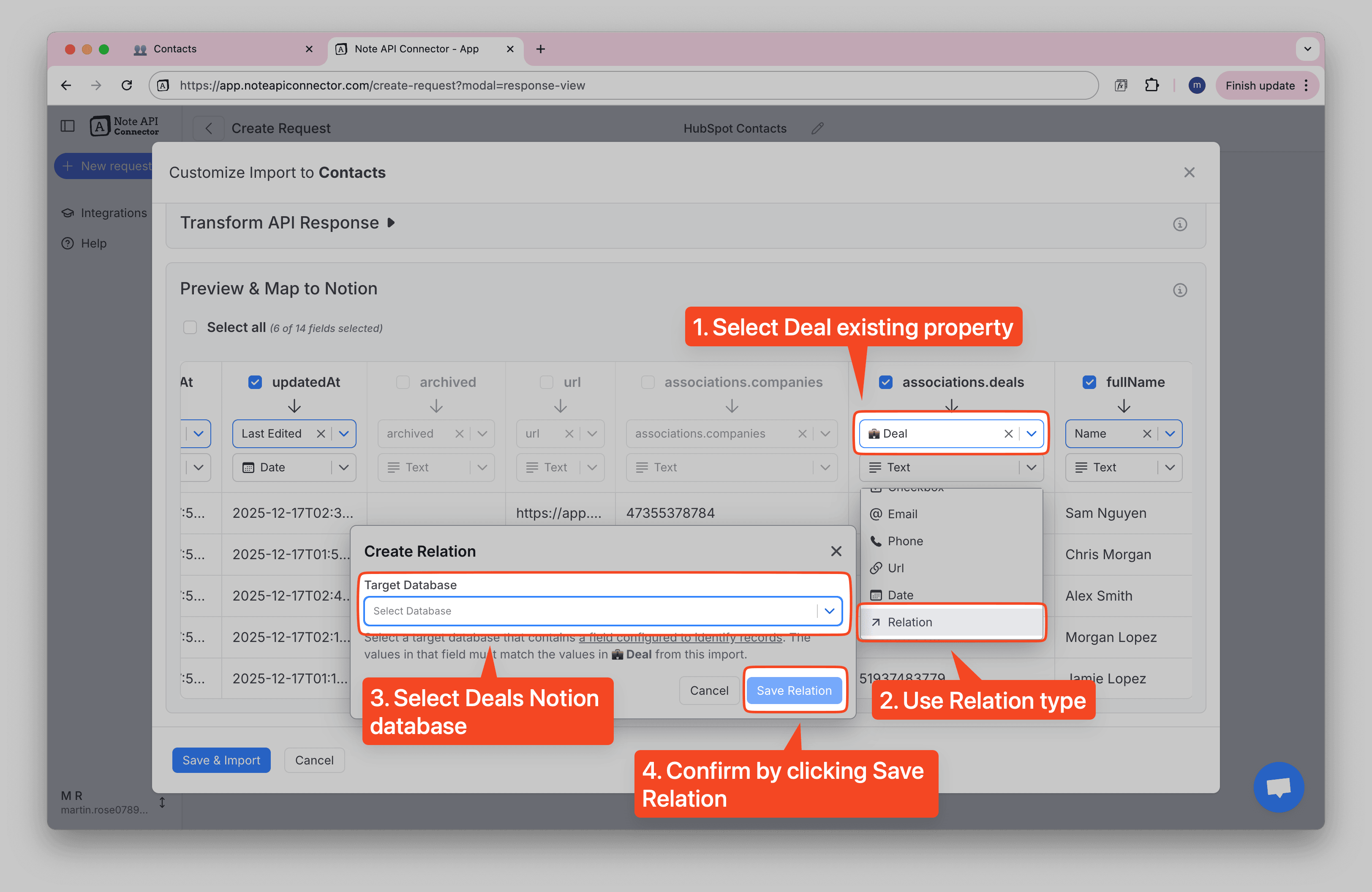
When you click Save & Import, Note API Connector will:
- Import all your HubSpot contacts into Notion
- Look up each contact's associated company and deal IDs
- Create Notion relations that link everything together
The result? Click on any contact in Notion, and you'll see which company they work for and which deals they're connected to. Click on a company, and you'll see all related contacts. It's a fully connected CRM view.
Set Up Automatic Updates
Your HubSpot Notion CRM is only useful if it stays current. Nobody wants to manually refresh data every day.
That's why Note API Connector includes scheduled syncs. You can set each of your three requests (Deals, Companies, Contacts) to run automatically on a schedule that fits your workflow:
- Every hour – For fast-moving sales teams who need near-real-time data
- Daily – Perfect for weekly reporting and pipeline reviews
- Custom intervals – Set whatever frequency makes sense for your business
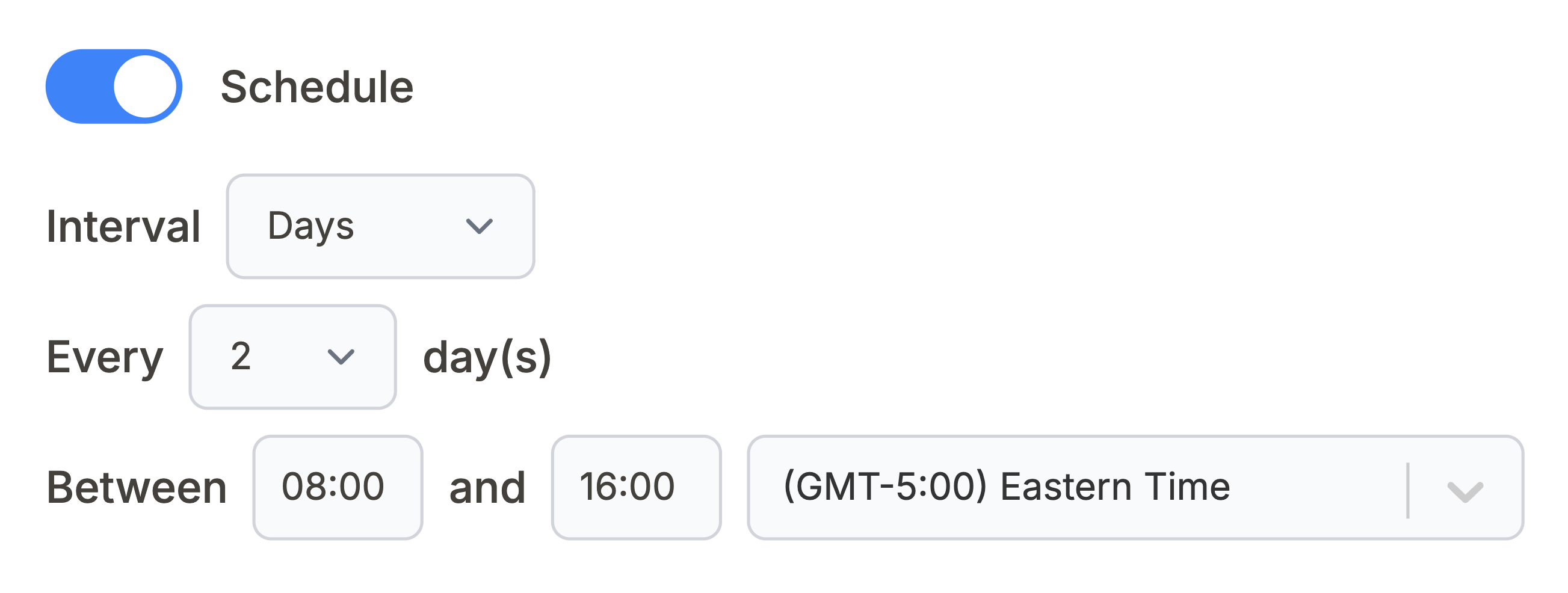
Once scheduled, your Notion CRM dashboard will always reflect the latest HubSpot data—no manual work required.
What You Can Build Next
With your HubSpot Notion CRM up and running, here are some ideas for getting even more value from your setup:
- Create filtered views – Build Notion views that show only deals in a specific stage, contacts from enterprise companies, or deals closing this month
- Add more HubSpot objects – Extend your CRM with tickets, products, quotes, or any other HubSpot data you need
- Build team dashboards – Create different views for sales reps, managers, and executives all from the same underlying data
- Combine with other data – Link your CRM data to project trackers, meeting notes, or company wikis already in your Notion workspace
Conclusion
Building a HubSpot Notion CRM gives you the best of both worlds: HubSpot's powerful CRM capabilities combined with Notion's flexibility for organizing, viewing, and sharing information.
With the setup we've covered, you now have three connected databases that automatically sync from HubSpot complete with relationships between contacts, companies, and deals. Your team can access this data without needing HubSpot licenses, and you can create custom views that match exactly how you work.
Because it's a one-way sync with HubSpot as the source of truth, you never have to worry about data conflicts or accidentally changing your CRM records from Notion.
🚀 Ready to try it yourself? Start with the free HubSpot Notion CRM template , then connect it to HubSpot using Note API Connector.
Frequently Asked Questions
A HubSpot Notion CRM is a setup where your HubSpot sales data (contacts, companies, and deals) syncs automatically into Notion databases. This lets you view, filter, and report on your CRM data within Notion while keeping HubSpot as your primary source of truth.
This setup uses a one-way sync from HubSpot to Notion, meaning changes should be made in HubSpot. This prevents data conflicts and keeps your CRM reliable. Notion serves as a read-only dashboard and reporting layer.
Note API Connector uses HubSpot's association data to create Notion relations automatically. When you import contacts, the tool looks up their associated company and deal IDs and creates the appropriate database links.
No coding required. Note API Connector is a no-code tool—you just paste API URLs, map fields visually, and configure settings through a simple interface.
Absolutely. You can extend your HubSpot Notion CRM with tickets, products, quotes, line items, or any other HubSpot objects. Just create additional Notion databases and set up new sync requests.
Notion is not a replacement for HubSpot, but it works extremely well as a HubSpot CRM dashboard. With a HubSpot Notion CRM, HubSpot remains the system of record while Notion is used for reporting, collaboration, and custom views.